76
7
Press [OK] to start scanning.
When placing your
documents in the feeder
Scanning operation starts.
When placing your
documents on the
pla
ten glass
1. To continuously scan the document, press [
▲] or
[▼] to highlight <Scan Next Original>, and then
press [OK].
2. press [
▲] or [▼] to highlight <Store and Finish>,
and then press [OK].
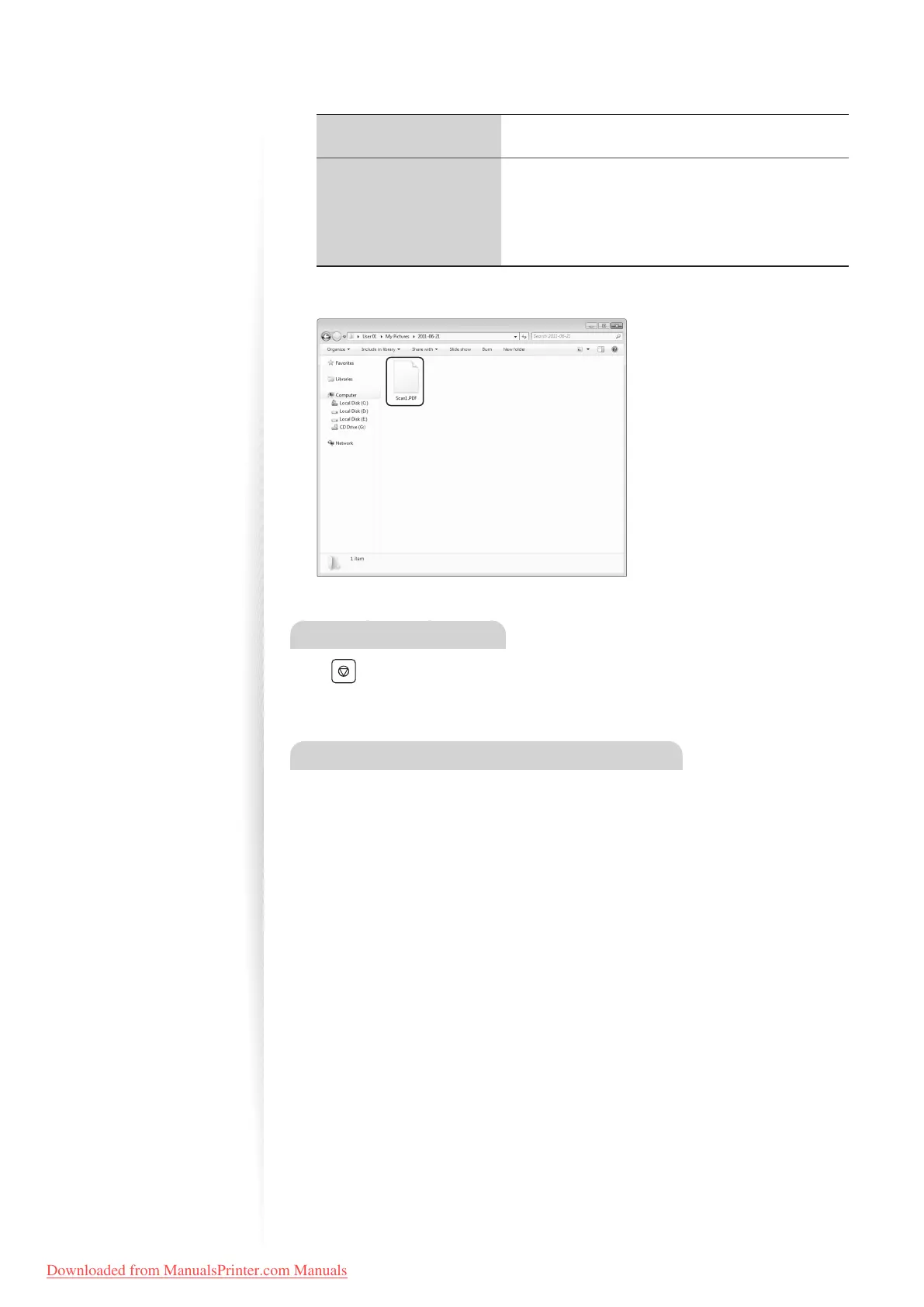
• When scanning is complete, the folder that contains the scanned images is opened
on the screen of the computer.
Canceling Scan Jobs
Press [ ] (Stop) twice.
* It is valid when only one job is processing or waiting.
Default Folder for Saving Scanned Images
By default, a new folder named after the date you scanned is created in the [Pictures] folder.
(For Windows XP, the folder is created in the [My Pictures] folder in [My Documents].)
Downloaded from ManualsPrinter.com Manuals











 To Next Page