52
Editing and Deleting Registered Destinations
You can edit or delete destinations registered in the address book.
1
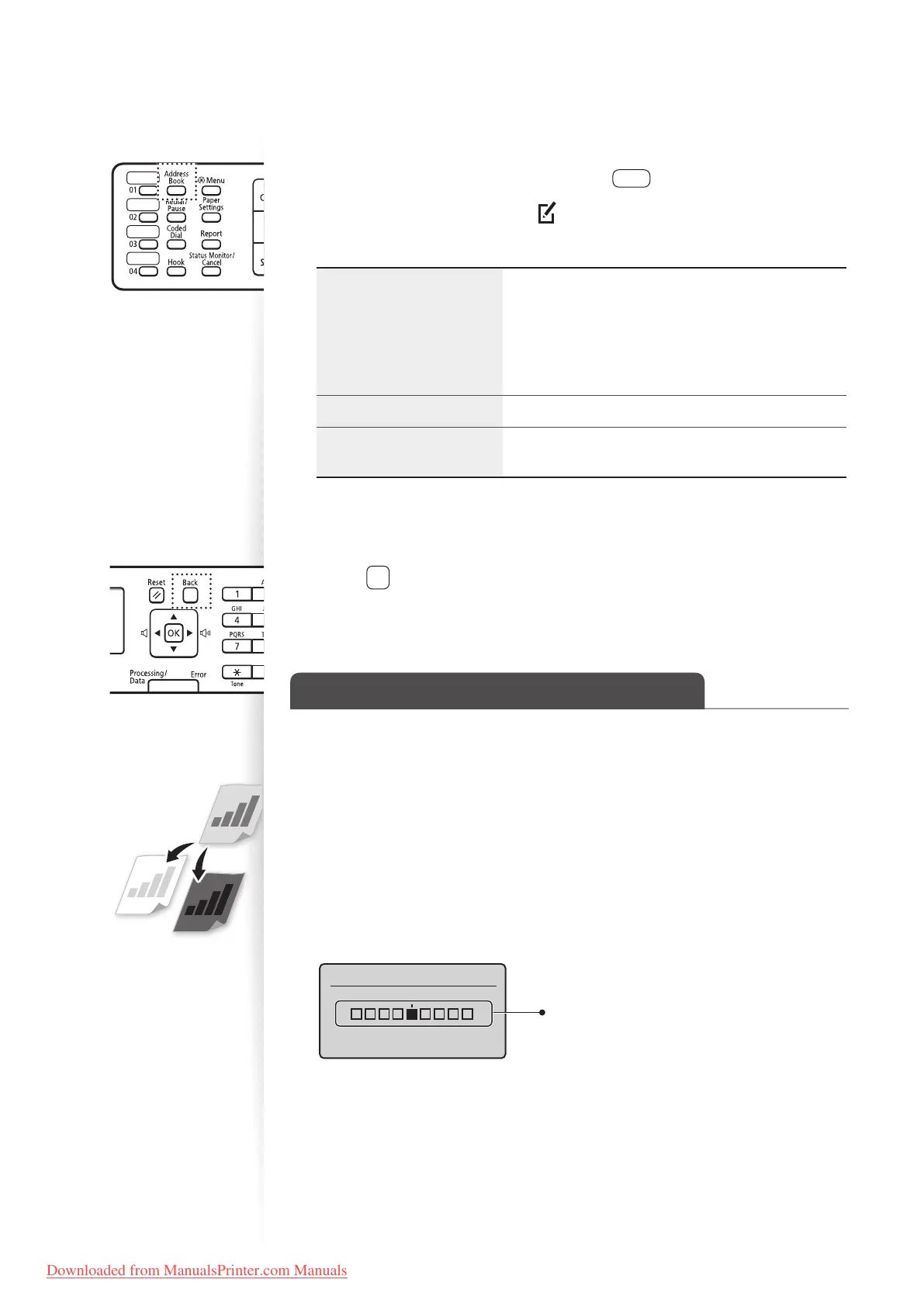
Switch to the Fax mode, and then press [ ] (Address Book).
2
Press [◄] or [►] to highlight < > (Menu).
3
Press [▲] or [▼] to highlight the desired option, and then press [OK].
<Edit Address Book>
• For a one-touch key or coded dialing code, edit the
name, fax number, one-touch key, or coded dialing
code.
• For a group, edit the group name, delete
destinations registered to the group, or add new
destinations to the group.
<Address Book Details> View the details for the destination.
<Delete From Address
Book>
Delete destinations from the address book.
4
Select the desired destination, and then press [OK].
5
Select the desired option, and then edit or delete the destination.
6
Press [ ] (Back) to close the screen.
Adjust the Image Quality for Fax
Adjusting the Density
You can adjust the density of a fax darker or lighter.
1
Place your documents (→p.19).
2
Switch to the Fax mode (→p.16).
3
Press [▲] or [▼] to highlight <Density>, and then press [OK].
4
Press [◄] or [►] to adjust the density, and then press [OK].
Density
- +
– : Less density (lighter)
+ : More density (darker)
5
Send a fax to the desired destination (→p.55).
Downloaded from ManualsPrinter.com Manuals











 To Next Page