35
Copy
Copy Multiple Pages onto One Sheet
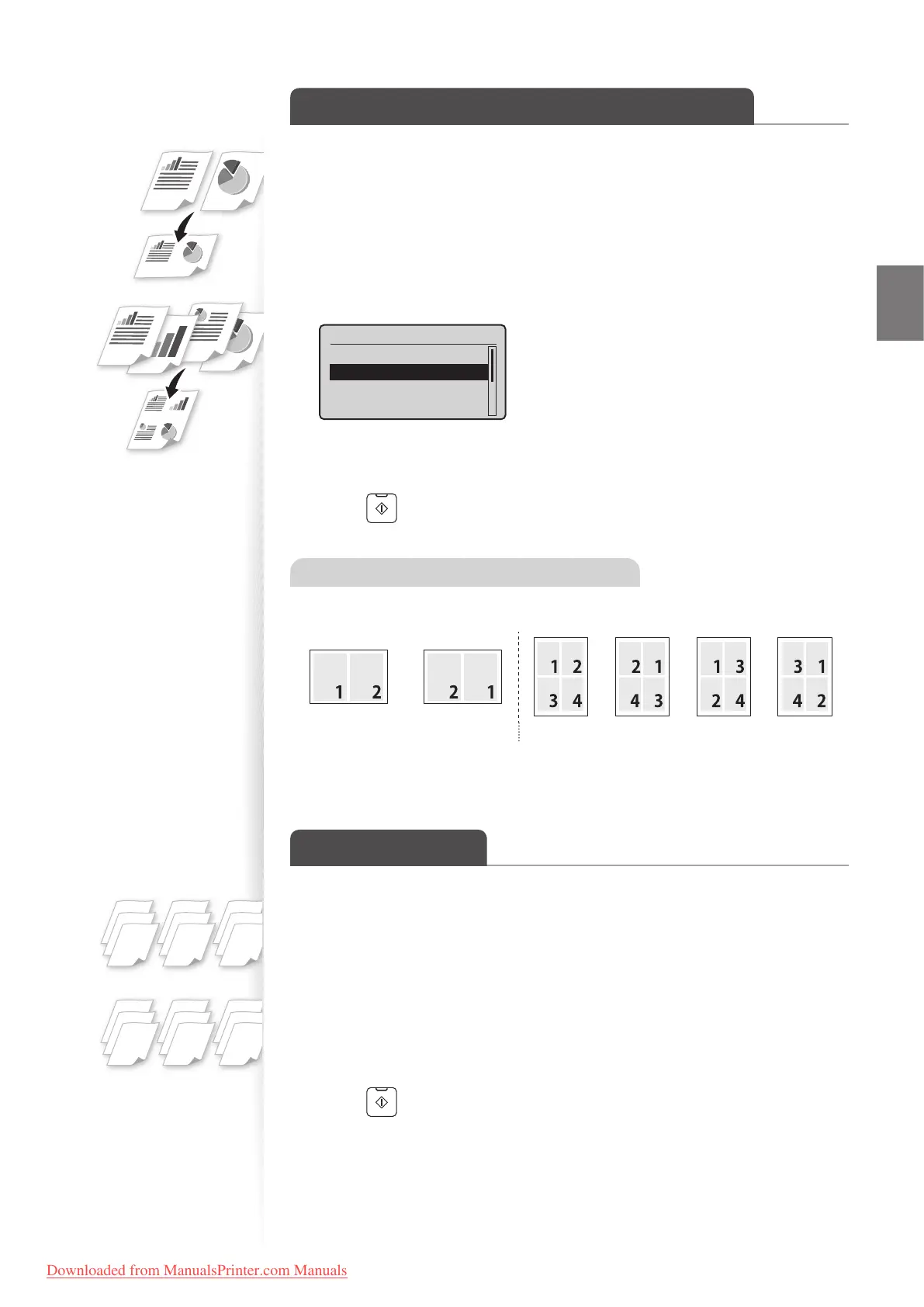
You can combine multiple pages (two or four pages) onto one copy sheet.
1
Place your documents (→p.19).
2
Switch to the Copy mode (→p.16).
3
Press [▲] or [▼] to highlight <N on 1>, and then press [OK].
4
Press [▲] or [▼] to highlight <2 on 1> or <4 on 1>, and then press [OK].
N on 1
Off
2 on 1
4 on 1
ID Card Copy
5
Press [▲] or [▼] to highlight the desired scan size, and then press [OK].
•
You may specify the scan size as <LGL> size, but the actual size is <A4> size.
6
Press [ ] (Start).
Specifying the page layout manually
If you select <Select Layout> at step 4 above, you may specify the desired page layout.
<2 on 1 (1)> <2 on 1 (2)> <4 on 1 (1)> <4 on 1 (2)> <4 on 1 (3)> <4 on 1 (4)>
Collate Copies
You can arrange copies into sets arranged in page order by using the <Collate> function
when making multiple copies of multiple documents.
1
Place your documents (→p.19).
2
Switch to the Copy mode (→p.16).
3
Press [▲] or [▼] to highlight <Collate>, and then press [OK].
4
Press [▲] or [▼] to highlight <On>, and then press [OK].
5
Press [ ] (Start).
1
2
3
1
2
3
1
2
3
1
1
1
2
2
2
3
3
3
<ON>
<OFF>
Downloaded from ManualsPrinter.com Manuals











 To Next Page