Printing from a Network Computer using a Shared Printer
3-60
Setting Up the Printing Environment
3
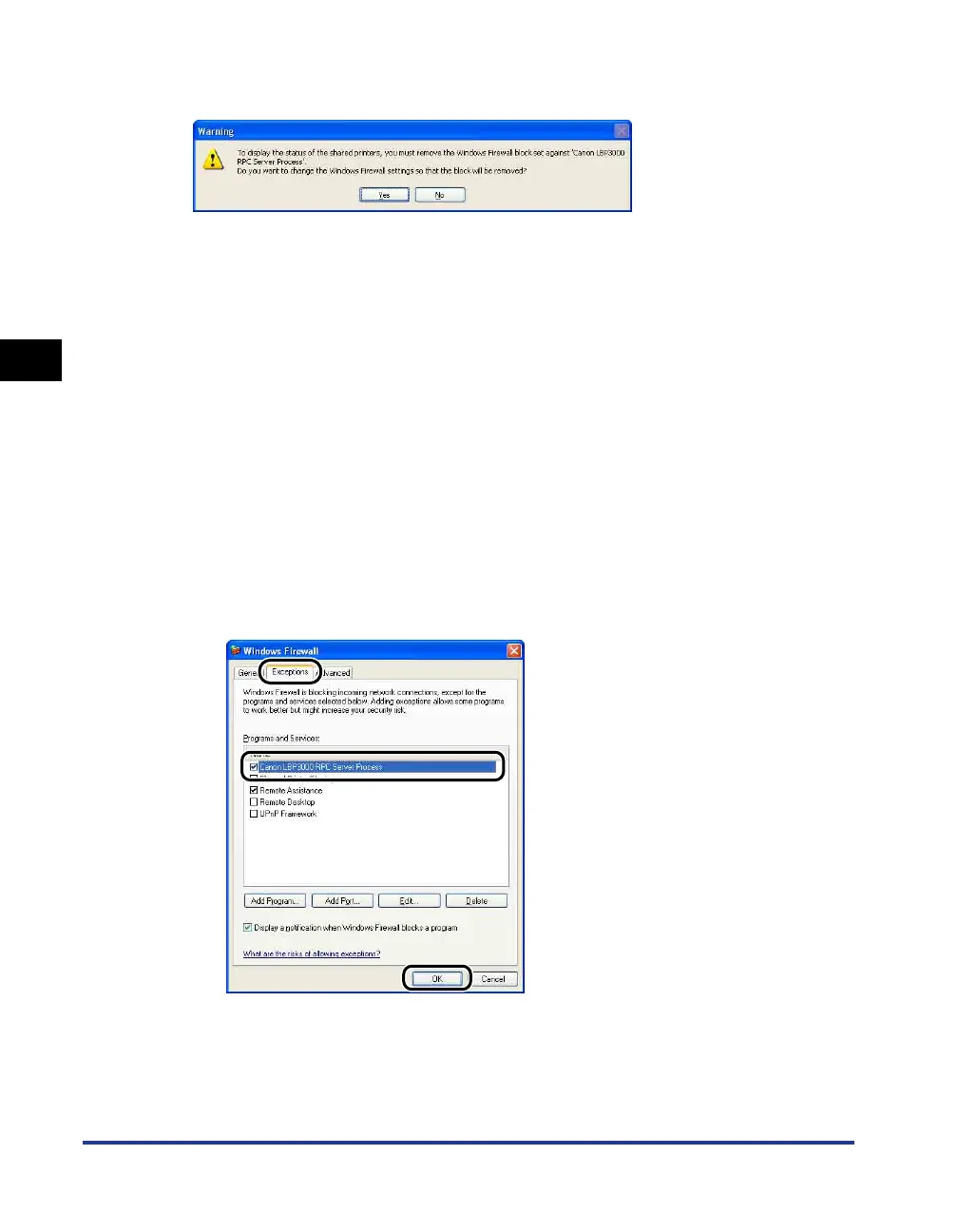
• When you installed the CAPT software from CD-ROM Setup, a [Warning] dialog box was
displayed.
- If you clicked [Yes], Windows Firewall was reconfigured to unblock communication with
the client computers.
- If you clicked [No], however, Windows Firewall was configured to block communication
with the client computers, and you will need to use the following method to clear that
block.
1. Display the [Windows Firewall] ([Windows Firewall Settings] for Windows Vista)
dialog box.
-For Windows XP: From the [Start] menu, select [Control Panel], and then click
[Network and Internet Connections] ➞ [Windows Firewall].
-For Windows Server 2003: From the [Start] menu, select [Control Panel] ➞
[Windows Firewall].
-For Windows Vista: From the [Start] menu, select [Control Panel], and then click
[Allow a program through Windows Firewall]. (If the [User Account Control] dialog
box appears, click [Continue].)
2. On the [Exceptions] sheet in the [Windows Firewall] ([Windows Firewall Settings] for
Windows Vista) dialog box, place a checkmark next to [Canon LBP3000 RPC
Server Process], and click the [OK] button.
• If you installed the CAPT software by any method other than CD-ROM Setup, you need
to use the CAPT Windows Firewall Utility software to configure Windows Firewall to
unblock communication with the client computers.
(See p. 7-8)




 To Next Page