Printing from a Network Computer using a Shared Printer
3-69
Setting Up the Printing Environment
3
Installing from the [Printers and Faxes] Folder or the [Printers]
Folder
1
Open the [Printers and Faxes] or [Printers] folder.
For Windows 98/Me/2000: Select [Settings] ➞ [Printers] from the [Start] menu.
For Windows XP Professional/Server 2003: Select [Printers and Faxes] from the
[Start] menu.
For Windows XP Home Edition: Select [Control Panel] from the [Start] menu, then
click [Printers and Other Hardware] ➞ [Printers and Faxes].
For Windows Vista: Select [Control Panel] from the [Start] menu, then click
[Printer].
The [Printers and Faxes] or [Printers] folder is displayed.
2
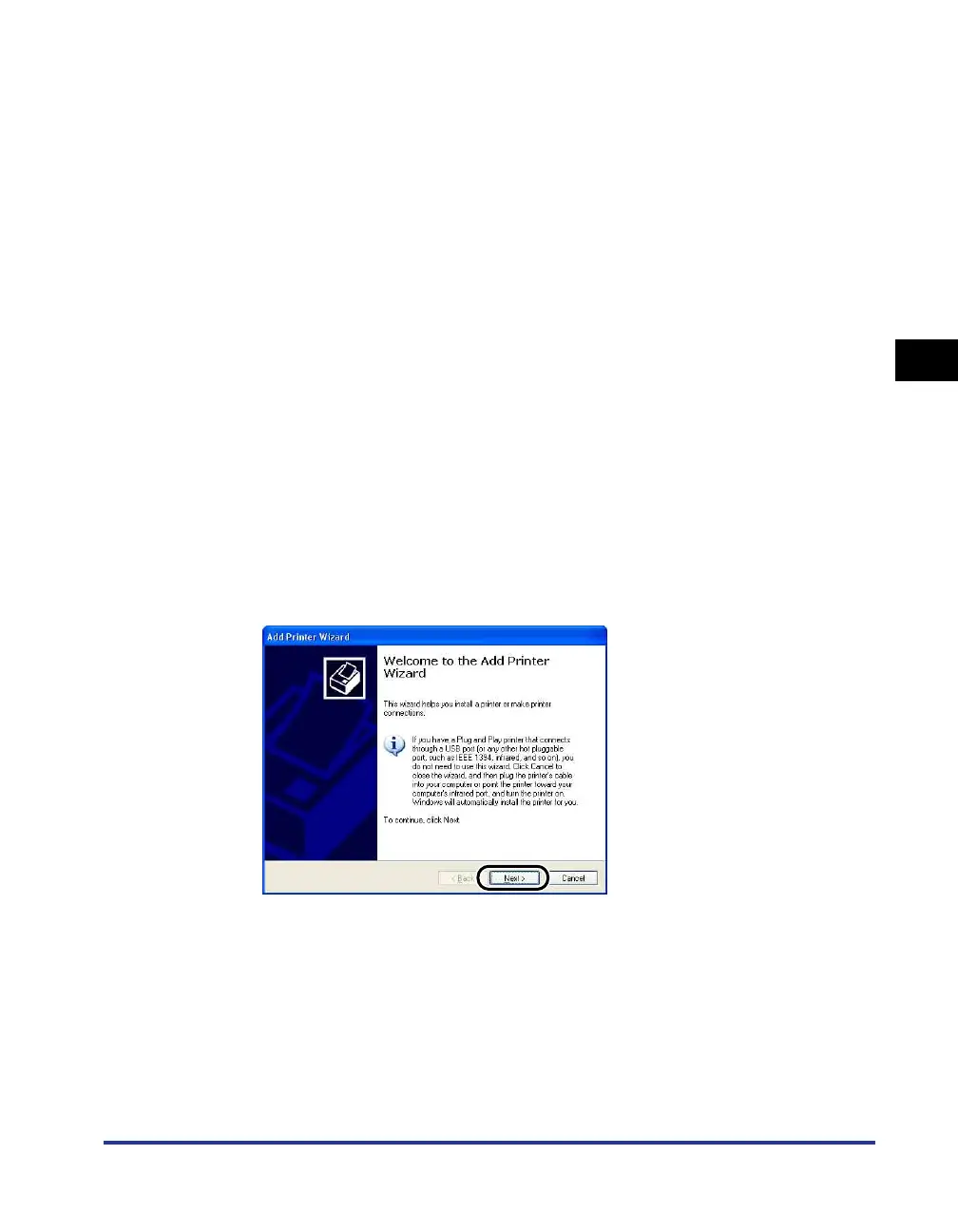
Display the [Add Printer Wizard] or [Add Printer] dialog box.
For Windows 98/Me/2000: Double-click [Add Printer].
For Windows XP Professional/Home Edition: Click [Add a printer].
For Windows Server 2003: Double-click [Add Printer].
For Windows Vista: Proceed to Step 4 by clicking [Add a printer].
3
Click [Next].




 To Next Page