Windows Firewall
7-11
Appendix
7
Configuring Windows Firewall to block communication
with client computers
1
Insert the supplied "LBP3000 User Software" CD-ROM into
the CD-ROM drive.
If CD-ROM Setup appears, click [Exit].
If you are using Windows Vista and the [AutoPlay] dialog box appears, click
[Open folder to view files], and then proceed to Step 3.
2
From the [Start] menu, select [My Computer] ([Computer] for
Windows Vista), right-click the CD-ROM icon, and then select
[Open] from the pop-up menu.
3
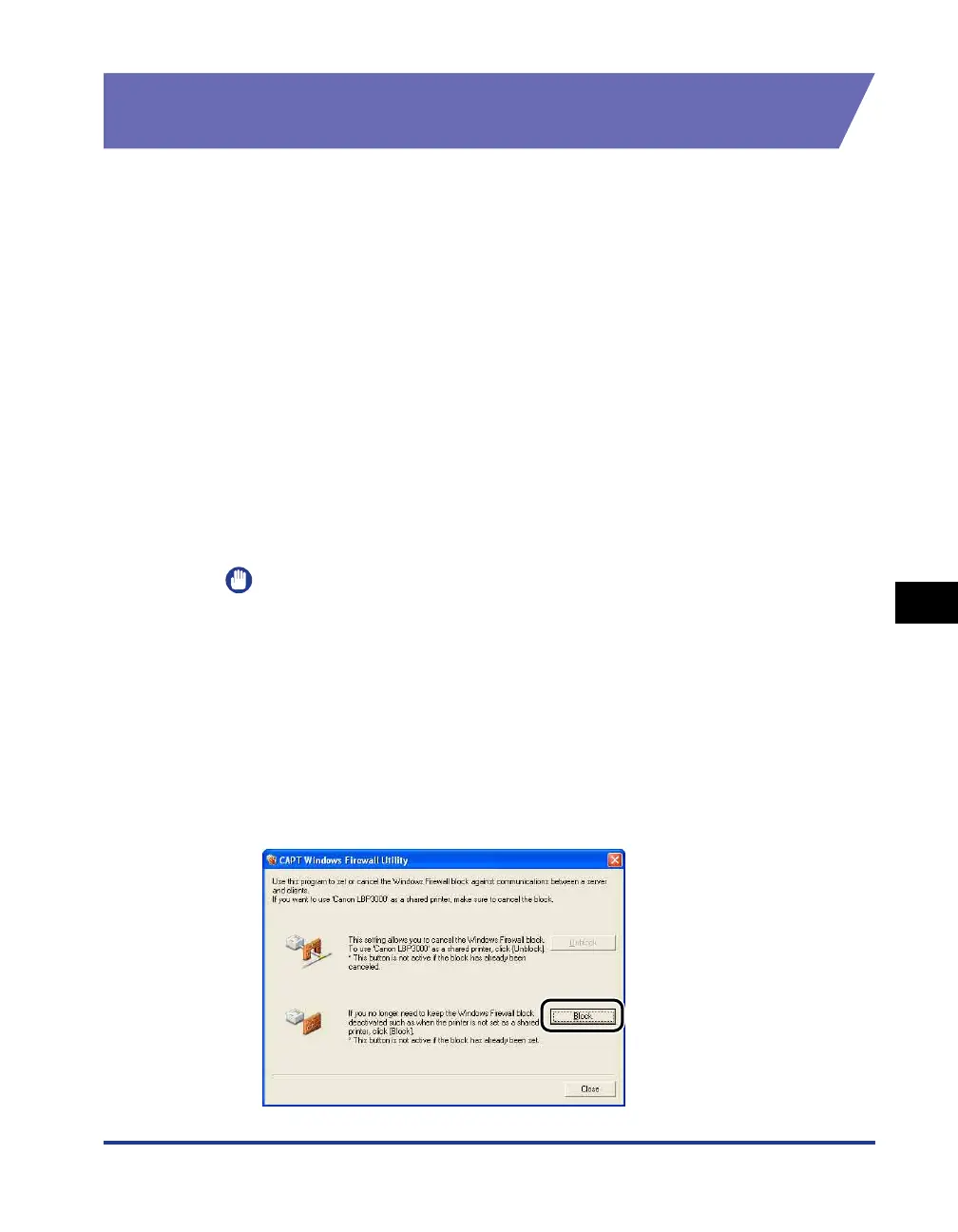
Double-click [English], then [WF_UTIL], then [CNAB3FW.EXE].
The [CAPT Windows Firewall Utility] starts.
IMPORTANT
You can also run [CAPT Windows Firewall Utility] using the following procedures.
(The CD-ROM drive name is indicated as "D:" in this manual. The CD-ROM drive
name may differ depending on the computer you are using.)
-For an operating system other than Windows Vista: Select [Run] from the [Start]
menu, enter "D:\English\WF_UTIL\CNAB3FW.EXE", and then click [OK].
-For Windows Vista: Enter "D:\English\WF_UTIL\CNAB3FW.EXE" in [Start
Search] under the [Start] menu, and then press the [ENTER] key on your
keyboard.
4
Click [Block].




 To Next Page