Installation Problems
6-28
Troubleshooting
6
If Uninstallation Fails
If you cannot uninstall the CAPT software using the uninstaller that was created
during installation, use the following procedure to uninstall the CAPT software.
1
From the [Start] menu, select [Control Panel], and then click
[Add or Remove Programs].
For Windows 98/Me/2000: From the [Start] menu, select [Settings] ➞ [Control
Panel], and then click [Add/Remove Programs].
For Windows Vista: From the [Start] menu, select [Control Panel], and then click
[Uninstall a program].
2
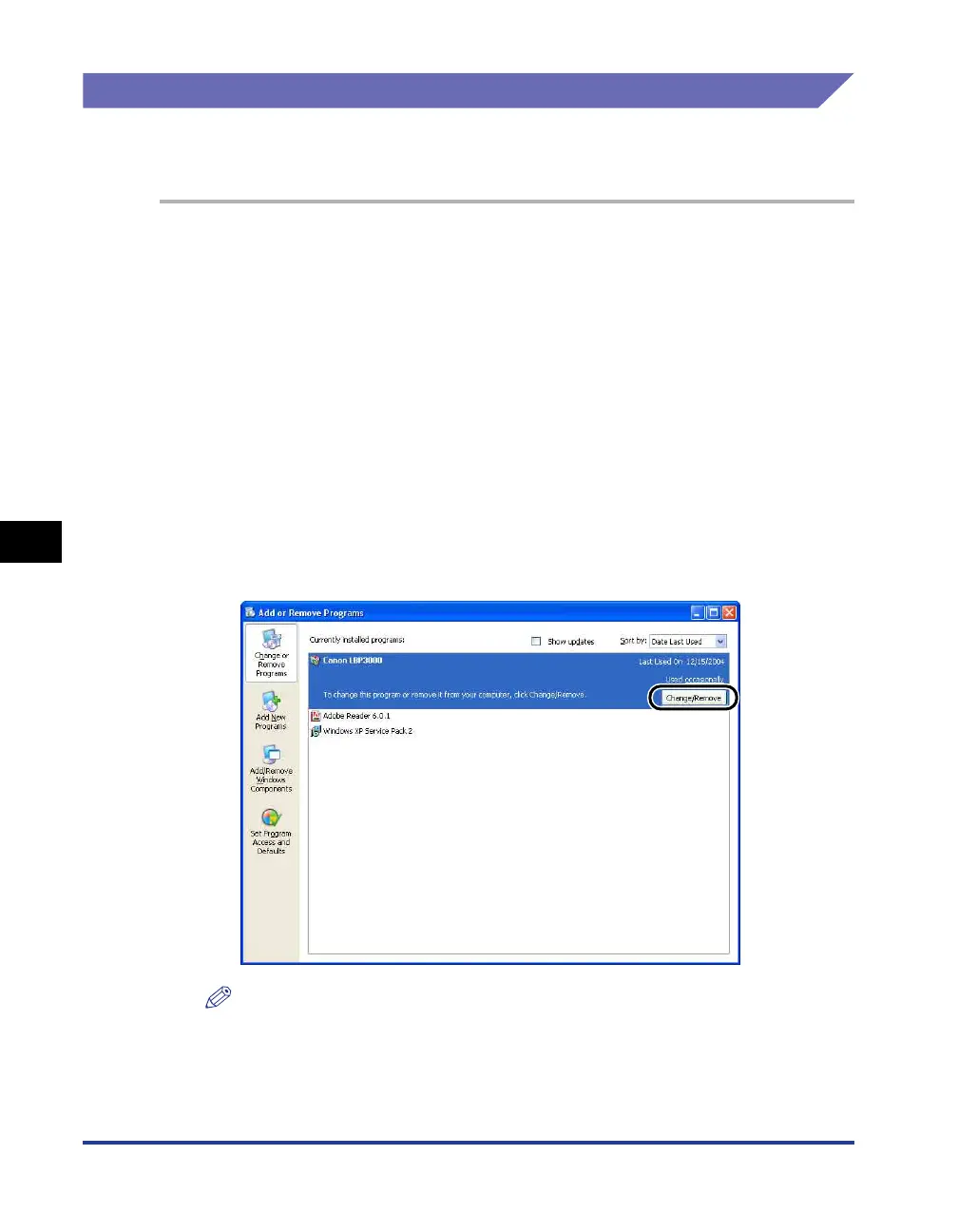
Select [Canon LBP3000] in the [Add or Remove Programs]
dialog box, then click [Change/Remove].
For Windows 98/Me: Select [Canon LBP3000] in the [Add/Remove Programs]
dialog box, then click [Add/Remove].
For Windows 2000: Select [Canon LBP3000] in the [Add/Remove Programs]
dialog box, then click [Change/Remove].
For Windows Vista: Select [Canon LBP3000] in the [Programs and Features]
dialog box, then click [Uninstall/Change].
NOTE
•
If [Canon LBP3000] is not displayed in the dialog box, perform "Uninstalling the
USB Class Driver" (See p. 6-30), and then install the CAPT software again.
•
If you are using Windows Vista and the [User Account Control] dialog box appears,
click [Continue].




 To Next Page