Printing from a Network Computer using a Shared Printer
3-62
Setting Up the Printing Environment
3
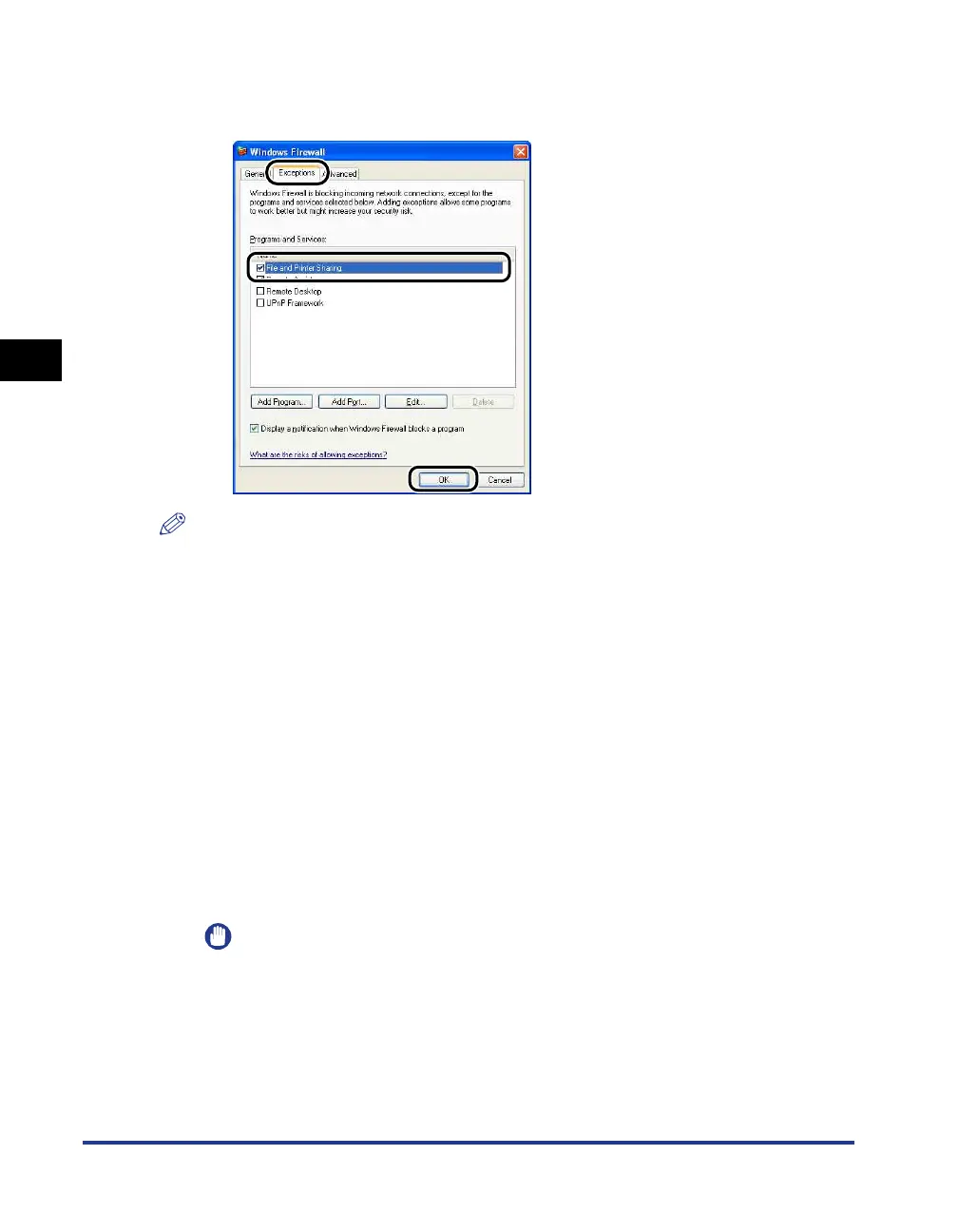
2. On the [Exceptions] sheet in the [Windows Firewall] ([Windows Firewall Settings]
for Windows Vista) dialog box, place a checkmark next to [File and Printer Sharing]
then click [OK].
NOTE
•
Clients can use either Windows 98/Me or Windows 2000/XP/Server 2003/Vista.
•
If your print server is Windows 98/Me, you cannot download and install on Windows
2000/XP/Server 2003/Vista.
•
If the print server is running Windows Vista, you cannot download and install the driver on
Windows 98/Me.
•
The screen shots shown in this section are taken from Windows XP Home Edition.
Installing from CD-ROM Setup
1
Insert the supplied "LBP3000 User Software" CD-ROM into
the CD-ROM drive.
If the CD-ROM is already in the drive, eject the CD-ROM and reinsert it into the
drive again.
The CD-ROM Setup appears automatically.
IMPORTANT
•
If you are using Windows Vista and the [AutoPlay] dialog box appears, click [Run
AUTORUN.EXE].
•
If CD-ROM Setup does not appear, display it using the following procedures. (The
CD-ROM drive name is indicated as "D:" in this manual. The CD-ROM drive name
may differ depending on the computer you are using.)
- If you are using an operating system other than Windows Vista, select [Run] from
the [Start] menu, enter "D:\English\MInst.exe", and then click [OK].




 To Next Page