Installation Problems
6-23
Troubleshooting
6
When Uninstallation Fails
If you cannot uninstall the CAPT software with Uninstaller that has been created at
the installation, or if the [Canon LBP3200] folder is not displayed on the desktop,
follow the procedure below to uninstall the CAPT software from [Add/Remove
Programs] ([Add or Remove Programs] for Windows XP).
1
Click the [Start] menu ➞ [Settings] ➞ [Control Panel] ➞ [Add/
Remove Programs].
For Windows XP: Click the [Start] menu ➞ [Control Panel] ➞ [Add or Remove
Programs].
2
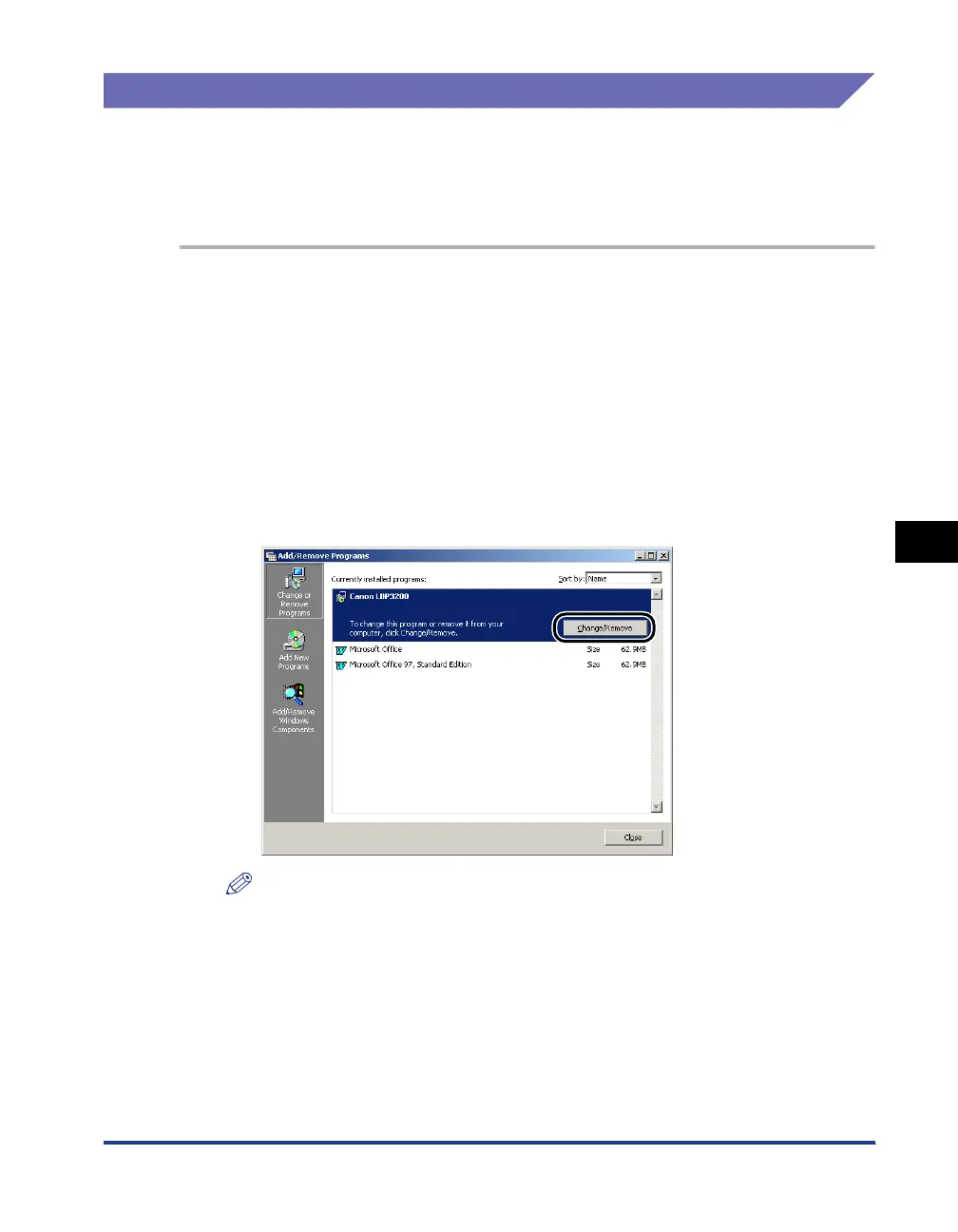
Select [Canon LBP3200] in the [Add/Remove Programs]
dialog box (the [Add or Remove Programs] dialog box for
Windows XP), then click [Change/Remove] ([Add/Remove] for
Windows 98/Me).
NOTE
If [Canon LBP3200] is not displayed in the [Add/Remove Programs] dialog box on
Windows 2000 (the [Add or Remove Programs] dialog box for Windows XP), uninstall
the USB class driver (see "Uninstalling the USB Class Driver," on p. 6-24), then
install the CAPT software.
If [Canon LBP3200] is not displayed in the [Add/Remove Programs] dialog box on
Windows 98/Me, install the CAPT software. (See "Installing by Selecting the USB
Port (Windows 98/Me Only)," on p. 6-27.)




 To Next Page