Case Communications 6401 Rugged ADSL Router Manual – Rev 1.5
SECTION 6 - DIAGNOSTICS Page 6.1
6. DIAGNOSTICS
6.1 INTRODUCTION
When you select diagnostics menu on the Case Communications 6401 Rugged ADSL Router, it
automatically tests the local Ethernet ports and your WAN settings and produced a series of results.
If the WAN is ‘down’ or disconnected then the only ports that will be tested are the Ethernet ports.
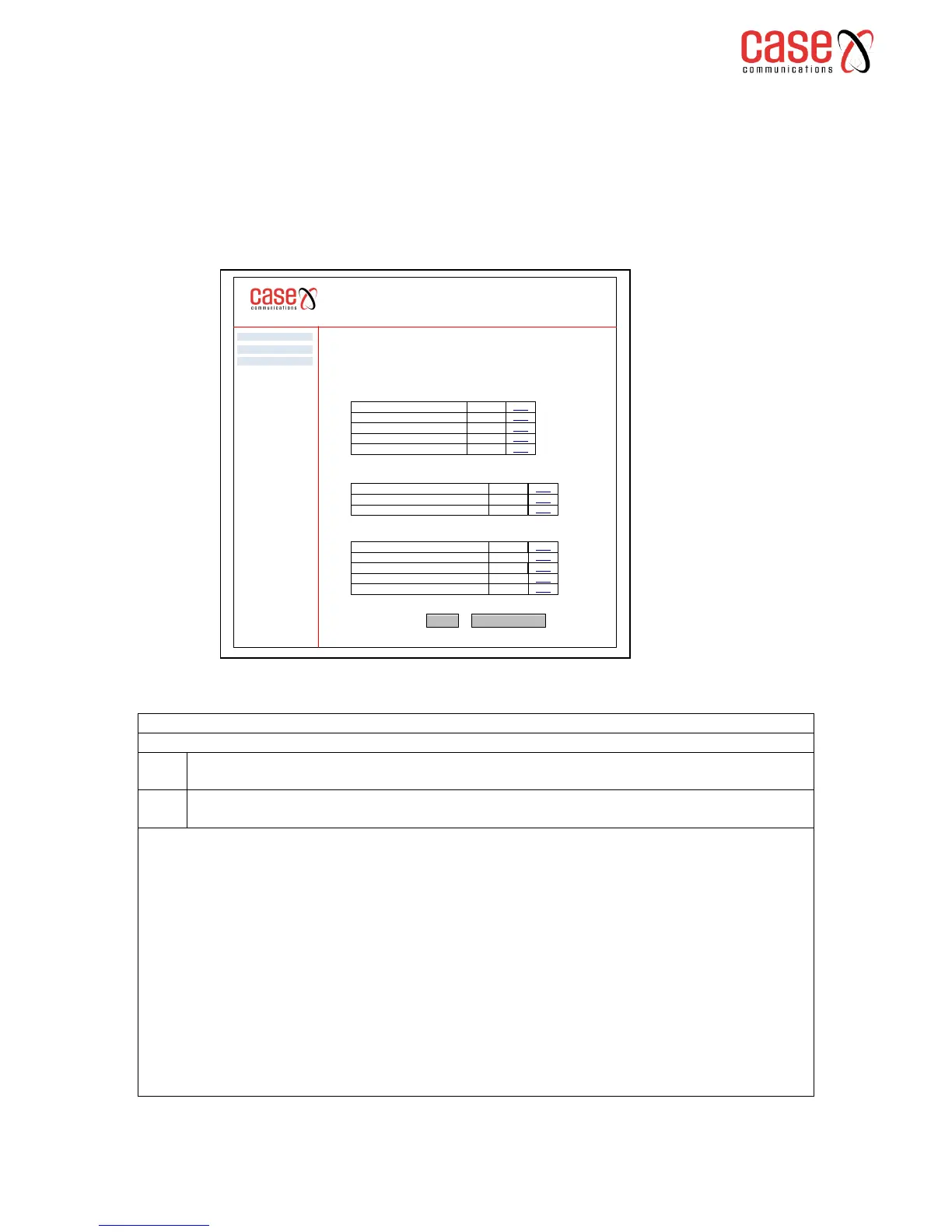
The page below shows the results of a ‘Diagnostics ‘test.
The tables over leaf explain these tests and their meanings.
Test the connection to your Local network
Test eth0 – eth 1, eth 2, eth3, eth 4
Indicates that the Ethernet interface from your computer is connected to the LAN port on your
Case Communications 6401 Rugged ADSL Router
Indicates that your Case Communications 6401 Rugged ADSL Router does not detect an
Ethernet Interface on your computer
Troubleshooting
Note. If this test fails, follow the trouble shooting procedures listed below and rerun diagnostics by
selecting ‘re-run diagnostic Tests’
1. If you’re not able to access the management page on the Case Communications 6401 Rugged
ADSL Router verify that the Ethernet cable from your computer or your hub is connected to
the LAN port on the router. Re-seat the cable by removing and replacing it to the same port.
2. Turn off your Case Communications 6401 Rugged ADSL Router wait 10 seconds and then
power it on.
3. With the router on, press the reset button on your Case Communications 6401 Rugged ADSL
Router for at least 5 seconds and release it. This resets the router to its default configuration.
Wait for the router to initialise, then close and restart your browser. Then it will be necessary
to re-configure the router.
6401 Rugged Router
pppoa_0_0_38 Diagnostics
Your modem is capable of testing your DSL connections. The individual tests are listed below. If a test
displays a fail status, click ‘rerun Diagnostic Tests’ at the bottom of this page to make sure the fail
status is consistent. If the test continues to fail click ‘Help’ and follow the trouble shooting procedures.
Test the connection to your local network
Test ADSL Synchronisation
Test ATM OAM F5 Segment Ping
Test ATM OAM F5 end to End Ping
PASS Help
PASS Help
PASS Help
Test your eth0 Connection
Test your eth1 Connection
Test your eth2 Connection
Test your eth3 Connection
Test your eth4 Connection
FAIL
PASS
FAIL
FAIL
PASS
Help
Help
Help
Help
Help
Test the connection to your DSL Service provider
Test the connection to your Internet Service Provider
Test with OAM F4Test
Test PPP server Session
Test Authentication with ISP
Test the assigned IP Address
Ping default gateway
Ping primary Domain Name Server
PASS
PASS
PASS
PASS
PASS
Help
Help
Help
Help
Help
Advanced Setp
Diagnostics
Management


 To Next Page