3. Create a directory on your PC called c:\tuft.
4. Navigate to either of the following folders:
• Software USB > SOFTWARE - EHX.xxx > 3rd_Party_Software > EQue TFTP Server
App
• Drivers USB > ECLIPSE DRIVERS > 3rd_Party_Software > EQue TFTP Server App
Open the folder. Copy tftpserv.exe into the c:\tftp directory.
Note:
Any TFTP server can be used as long as it points to the C:\TFTP folder.
5. Navigate to the following folder on the software USB:
• Drivers USB > ECLIPSE DRIVERS > Omega-Median-Delta > xxxxxx- E-Que
application MK-I & MK-II (where xxxxxx represents the product number)
Open the folder. Copy the E-QUE software file (*.image format file) into the c:\tftp directory.
6. From the same folder, copy the Tera Term macro file combined_eque_upgrade.ttl to the
c:\tftp directory.
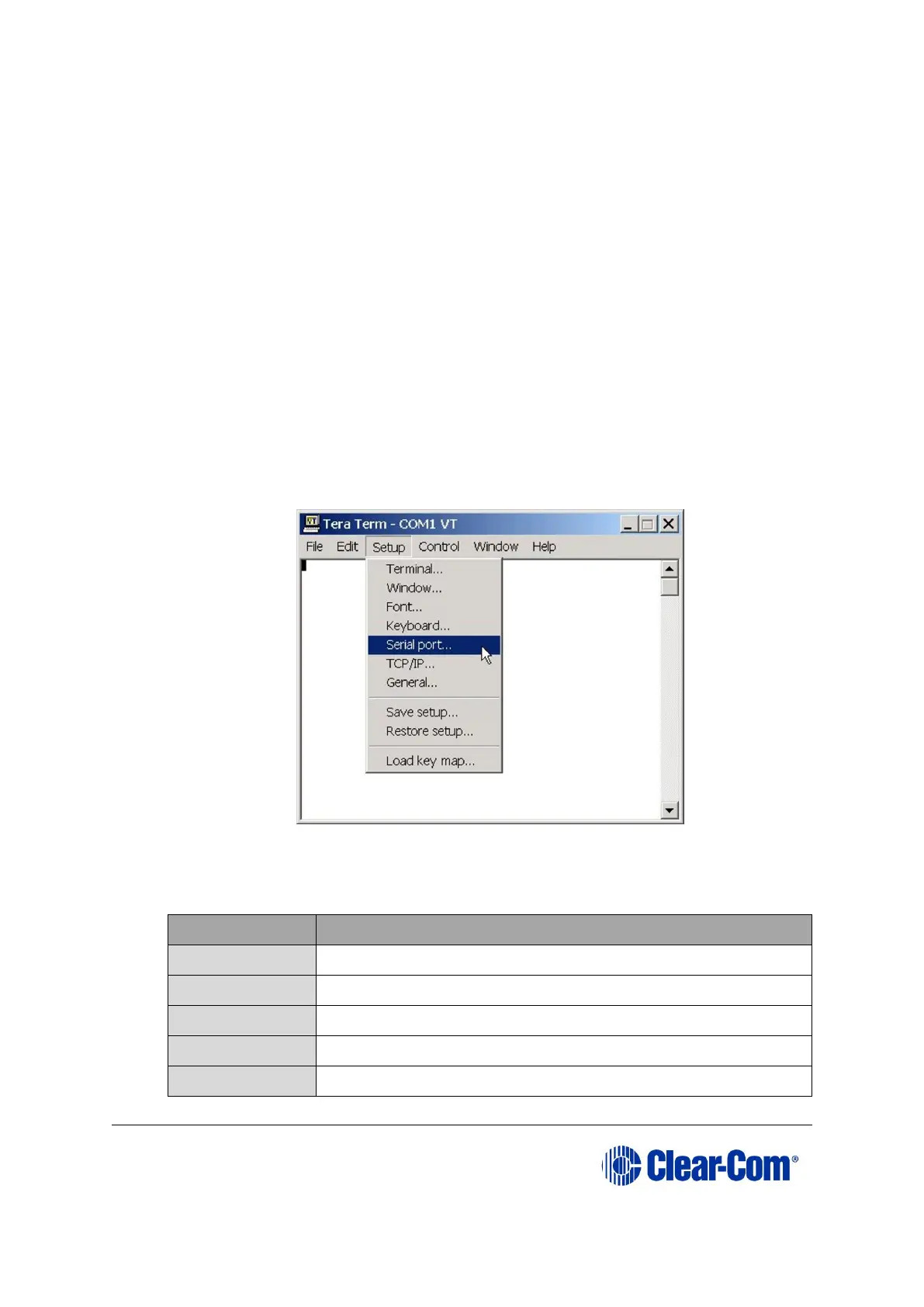
7. Start Tera Term. Open the Setup menu and select Serial Port….
Figure 9-5: Tera Term: selecting Serial Port
8. In the Serial port configuration dialog, enter the following settings:



 To Next Page