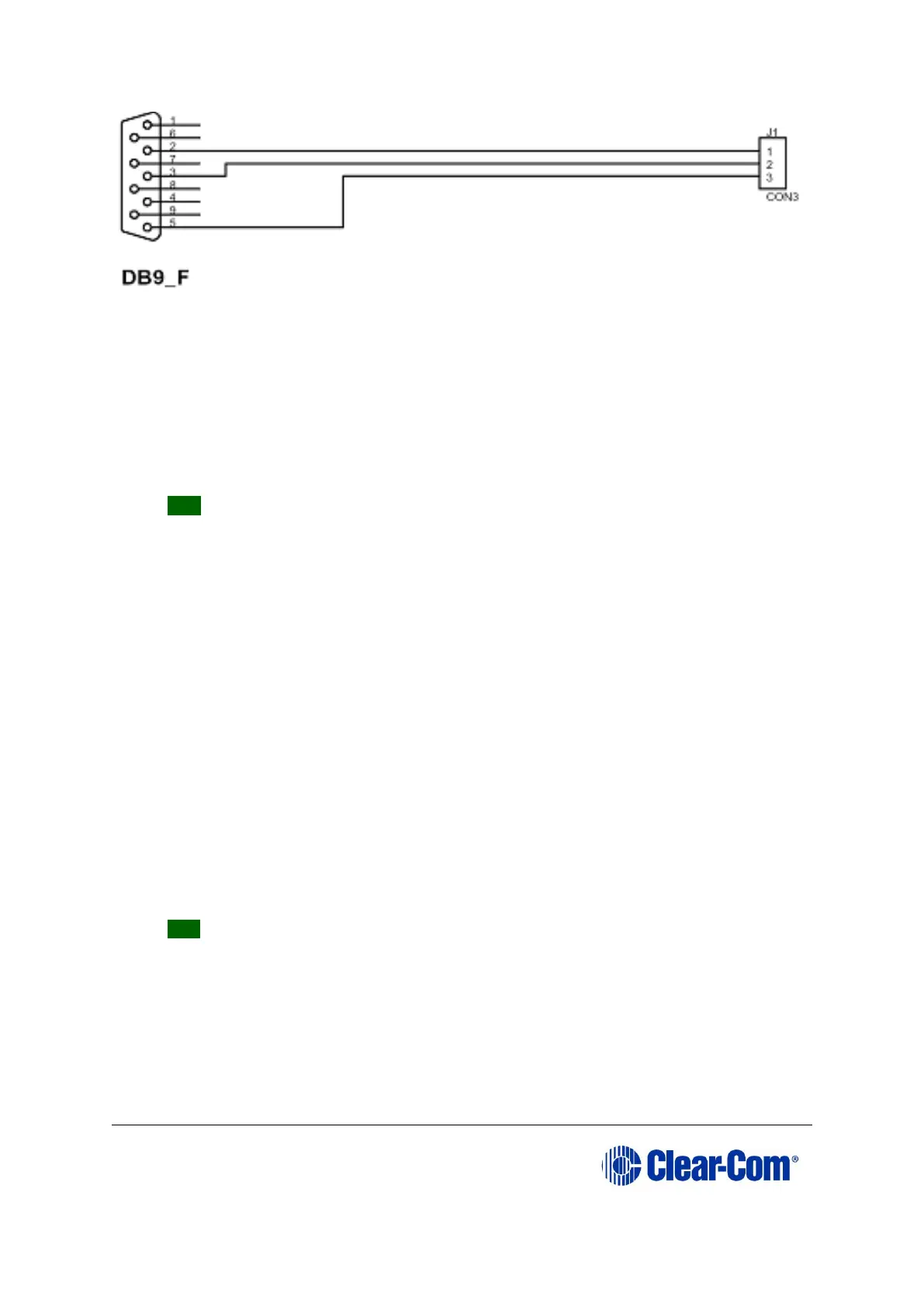
Figure 9-9: MVX-A16 serial cable (CAB-MVX-48Z)
2. Install Tera-Term. Third party software is available from either of the Eclipse HX 9.0 upgrade
media:
• Software USB > SOFTWARE - EHX.xxx > 3rd_Party_Software > Teraterm
• Drivers USB > ECLIPSE DRIVERS > 3rd_Party_Software > Teraterm
Tip: For more information about installing Tera Term, see Appendix G: Tera
Term
3. Create a directory on your PC called c:\tftp.
4. Navigate to either of the following folders:
• Software USB > SOFTWARE - EHX.xxx > 3rd_Party_Software > EQue TFTP Server
App
• Drivers USB > ECLIPSE DRIVERS > 3rd_Party_Software > EQue TFTP Server App
5. Open the folder. Copy tftpserv.exe into the c:\tftp directory.
Note:
Any TFTP server can be used as long as it points to the C:\TFTP folder.
5. Navigate to the following folder on the software USB:
• Drivers USB > ECLIPSE DRIVERS > Omega-Median-Delta > xxxxxx - E-Que
application MK-I & MK-II (where xxxxxx represents the product number)
Open the folder. Copy the E-QUE firmware file (*.image format file) into the c:\tftp directory.
Tip: The folder also contains a Read Me file (*.txt), which includes the procedure
for upgrading the E-QUE firmware file.
6. From the same folder, copy the Tera Term macro file combined_eque_upgrade.ttl to the
c:\tftp directory.
7. Start Tera Term. Open the Setup menu and select Serial Port….



 To Next Page