Note: The prompt is displayed provided that the i-Station panel is
online.
3) To decline the upgrade, the i-Station user presses the NO key (right-hand
flashing). The i-Station panel returns to its normal display. If the upgrade is
declined it will not be offered again until a black reset (reset and clear all
memory) is performed on the matrix.
To accept the upgrade, the i-Station user:
a. Presses the YES key (left-hand flashing). The i-Station panel displays the
following:
ARE YOU SURE nnnnn YES NO.
Each word corresponds to a key on the panel, and nnnnn represents the
firmware upgrade number.
b. If the user selects the NO key, the upgrade is cancelled and will not be
offered again until a black reset (reset and clear all memory) is performed
on the matrix.
If the user selects the YES key, the firmware upgrade is applied to the i-
Station panel.
14.2.3 Manually upgrading E-Station application code
The procedure for upgrading the E-station application code is very similar to the
procedure for upgrading the i-Station panel application code (see 14.2.1 Manually
upgrading i-Station & E-Station panel application code).
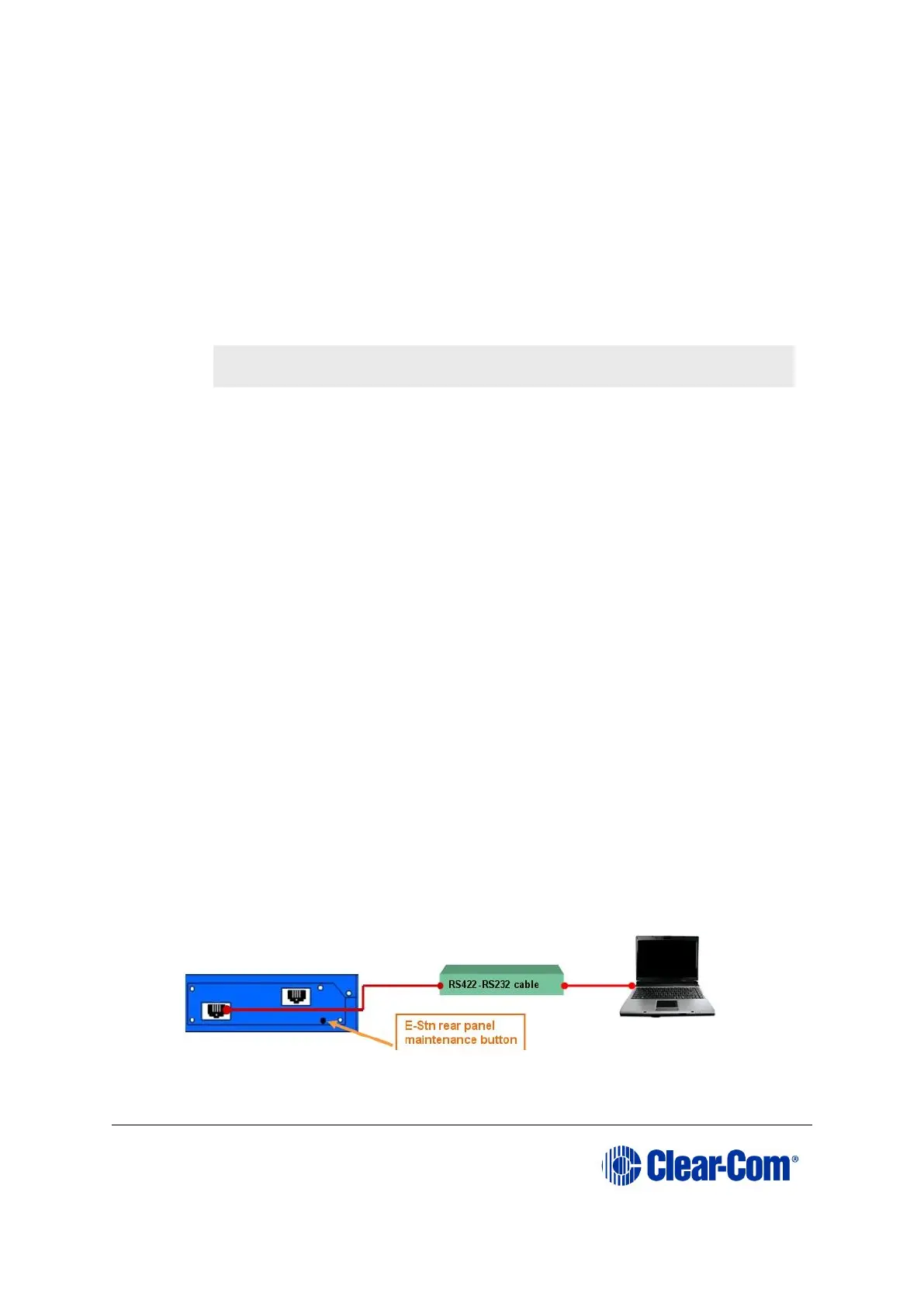
To manually upgrade the E-Station:
1. Connect the converter cable to the expansion in RJ-45 port (J1) on the E-station
undergoing the upgrade.
If the cable has separate i-Station and E-station CAT5 cables, the E-station
CAT5 cable lead is used for the connection to J1 on the E-station. Connect the
other end of the cable to the serial port of the PC running the Tera-Term
software.
Note:
The E-Station must not be powered while the cable is connected.
Figure 14-11: E-Station manual upgrade



 To Next Page