b. Double click Local Area Connection and click Properties.
c. In the This connection uses the following items box, select Internet
Protocol (TCP/IP) and select Properties.
Tip: Make a note of all information in this window in case of later problems
with networking.
d. Select the Use the following IP address radio button and enter
172.16.5.50 into the IP address line. Set the Subnet mask to
255.255.0.0.
Note:
It is advisable to switch off any wireless Wi-Fi connections that maybe
running on your PC when doing this upgrade.
6. Start the TFTP server application.
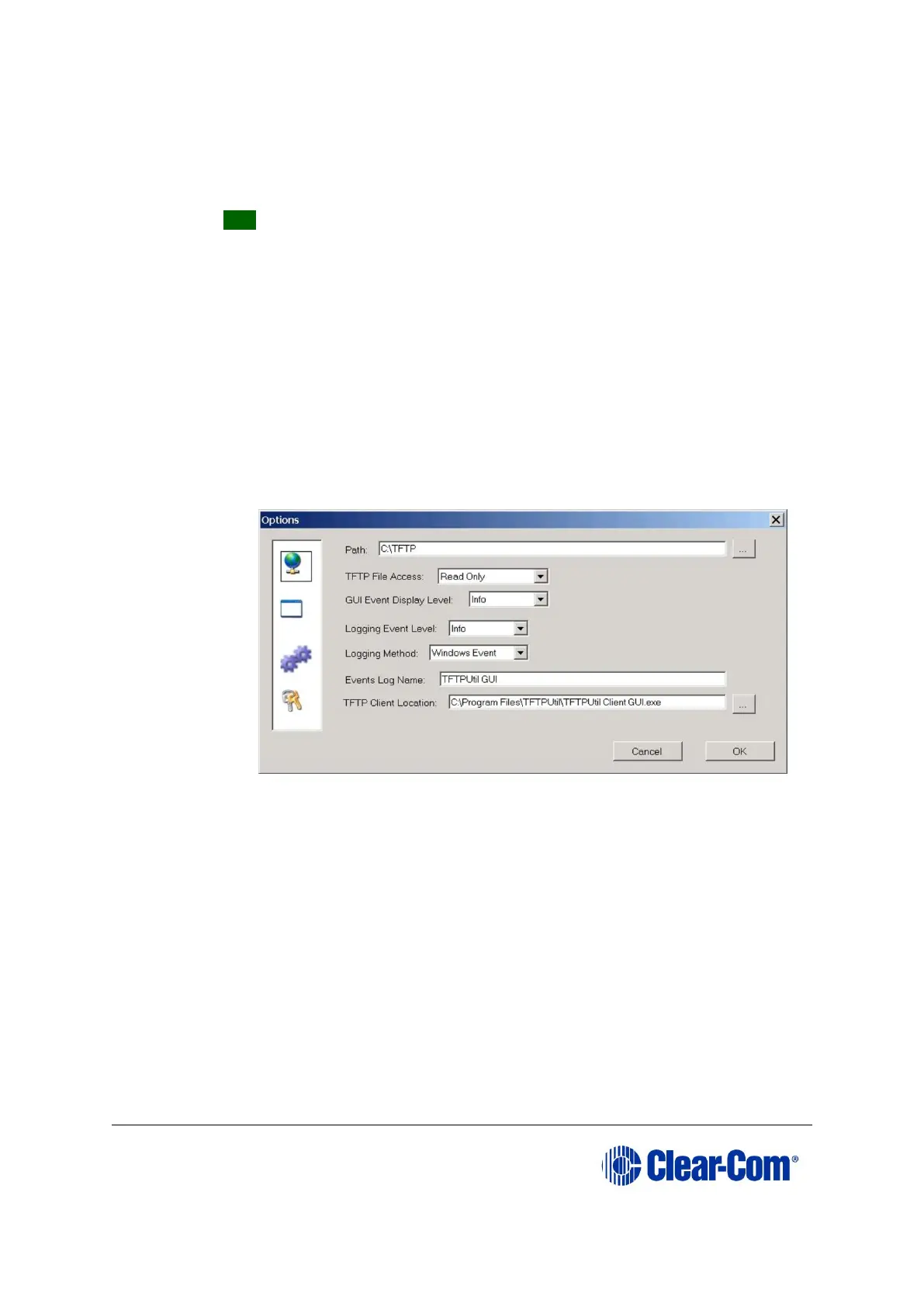
7. Click the options icon (spanner) to display the options window. Check that the
C:\TFTP\ folder is set as the path.
Figure 14-19: TFTPUtil Options
8. Select the icon with two blue cogs on the left hand side of the window. Check the
settings as below.



 To Next Page