a. Place the CPU card in Test mode.
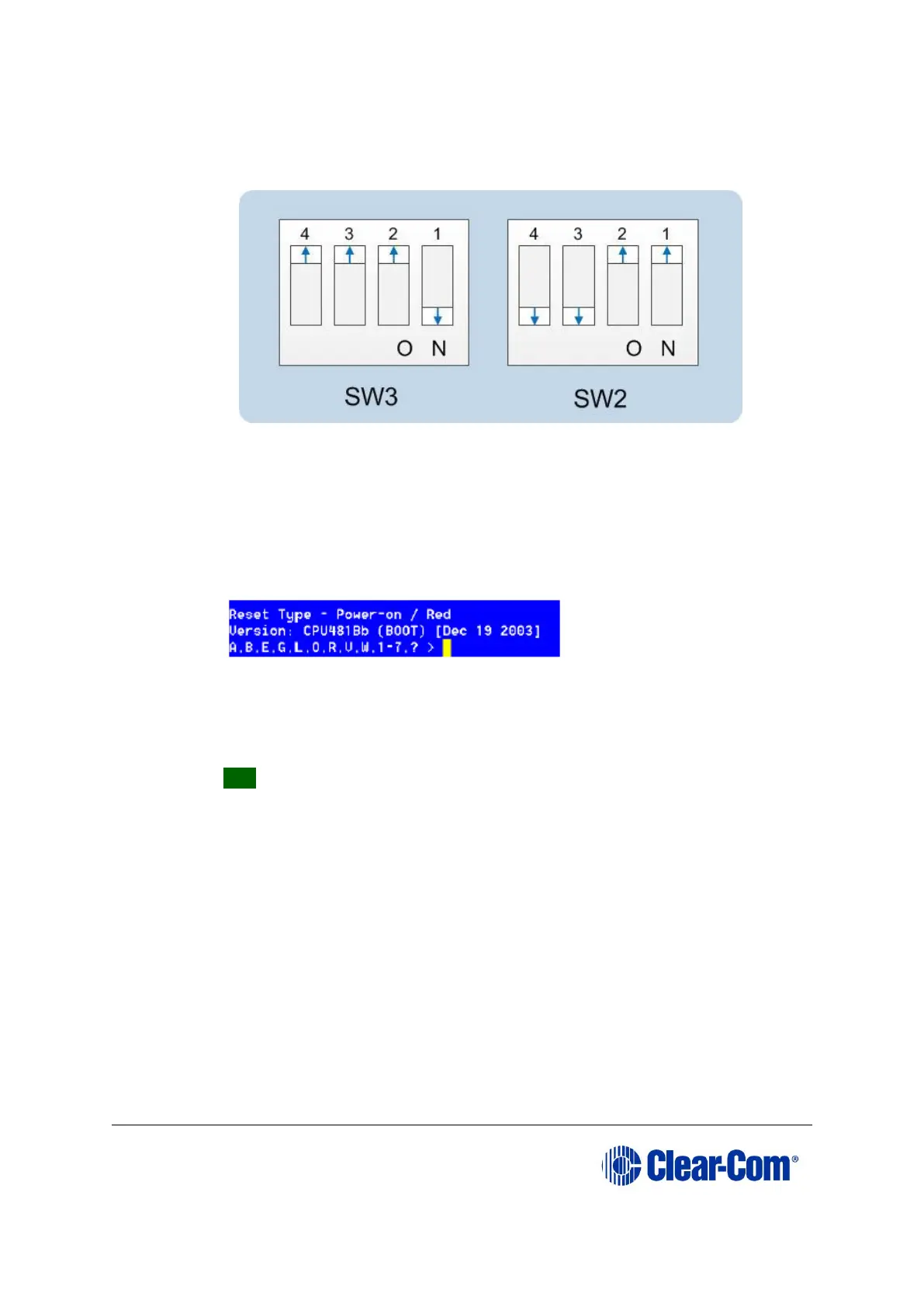
b. Set the DIP switches on the CPU card as follows:
Figure 5-7: DIP switch settings, Test mode
c. Insert the CPU card into the Eclipse HX-Median / Eclipse HX-Omega /
Eclipse HX-Delta matrix. You can place the card in either the P1 or P2
slot.
d. Confirm that the CPU card has entered test mode. If the card is in test
mode, data similar to the following is displayed on the PC:
Figure 5-8: Tera Term: CPU card test mode.
Note: If you do not see the data above, press Enter on the PC.
Tip: To see all the available options in test mode, press ? on your
keyboard. To see all the current applications loaded onto the CPU, press i.
e. On your PC keyboard, press number 1. To start the erasure of Flash
memory, press Enter (or Return). Select y and Enter to confirm.
Note:
It takes approximately 1 minute to erase Flash.
f. When the Flash has been erased, press number 2 on your keyboard. To
start the erasure of NVRAM, press Enter (or Return). When the NVRAM
erase is complete, remove the CPU card.
9) Download the new application code (firmware) to the CPU card(s), using Tera
Term.
a. Place the erased CPU card in serial download mode. Set the DIP switches
on the CPU card as follows:



 To Next Page