P2544PM | 2022-12 | REV H
4 Initial operation
4.1 Configuring the access point
4.1.1 mPro200GC-AP
In the factory setting, the IP address and the subnet mask of the controller are specified with a default
value (Ethernet 1):
The 200 Series controllers have a factory default IP address of 192.168.100.200. If multiple controllers
are connected to the same network without changing the original IP address, an IP conflict occurs.
► Assign a new, unique IP address to each controller.
Configuring the access point
1. Connect laptop/PC directly to the controller via an Ethernet cable.
2. Start mProRemote Professional on the Laptop/PC.
3. Enter the IP address 192.168.100.200 in the Remote Control tab in the Target input field.
4. Press Remote (TCP/IP).
A connection to the controller is established.
The user interface of the controller opens on the laptop/PC.
5. Select Navigator > Utility > System Settings > Cordless Tools.
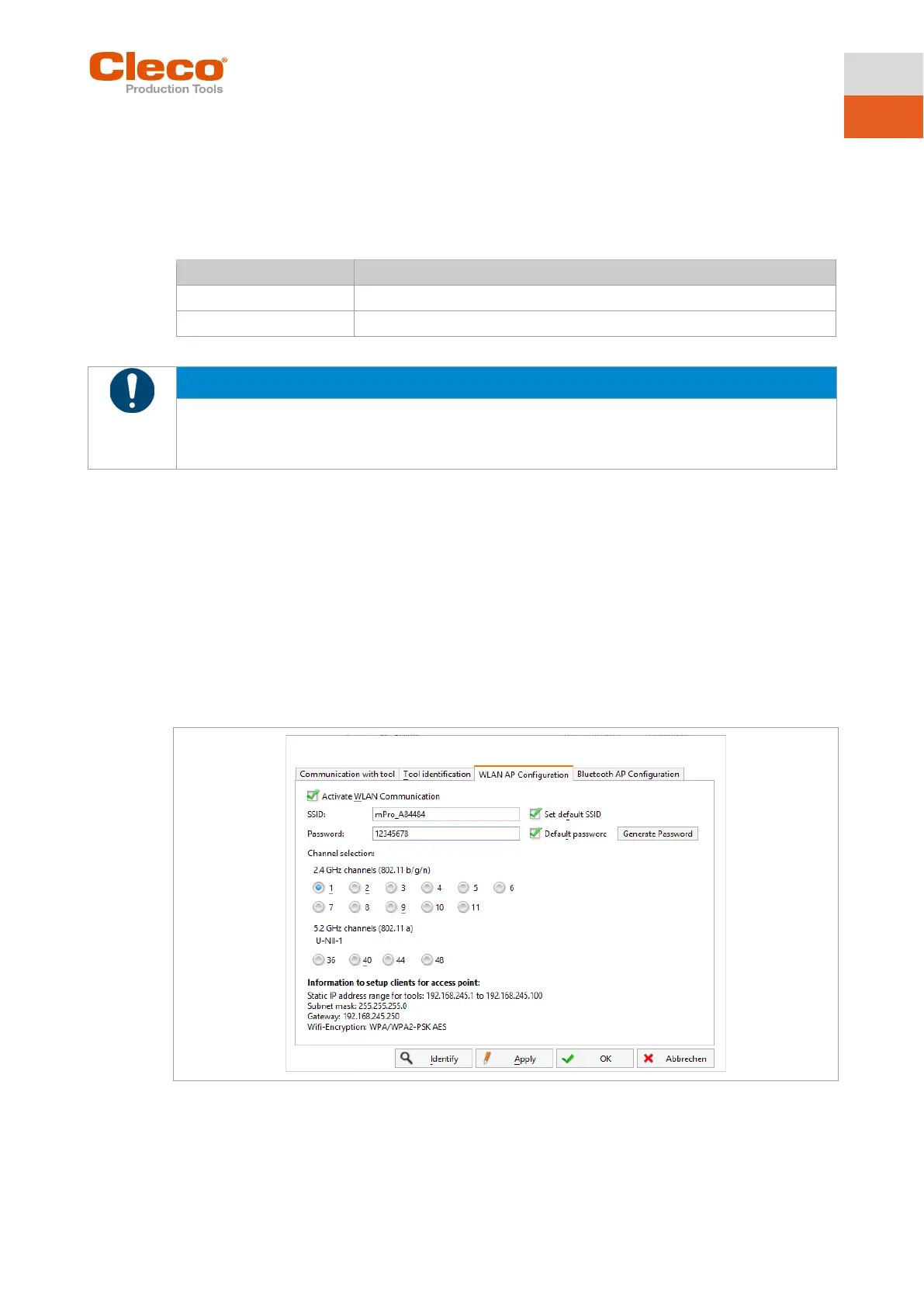
6. Open the WLAN AP Configuration.
7. Carry out the desired settings for the configuration of the access point.
8. Press <Apply> to save the changes.
This tab is only displayed for the series mPro200GC(-AP) controller.
Fig. 4-1: WLAN AP Configuration tab



 To Next Page