P2544PM | 2022-12 | REV H
5.10.1 Activating/deactivating WLAN connection
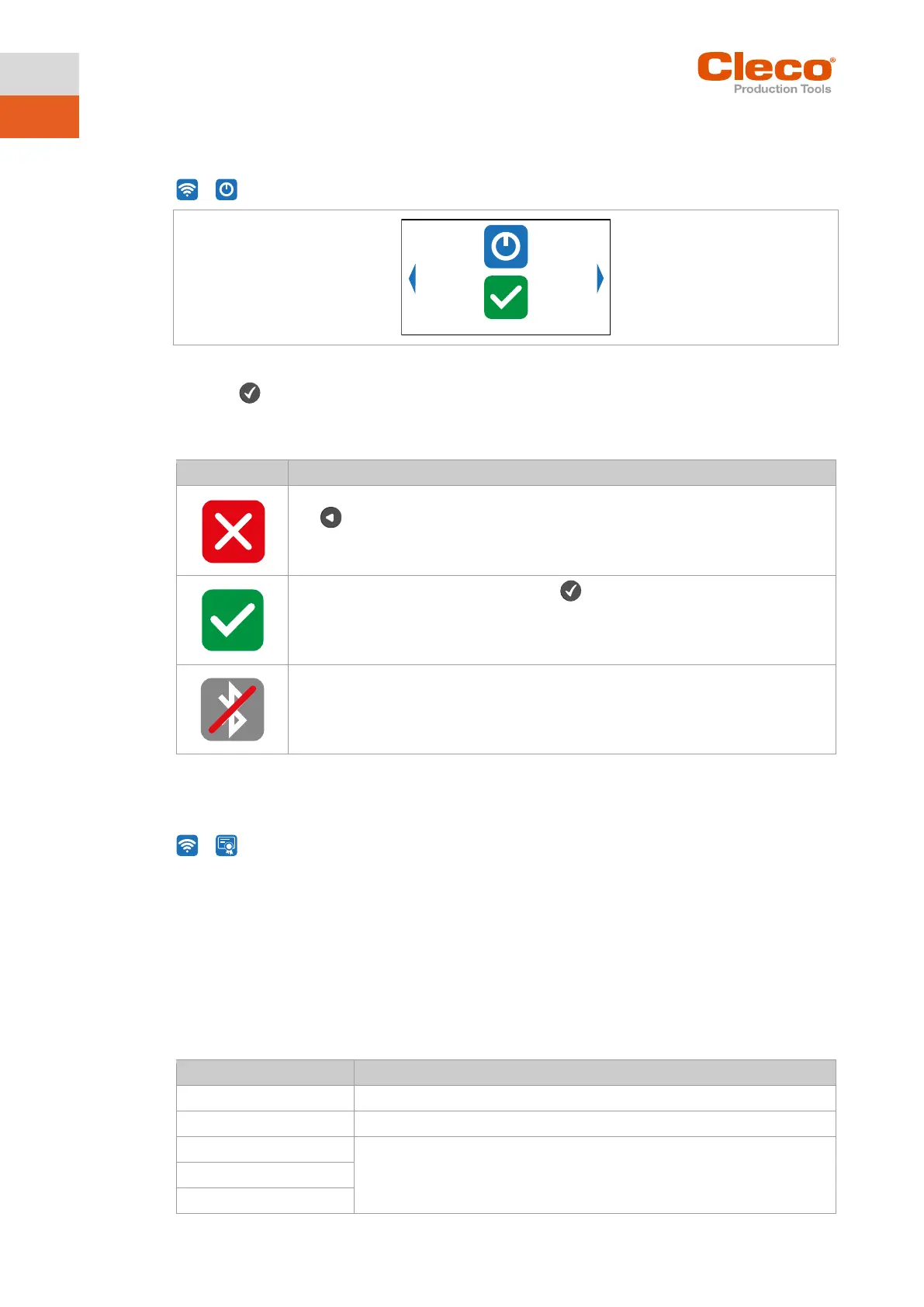
This menu is displayed when the WLAN connection is to be activated or deactivated.
>
Fig. 5-33: Submenu – Activating/deactivating WLAN connection
Press the button to switch between the following options. The visible option is active. A simultaneous
WLAN and Bluetooth connection is not possible. As soon as the WLAN connection is activated, the tool
disconnects the Bluetooth connection.
► Select this button to cancel the process. Leave the menu press and hold the
button.
► Select this button and confirm with the button to activate/deactivate the WLAN
connection.
A simultaneous WLAN and Bluetooth connection is not possible.
As soon as the WLAN connection is activated, the tool disconnects the Bluetooth con-
nection.
5.10.2 Installing EAP-TLS certificate
The EAP-TLS certificate is used for WLAN encryption.
>
Setting up the EAP-TLS certificate on the tool
1. Installing an EAP-TLS certificate on the tool. There are two ways to do this:
- Installation via software update on the tool:
Using the LiveWire Cert software to create a *.tma file from the EAP-TLS certificate and per-
form a software update, see chapter 5.12.2 Carry Out a Software Update, page 53.
- Installation via external software:
Install the EAP-TLS certificate to the tool via a *.tma file. Use the LiveWire Cert software for
this, see document P2521JH.
2. Parameterize EAP-TLS encryption on the tool. Use the Cordless RF Configuration software for
this, see P2372JH. Configure the following WLAN settings and transfer them to the tool with <Apply>:
Enter the SSID of the WLAN network name.
Select an 802.1x EAP-TLS encryption.
Enter the username and password of the WLAN infrastructure. If not re-
quired, enter any username and password. The entry has no effect on the
WLAN settings. The WLAN settings cannot be transferred to the tool if these
input fields are empty.



 To Next Page