P2544PM | 2022-12 | REV H
• The IP address ranges from 192.168.245.101 to 192.168.245.107 and depends on
the node number.
Example: Tool 3 has the IP address 192.168.245.103.
• Ensure that each node number is assigned only once.
Up to seven node numbers can be assigned:
1. Press the button to activate the input field.
2. Use the arrow keys to increase/decrease the node number.
3. Confirm with the button.
If the node number is assigned twice, the field is highlighted in yellow and the
symbol is displayed in the run screen. In this case, change the node num-
MAC address display of the Bluetooth module.
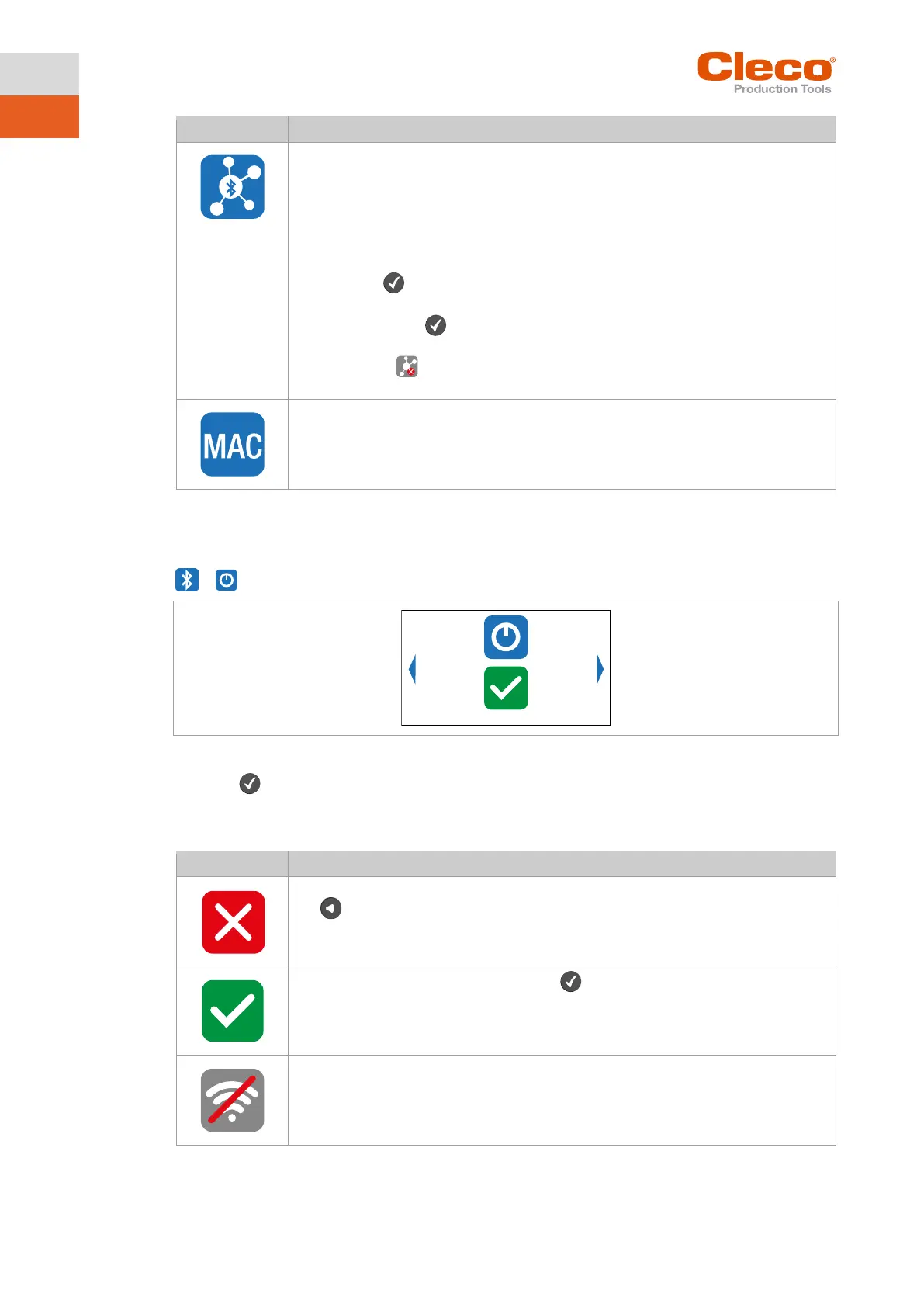
5.11.1 Activating/deactivating Bluetooth
This menu is displayed when Bluetooth is to be activated or deactivated.
>
Fig. 5-35: Submenu – Activating/deactivating Bluetooth
Press the button to switch between the following options. The visible option is active. A simultaneous
WLAN and Bluetooth connection is not possible. As soon as the WLAN connection is activated, the tool
disconnects the Bluetooth connection.
► Select this button to cancel the process. Leave the menu press and hold the
button.
► Select this button and confirm with the button to activate/deactivate the WLAN
connection.
A simultaneous WLAN and Bluetooth connection is not possible.
As soon as the Bluetooth connection is activated, the tool disconnects the WLAN con-
nection.


 To Next Page