P2544PM | 2022-12 | REV H
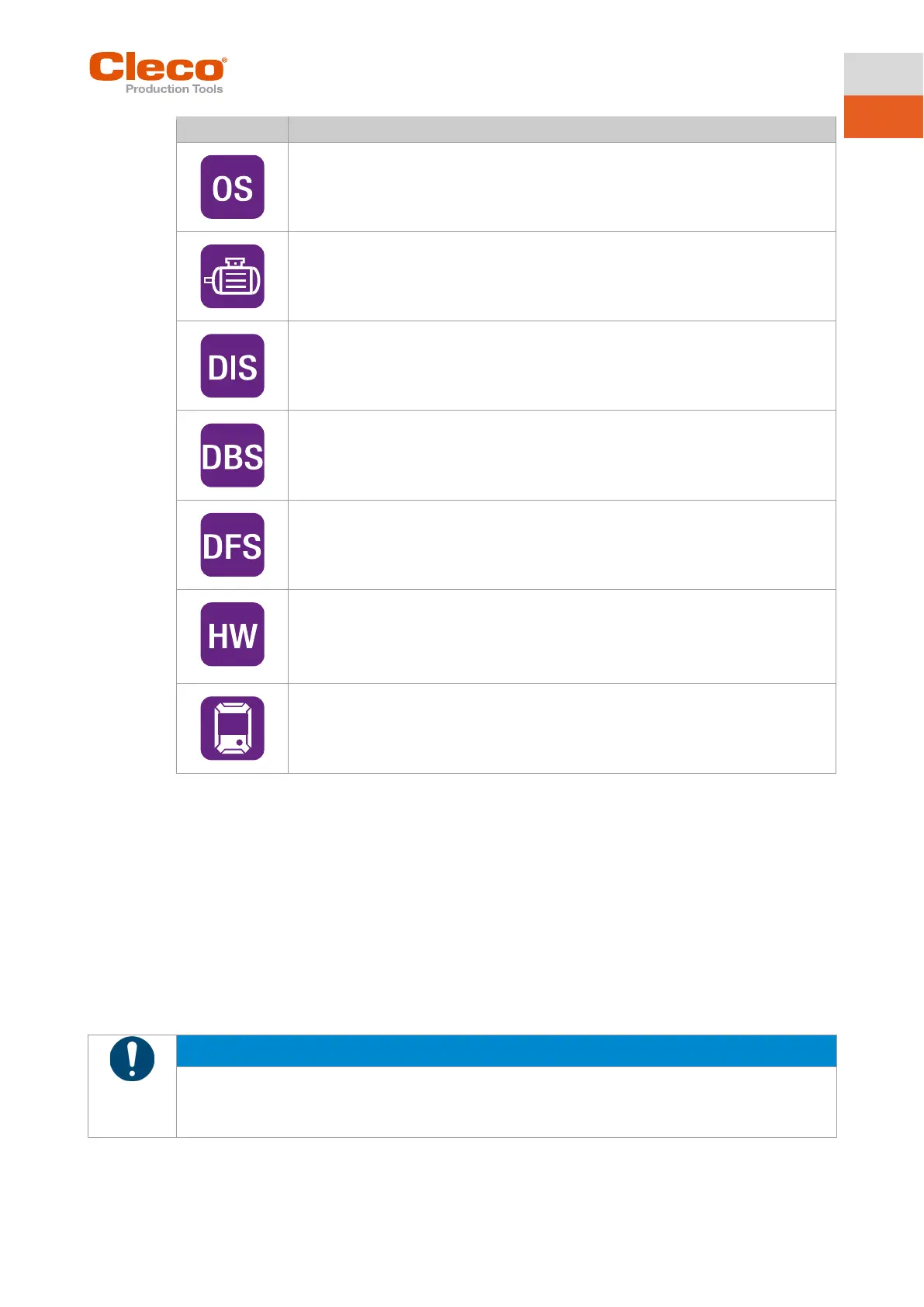
Display of the software version for the operating system.
Display of the software version for the servo.
Display of the software version for the display.
Display of the version for the display bootstrap.
Display of the version for the display failsafe.
Display of the hardware version and revision.
Example: 1.3
Hardware version: 1
Display of the software ver
sion of mPro Connect.
This symbol is only displayed if mPro Connect software is installed on the tool.
5.12.2 Carry Out a Software Update
Carry out the software update via a WLAN connection using the Cordless RF Configuration soft-
ware.
1. Switch the tool on.
2. Install the Cordless RF Configuration software, see document P2372JH.
3. Make sure that the WLAN settings on the tool are configured so that the software update can be per-
formed via a WLAN connection.
4. Activate the TCP/IP direct interface in the Communication with tool ab and enter the IP address of the
tool.
5. Open the Tool identification tab.
6. To change the software on the tool, press <Software Update>.
7. Confirm the following messages with <ja>.
8. Select the appropriate *.tma file with the selection dialog.
Do not switch off the system after software update is completed.
The update can take up to three and a half minutes.
► Wait until the software update is completely finished. As soon as SW update done! is displayed,
the software update starts in background.


 To Next Page