P2544PM | 2022-12 | REV H
7 Troubleshooting
7.1 Messages on the Display
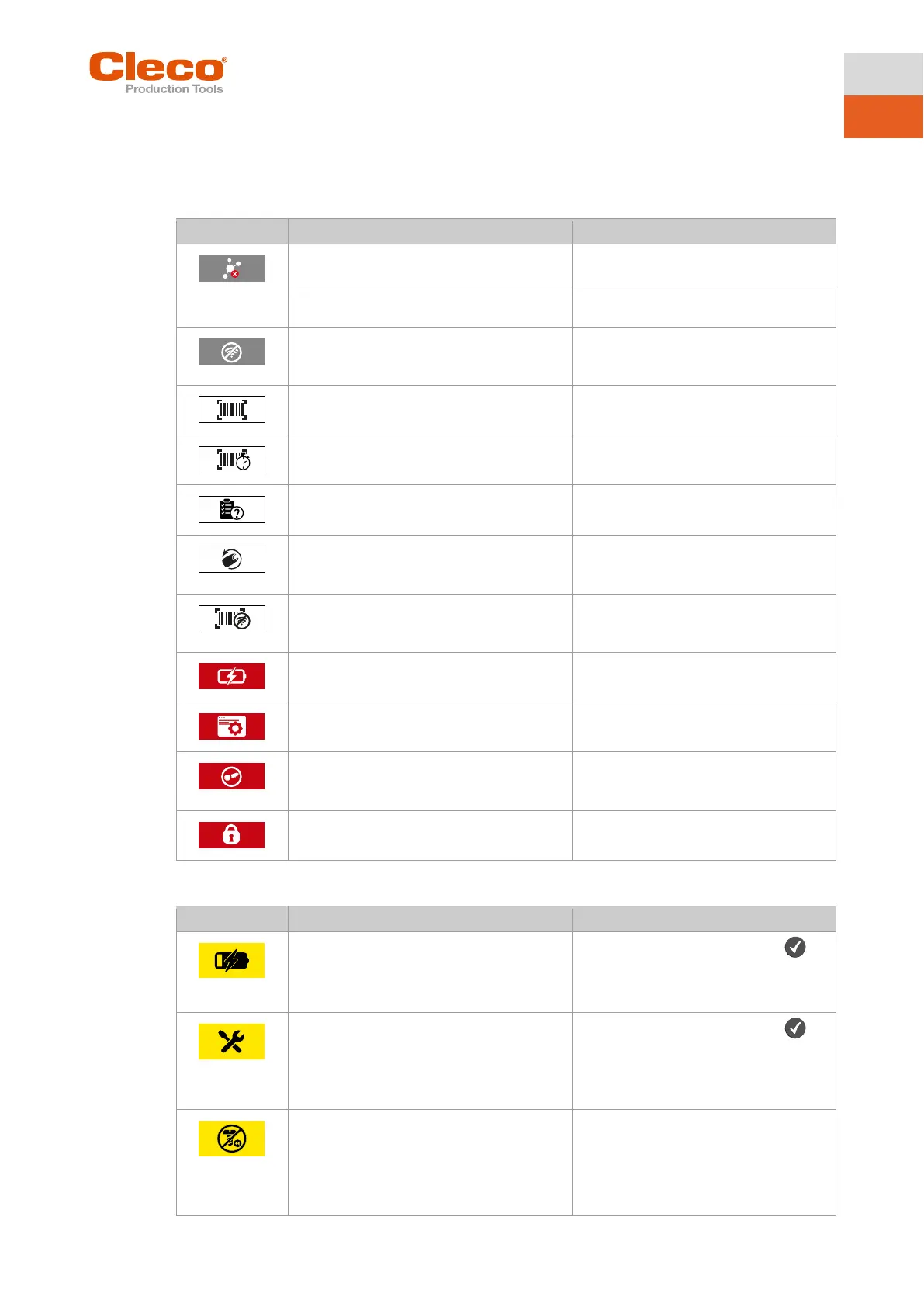
Messages shown on the runscreen
If WLAN is used, the IP address is assigned
twice.
If Bluetooth is used, the node number is as-
signed twice.
► Change the node number.
The tool is locked because the time, which
the tool is allowed to work in offline mode,
► Reconnect the control and the tool.
The tool is locked until a new workpiece ID
or barcode is scanned.
The tool is locked as long as the scanned
barcode is being processed.
► Wait until the barcode is processed.
The tool is locked because there is no job
for the next rundown.
► Select application/batch.
This message appears only when a tubenut
is used.
With the next rundown, the tubenut opens.
► Perform the next rundown.
The tool is locked because the barcode is
expected and the time, which the tool is al-
lowed to work in offline mode, has expired.
► Reconnect the control and the tool.
The tool is locked because the battery has
reached the undervoltage limit.
► Change the battery.
The tool is locked because no tightening pa-
rameters are available.
► Parameterize parameters in the ap-
plication/batch.
The tool is locked because the maximum
number of NIO results has been exceeded,
see P2280PM (Reject Release).
► Use counterclockwise rotation or set
Reject Release input.
The tool is locked by the controller.
► Check the error message in the run
screen on the controller.
Messages shown on the display
Warning that the battery has reached the
undervoltage limit. The symbol is displayed
until the Linking group is completed. Then
the tool is locked.
► Confirm the warning with the
key. A further message appears
when the battery needs to be
Warning that the warning threshold before
maintenance has been reached.
► Confirm the warning with the
key. A further message appears
when the maintenance counter is
reached, and the tool must be main-
Warning that tightening in counterclockwise
rotation is not allowed. This occurs if the op-
tion Allowed After NOK is selected on the
control under Navigator > Advanced > Tool
Group > Evaluation and Backoff > Back-Off
Mode for all Applications and Linking Steps.



 To Next Page