Using the scanner, how do I … Scan to File? 6-6
6.2.3 Set the Scan Mode Parameters – Level or Gamma
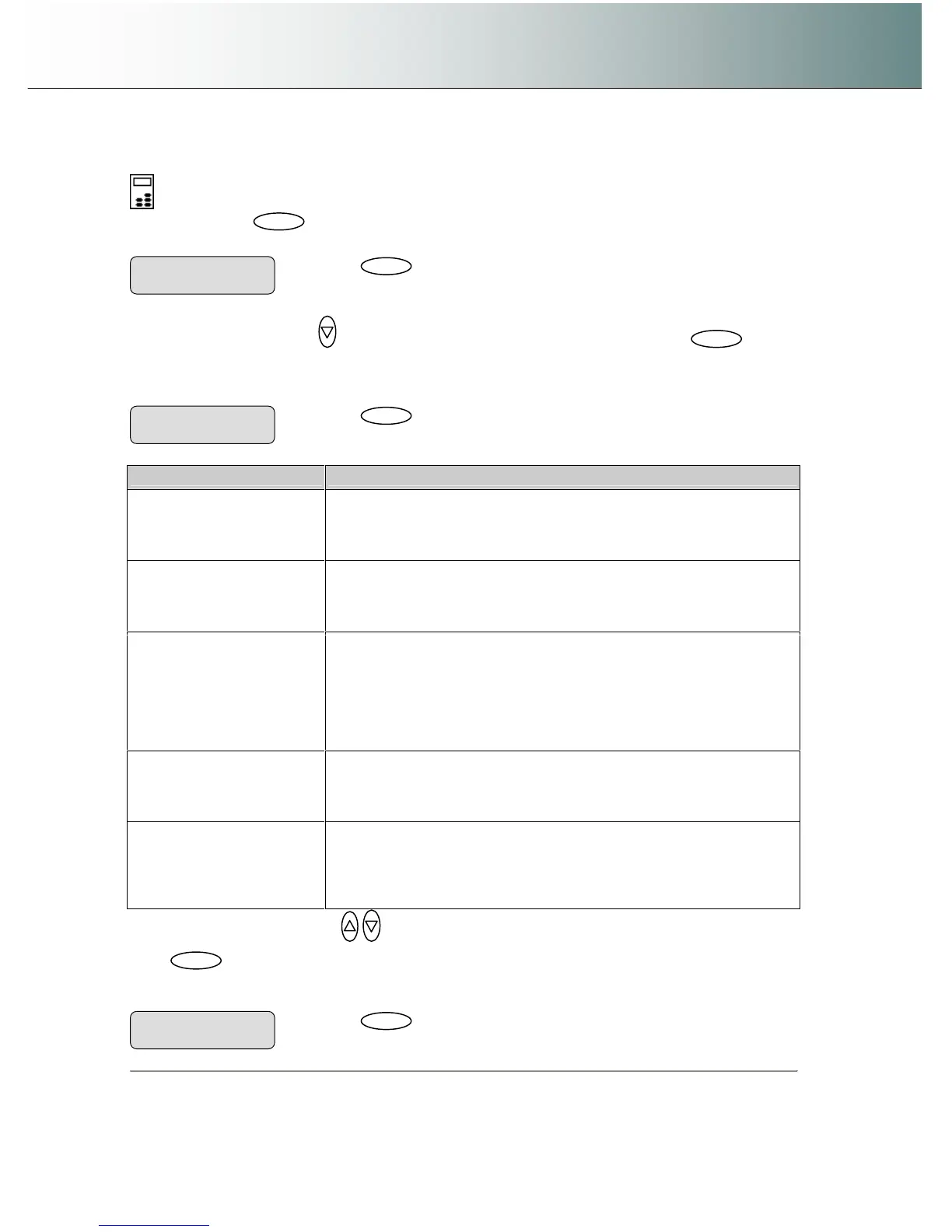
On the iJET Panel –
1. When you pressed
to accept the Scan Mode, the “>” marker moved back up to the option text
“Scan Mode”.. From here you can set the current Scan Mode parameter.
2. Press the arrow down button
to move to the Scan Mode’s parameter option and then
to
indicate you want to change it. If you selected B&W Threshold, B&W Adaptive or B&W Copy Adaptive, the
parameter option will be Level. If you selected Graytone or Color, the parameter option will be Gamma.
Use the guidelines in the table below to make your setting.
Scan Mode Adjustment – what it does
B&W Threshold Level in this scan mode is the threshold value. Values between 0-255.
default is 151. When scanning at a specific threshold value, all gray tones
below the threshold will be represented as black pixels, and all gray tones
above will be represented as white pixels.
B&W Adaptive
B&W Adaptive Level works like a threshold - the lower the value, the more
of the background is picked up during scanning. Values between 0-255.
Default is 0.
B&W Copy Adaptive
B&W Copy Adaptive Level works like a threshold - the lower the value, the
more of the background is picked up during scanning. Adaptive
enhancement features are automatically applied in this copy mode, with
simultaneous processing on different image aspects. You only have to
adjust the adaptive "Level" to determine the best degree of enhancement
processing for your specific image. Values between 0-255. Default is 0.
Graytone Gamma – Values between 0.1 and 3.0. Default is 1.0. Pixels are
intensified according to a gamma c
urve they are mapped to. A low gamma
value smaller than 1.0 darkens the output while a high gamma value
larger than 1.0 typically lightens the shadow areas and brings out detail.
24-bit Color
Gamma– Values between 0.1 and 3.0. Default is 1.0. Pixels are intensified
according to a gamma curve they are mapped to. A low gamma value
smaller than 1.0 darkens the output while a high gamma value larger than
1.0 typically lightens the shadow areas and brings out detail.
3. Press the arrow up/down buttons
to change the value displayed.
4. Press
to accept the new parameter value for the current Scan Mode The “>” marker moves back
up back up to the Scan-to-File Menu level. From here you can move on and make more Scan-to-file menu
settings.
Press
to indicate you want to change the
value. The > marker will move down..
Gamma
> 1.00
Press
to accept the parameter value.
> Gamma
0.70
Press
to accept the Scan Mode. The “>
“marker moves back up.
> Scan Mode
Graytone



 To Next Page