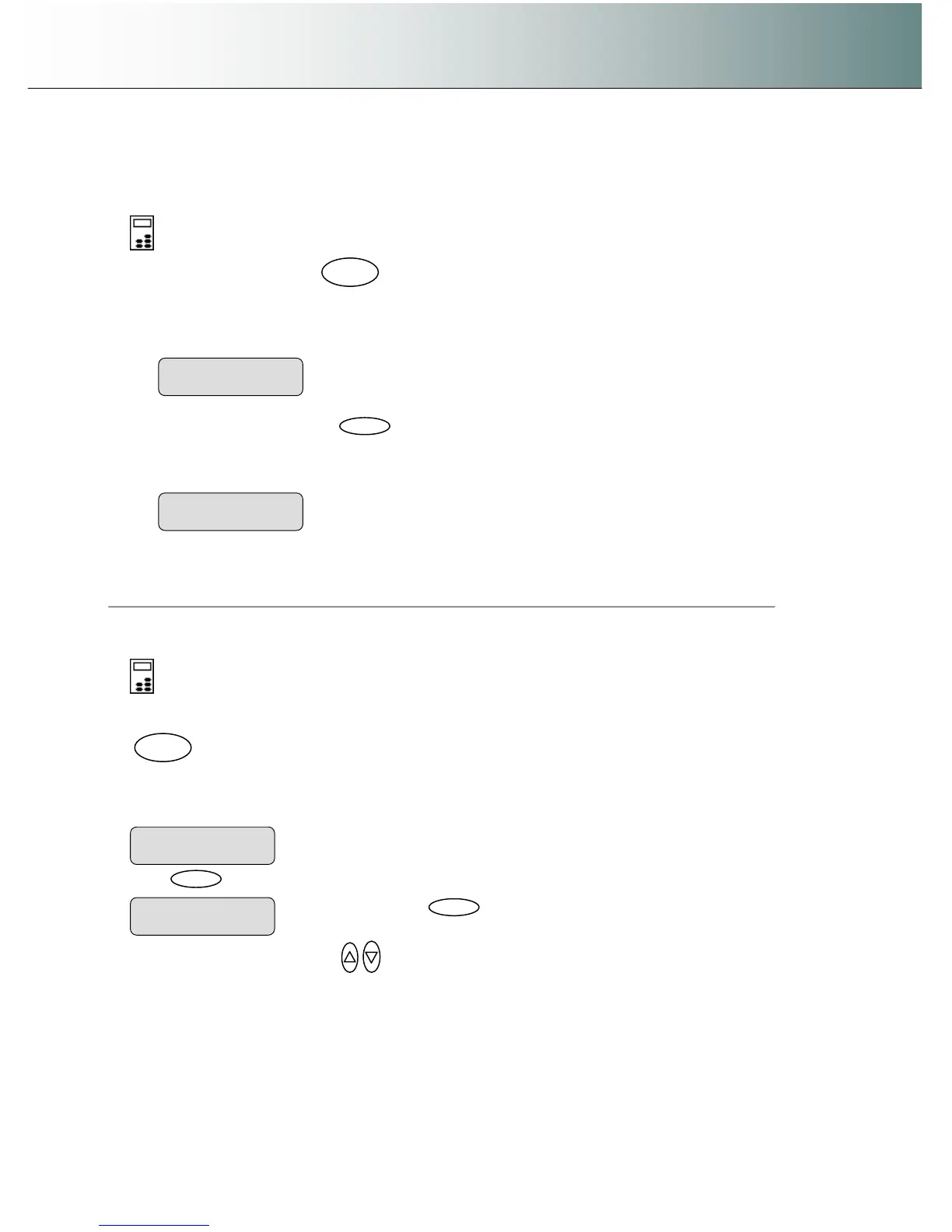
Using the scanner, how do I … Scan to File? 6-4
6.2 Scan-to-File Menu Options – iJET Panel
6.2.1 Enter the iJET Panel Scan-to-File Menu
On the iJET Panel –
1. Select the Scan to button
2. Select the scan target.
3. Confirm the scan target with
to start the Scan-to-File menu.
4. The first Scan-to-File Menu option Scan Mode will be shown in the display.
6.2.2 Set the Scan Mode
On the iJET Panel –
1. If you are not already in the Scan-to-File menu, start/enter the menu with the Scan to button as described
in the beginning of this section.
.
2. The first Scan-to-File Menu option is the Scan Mode. Your display should look as follows: will be shown in
the display.
3. Press
to move the “>” marker down so you can change the current option’s value if needed.
4. Press the arrow up/down buttons
to move through the values for the Scan Mode option. The
following Scan Modes are available:
Network PC named “PC_nrX” set as scan target
Scan to
PC_nrX
down indicating you can change the option value.
Scan Mode
> 24-bit Color
Entry into the Scan-to-File Menu
> Scan Mode
24-bit Color
Entry into the Scan-to-File Menu
> Scan Mode
24-bit Color



 To Next Page