Configuration and Setup 3-24
3.9 Creating Media Profiles – For Color Printer Setup
You must create a Media Profile for each media type you use with the specific color printer. Otherwise,
your color copy output colors will not necessarily match the original’s colors. Optimal quality color results
are only obtained if the capture device (scanner) and output device (printer) "see" colors in the same way
on a given output media. A Media Profile is a unit that stores data that matches scanner and printer colors
on a given media.
Before you start a copy job, you select a Media Type (Menu button) that corresponds with the media in
your printer and the Media Profile you prepared. By this action you are harmonizing scanner, printer and
media color factors for achieving optimal color precision in your copies.
A Media Profile is connected solely to a specific printer and media type so you will need to create new
media profiles if any of these (printer or print-media) are changed.
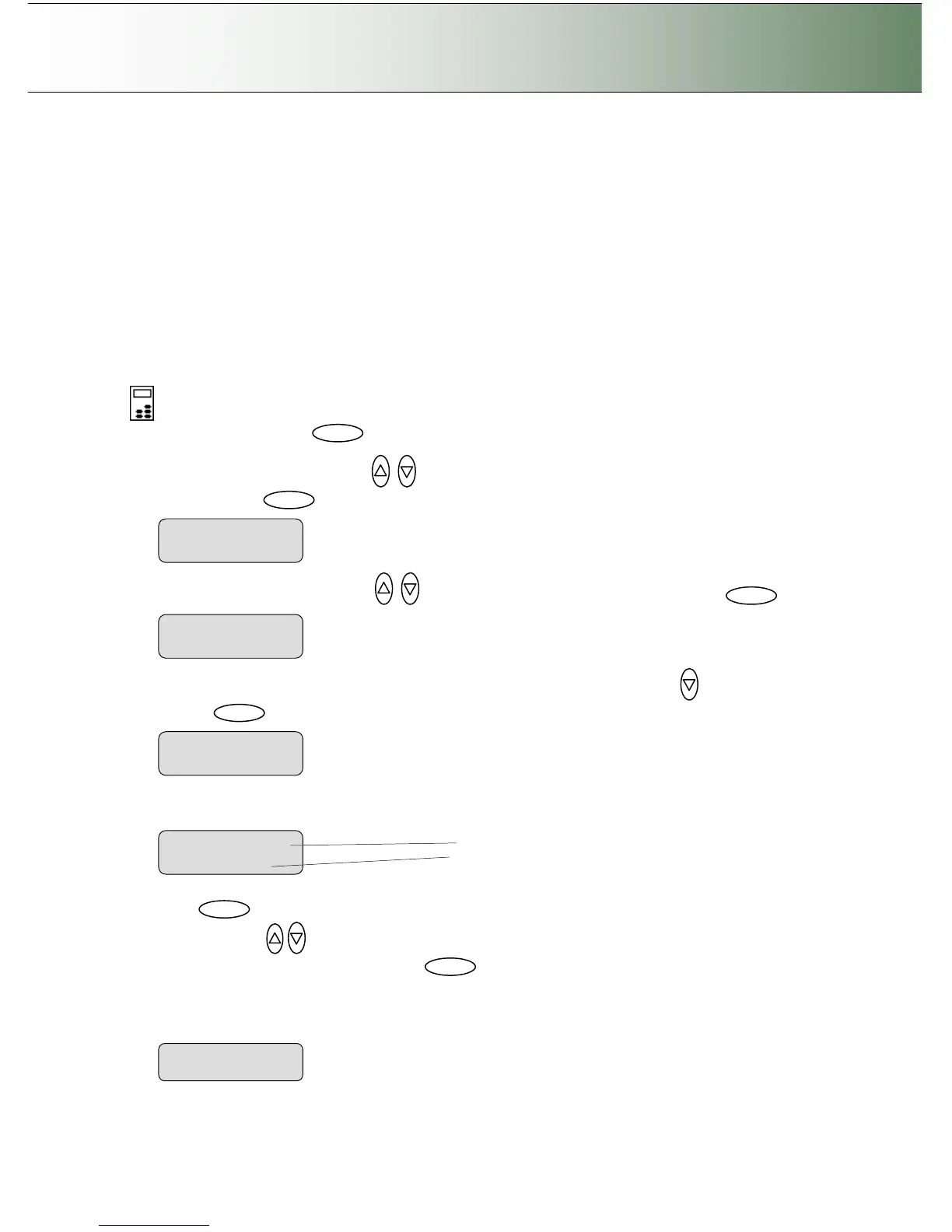
On the iJET Panel
8. Select the Menu button.
9. Use the arrow button up or down until the display window shows Advanced and confirm with
the Enter button .
10. Use the arrow buttons up or down until the display shows Options and confirm with .
11. Closed Loop Cal should be displayed as the first option. If not use the arrow down button to reach
it. Press to confirm.
12. Your display should now look like this (the actual text on the 2. line will show the current setting for
the option and may be different than the one shown below).
13. Press to move the “>” mark to the current setting so you can change it. Use the arrow
buttons up/down
until you reach the media type (Coated, Semi Glossy, Glossy…) that
describes the media in your printer. Press to confirm.
14. Print the Media Profile sheet - You are now ready to print the main Media Profile sheet. Step back
and use the arrows to step down to the “Print Sheet” option and select Enter to accept it and then
Enter again. The system will print a color patch sheet.
> Advanced



 To Next Page