Configuration and Setup 3-23
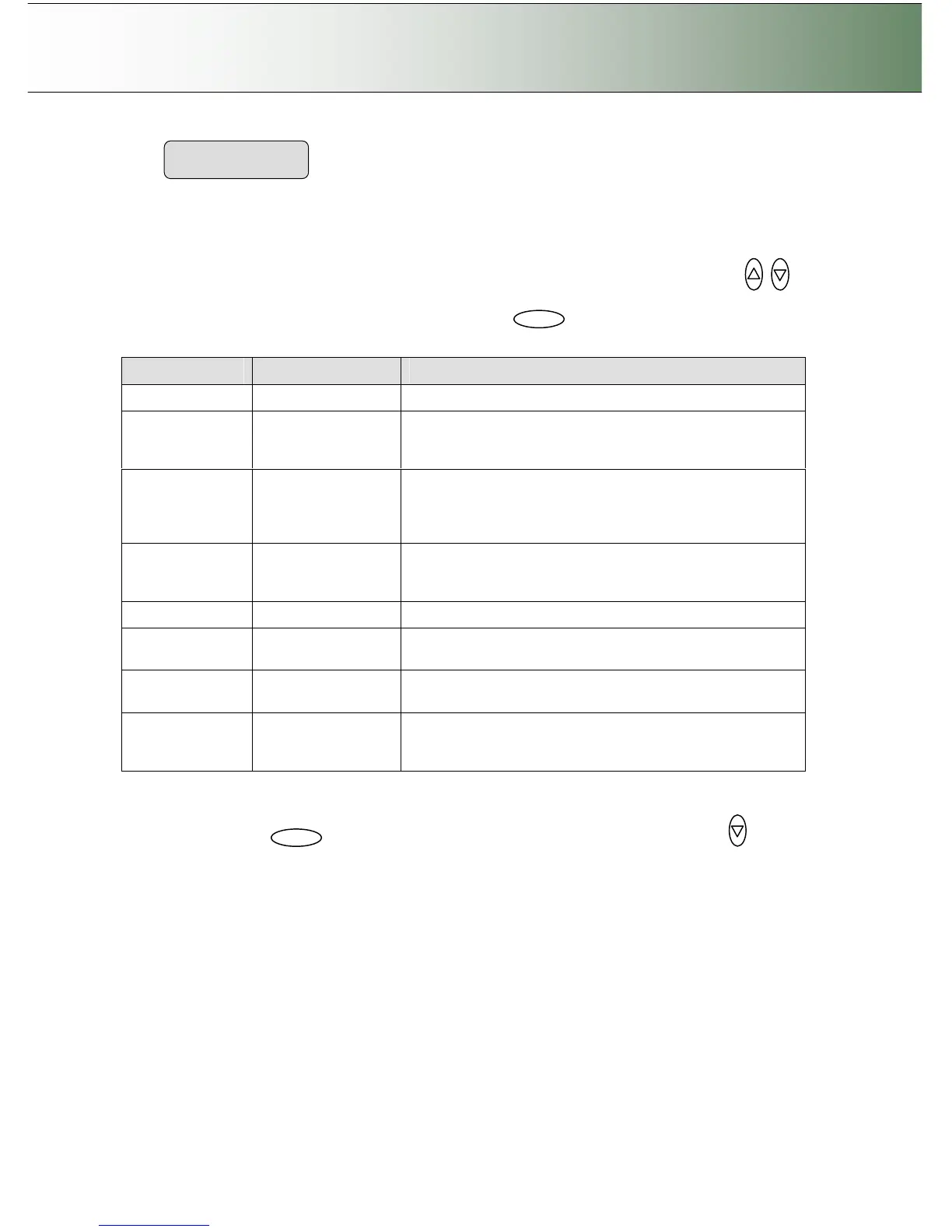
The Printer Model - Custom Setup option lets you configure a printer manually. This option gives you
the freedom to use other printers than those compatible with the Auto Configure method and those
that have been tested and are available through the Printer List method.
Here follows a short description of the parameter settings. Use the arrow button up or down
to move through the options. Use Enter to activate the option’s value selection. Use again the arrows
to change the option values and again the Enter button to confirm your setting.
Option Values Description
Command Set RTL or PCL3GUI This is the printer’s format language
Ctrl. Language None or HP PJL
The control language is used internally by the system to
apply some of the others settings, such as resolution, size,
etcetera.
Orientation Landscape/Portrait
Feeding orientation for printer. On most large format printers
this will be landscape while on some of the narrower models
it will be Portrait.
Scalable No/Yes
‘No’ means that the scanner will take care of scaling before
sending data to the printer.
‘Yes” means that the printer will take care of scaling.
Resolution 300,360,600,720 This is the printer’s fixed resolution
Printer Size
A0,A1,A2….paper
size list
The printer is defined to be of a certain max standard size -
A0, A2 etcetera.
Render Type
Default/No Simple/
Ctx format
Scan to print data protocol. See the lists fro right selection.
Use Inked Area No/Yes
Yes – The printer will cut the output by looking at the area
that was actually printed.
No – use the whole paper size to determine the place to cut.
8. Repeat steps 4 – 6 with B&W Printer. To reach the B&W Printer option from the previous step: Use
the Back button to move back to Color Printer in the menu and then arrow down
to
reach the B&W Printer option.
Printer Model
> Custom Setup



 To Next Page