Configuration and Setup 3-22
7. You must now set definitions and parameters for the actual Printer Model. Printer Model settings can
be set in 3 ways (methods): automatically, by selecting a printer model from a list of predefined
printers or through making custom settings manually.
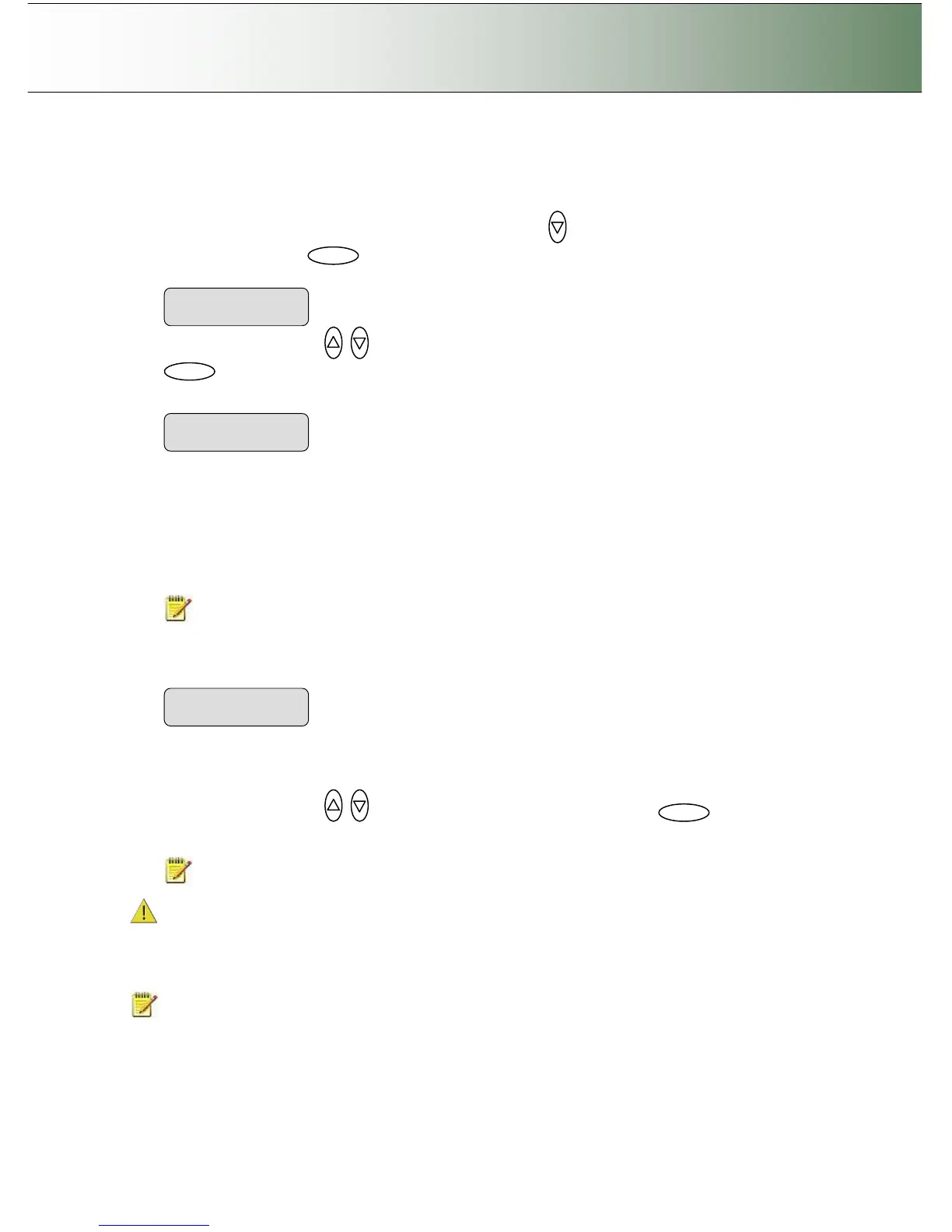
To select the Printer Model setup method: Press arrow down to reach and display the Printer
Model dialog and then to move the “>” mark down and thus enter the Printer Model options.
Use the arrows up/down to display one of the following Printer Model options and press
to confirm your selection:
7.1 Auto Configure
Auto Configure tells the system to retrieve the printer’s parameters automatically from the printer
itself. The system searches for the printer on the port as indicated by your Interface setting (USB or
LAN-IP address) and then when it finds it, the printer’s setup parameters are saved in the scanner
device.
Not all printer models support automatic setup and you will need to use the Printer List or the
Custom Setup options instead. The printer must support SNMP in order for its settings to be
detected automatically.
NOTE: the actual search and settings upload process takes place the first time you try to print
and not during setup. It is therefore recommended to make a dispensable test copy just after
completing the steps for setting up your scanner.
7.2 Printer List
If you select Printer List and confirm with enter, you will be able to select an actual printer model by
its name. The model names that appear in the Printer List indicate printers that have been fully
tested for compatibility with your copy scanner and their setup parameters are ready in the system.
Use the arrows up/down to move through the list of printers and press to confirm
your printer model selection.
NOTE: New printer models may become available in the list with new firmware upgrades.
Compatible Printer’s lists on the web: Your scanner manufacturer’s support pages on the web will
provide lists containing specific printer models that are compatible with the scanner. Look for your printer
model on the list. The website lists will be updated as new printers enter the market.
If your printer is not named on the website list, you can try to use the printer’s documentation to determine
the right settings and enter these through the Custom Setup option.
NOTE: Unlisted printers may not be compatible with the scanner.
7.3 Custom Setup



 To Next Page