Configuration and Setup 3-27
3.11 Setup to Share the Scanner (Use from PCs on the LAN)
Your scanner can be setup to be used for scanning from PC stations on the network. This requires that
you first have setup the scanner to be recognized on the network as described in the previous section
“Scanner on Network Setup”. The following will describe how to enable your scanner to be shared.
NOTE: Using a shared scanner from a PC on the network will require scan and copy software plus
drivers installed on that PC. The scan/copy software must be compatible with the scanner and shared
scanner functionality. See your scan/copy software documentation for details and instructions.
On scanners: FLEX50i, HD4230i
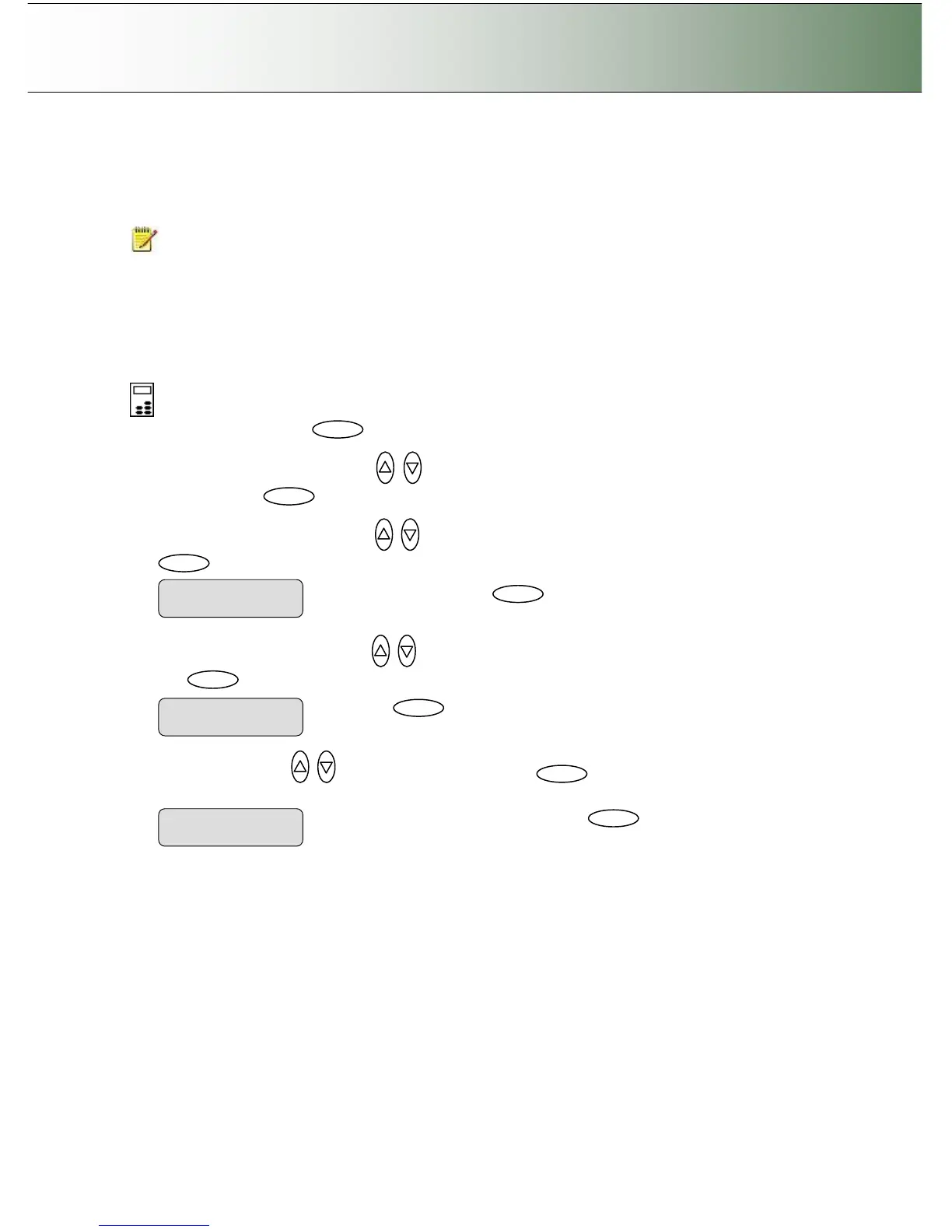
To enable a scanner for sharing:
On the iJET Panel
1. Select the Menu button.
2. Use the arrow button up or down until the display window shows Advanced and confirm with
the Enter button .
3. Use the arrow buttons up or down until the display shows Network Setup and confirm with
.
4. Use the arrow button up or down until the display window shows Share Scanner and confirm
with to move the “>” marker down in order to change the setting.
5. Use arrows down/up to select YES and confirm with
. The scanner will then be
enabled for shared scanning from PCs on the network.
6. Reboot the scanner to ensure that the setting is applied on the network.
Change value to “YES” and confirm with



 To Next Page