DuraLabel.com | 800.788.5572
14.1 Installing Printer Driver | 43
PRINTING FROM A COMPUTER
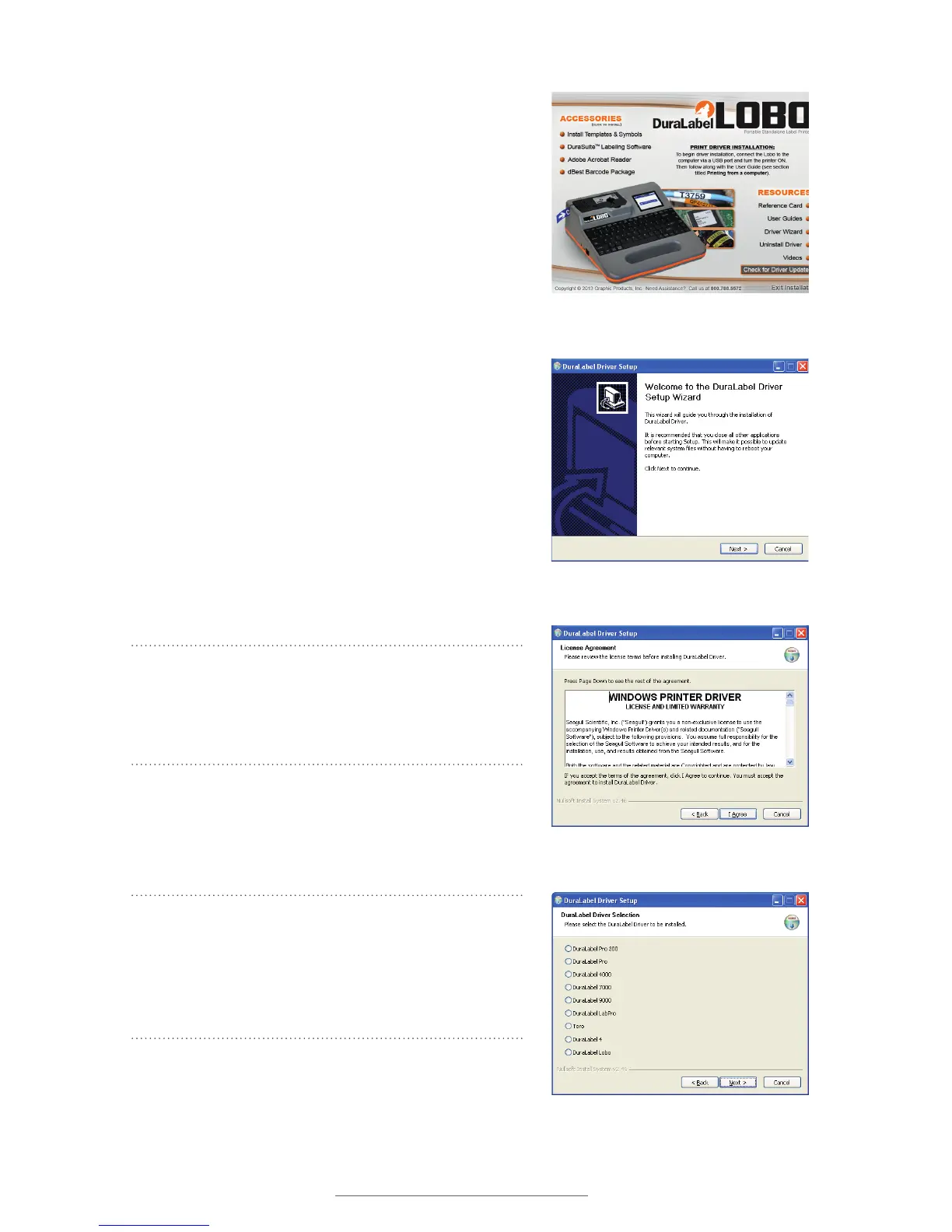
4. Lobo Driver Wizard
3. A startup screen should appear automatically.
If it does not appear, go through your Start
menu to select “My Computer” or “Computer,”
and double-click on the icon for your CD/DVD
drive.
4. Click on Driver Wizard, then click Next in the
Driver Wizard setup window that appears.
5. Read the Windows Printer Driver License
Agreement and click the I Agree button.
6. Select DuraLabel Lobo from the list of
possible printers in the next window that
appears.
7. Choose the install location and click Install
on the Choose Install Location window that
appears. A window shows the installation
progress.
8. In the next window, select Install printer
drivers and click Next.
NOTE: You will receive a notice if a previous
driver is found that should be removed. Please
refer to the following Upgrading a Driver section
for instructions on uninstalling a driver.
9. A Plug and Play Detection window appears.
Click and select Graphic Products Lobo and
click Next.
NOTE: Windows 8 users, do not select the listed
printer. Instead, check Install a driver for another
printer and click Next. Select Graphic Products
Lobo and click Next. Select the appropriate port
and click Next.
5. Windows Printer Driver License
Agreement
6. Selecting a DuraLabel driver
3. Lobo startup screen



 To Next Page