Resetting username and password
Servicing the Network Management Module – 174
•
•
•
1.
2.
3.
4.11 Resetting username and password
4.11.1 As an admin for other users
1.Navigate toContextual help>>>Settings>>>Local users.
2. Press the pen iconto edit user information:
3. Change username and save the changes.
4. Select Reset password and choosefrom the following options :
Generate randomly
Enter manually
Force password to be changed on next login
5. Enter your own password to confirm the changes.
6. Save the changes.
4.11.2 Resetting its own password
1.Navigate to Contextual help>>>User profile.
2. Press Change password
3. Enter your current password, the new password twice.
4. Press Submit to save the changes.
4.12 Recovering main administrator password
To recover the mainadministrator password,ask another administrator to initialize the password.
If it is not possible, proceed to the card sanitization:
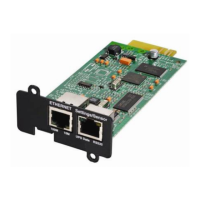
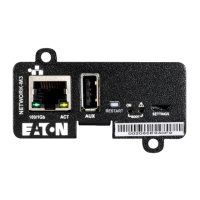
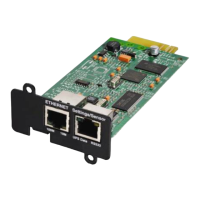
Access the Network Module, disconnect the Network cable, if needed.
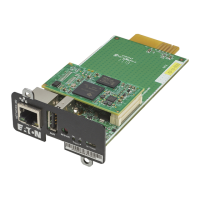
Unscrew the Network Module and remove it from the slot.
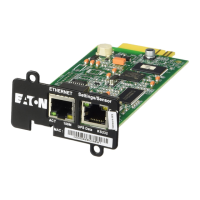
Locate the SANITIZATION switch that is located on the back of the Network Module.
The language of the login page is
English
by default or browser language when it is supported.
Below instruction will sanitize the card and blank all the data.
Depending on your network configuration, the Network Module may restart with a different IP address.
Only main administrator user will remain with default login and password.
Refresh the browser after the Network module reboot time to get access to the login page.


 To Next Page