Accessing the Network Module
Installing the Network Management Module – 15
•
•
•
•
•
•
•
•
If your device has an LCD, from the LCD’s menu, navigate to Identification>>>"COM card IPv4".
Note the IP address of the card.
Go to the section: Accessing the web interface through Network.
2.4.2.1.2 With web browser throughthe configuration port
For example, if your device does not have an LCD, the IP address can be discovered by accessing the web interface through RNDIS
andbrowsing to Settings>Network.
To access the web interface through RNDIS, see theAccessing the web interface through RNDISsection.
Navigate toContextual help>>>Settings>>>Network & Protocol>>>IPV4.
Read the IPv4 settings.
2.4.2.2 Your network is not equipped with a BOOTP/DHCP server
2.4.2.2.1 Define from the configuration port
The IP address can be defined by accessing the web interface through RNDIS.
To access web interface through RNDIS, see theAccessing the web interface through RNDISsection.
Define the IP settings:
Navigate toContextual help>>>Settings>>>Network & Protocol>>>IPV4.
Select Manual (Static IP).
Input the following information: Address, Subnet Mask, Default Gateway
Save the changes.
2.4.3 Accessing the web interface through RNDIS
This connection is used to access and configure the Network Module network settings locally through a RNDIS(Ethernet over USB
interface).
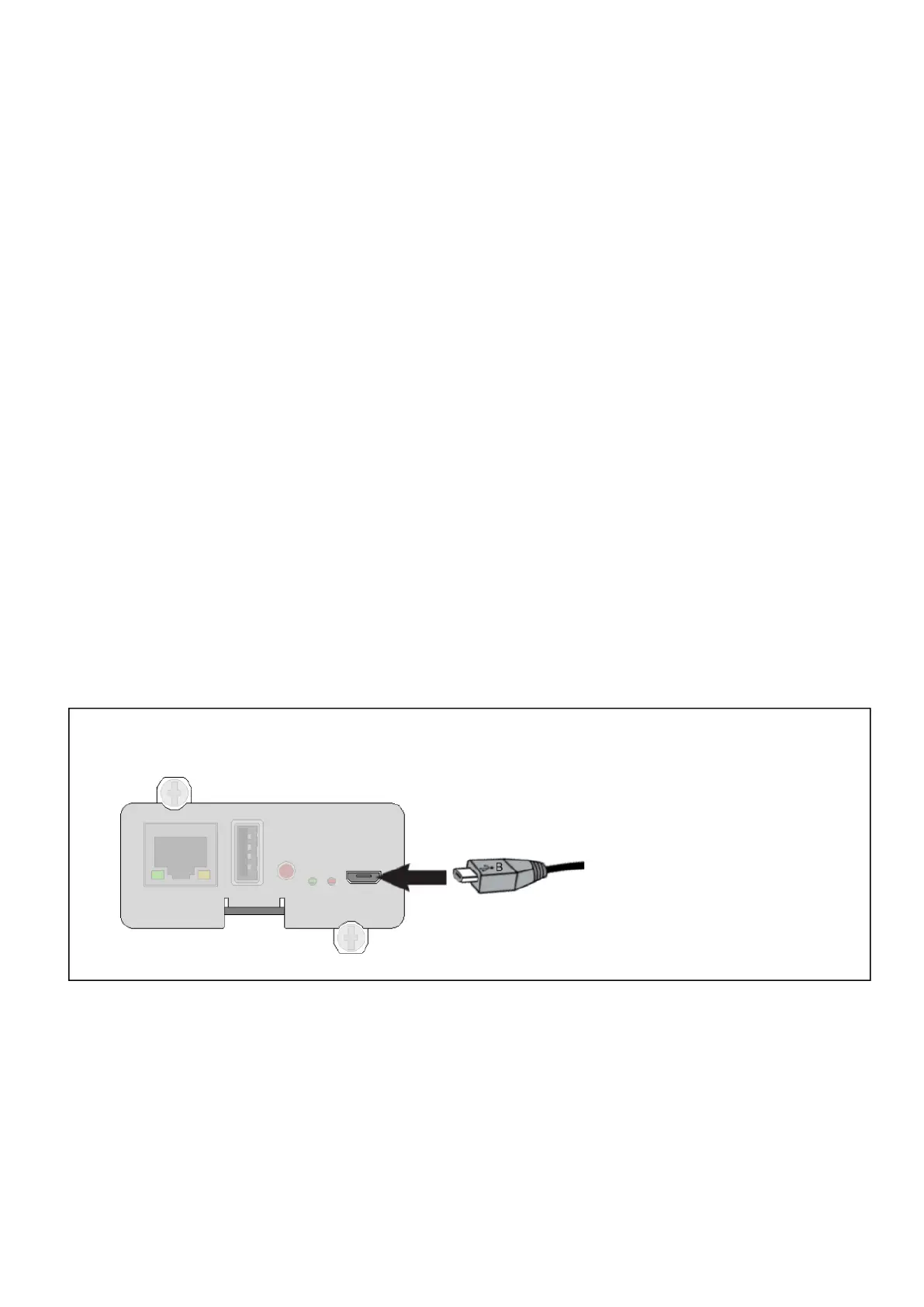
2.4.3.1 Connecting the configuration cable
1.Connect the Micro-B to USB cable to a USB connector on the host computer.
2. Connect the cable to the Settings connector on theNetwork Module.


 To Next Page