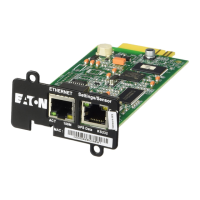
Accessing the Network Module
Installing the Network Management Module – 14
Termination for four-wire networks
2.4 Accessing the Network Module
2.4.1 Accessing the web interface through Network
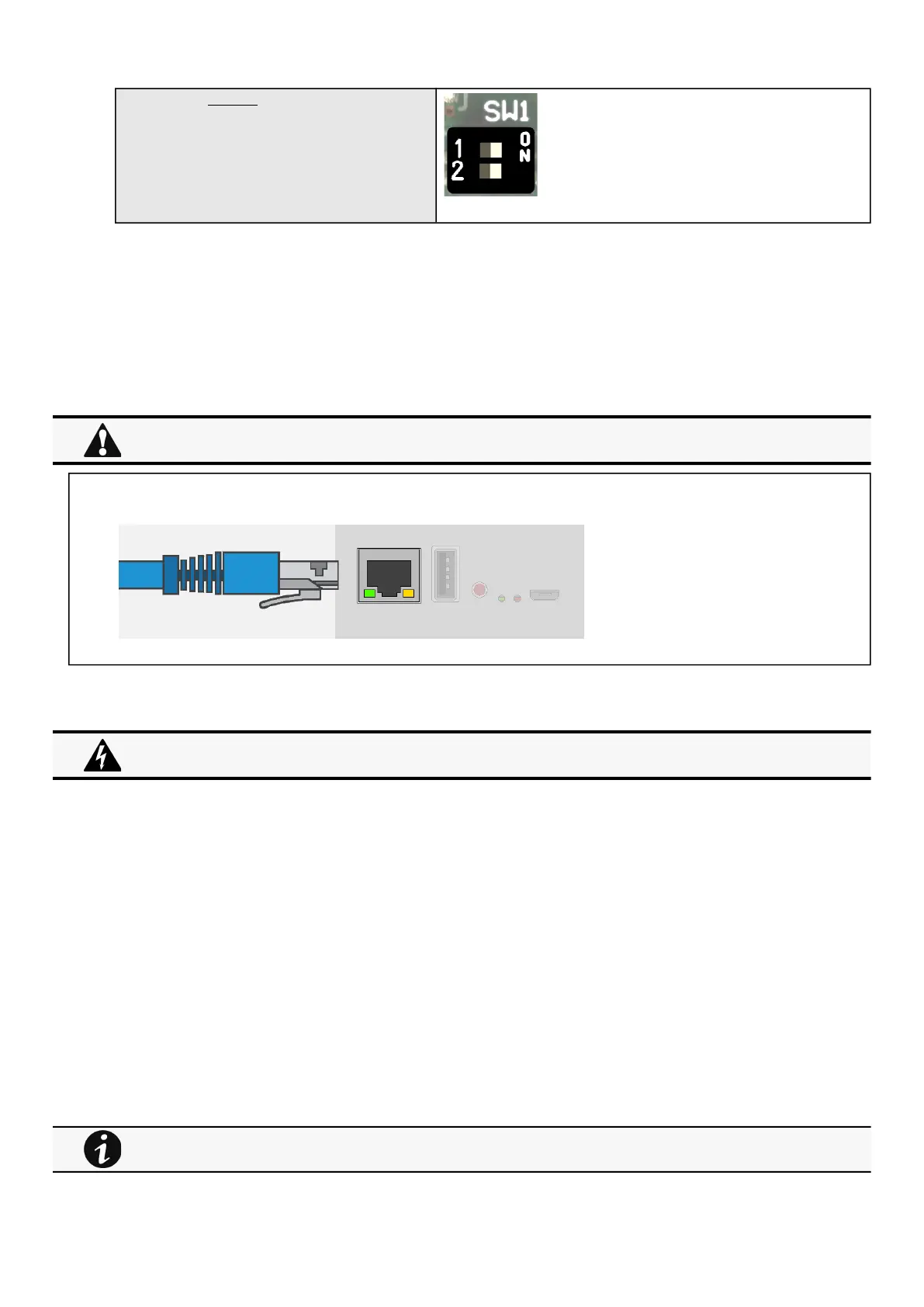
2.4.1.1 Connecting the network cable
Connect a standard
gigabit compatible shielded ethernetcable (F/UTP or F/FTP)
between the network connector on theNetwork Module and a
network jack.
2.4.1.2 Accessing the web interface
STEP 1 –On a network computer, launch a supported web browser. The browser window appears.
STEP 2 –In the Address/Location field, enterhttps://
[IPaddress]
with the static IP address of the Network Module.
STEP 3 –The login screen appears.
STEP 4 –Enter the user name in the User Name field. The default user name is admin.
STEP 5 –Enter the password in the Password field. The default password is admin.
STEP 6 –The password must be changed at first login.
STEP 7 –Click Login. The Network Module web interface appears.
2.4.2 Finding and setting the IP address
2.4.2.1 Your network is equipped with a BOOTP/DHCP server (default)
2.4.2.1.1 Read from the device LCD
Security settings in the Network Module may be in their default states.
For maximum security, configure through a USB connection before connecting the network cable.
It is highly recommended that browser access to the Network Module is isolated from outside access using a
firewall or isolated network.
Note: some older Devices may not be able to display the IP address even if they have an LCD. Please consult the
Device manual.


 To Next Page