STARTING UPDATE FROM: [FW_Update.tar] to [X.X.X.X]
Transfer by scp (FW_Update.tar) to [X.X.X.X]
Warning: Permanently added 'X.X.X.X' (ECDSA) to the list of known hosts.
Transfer done.
Check running upgrade status ...
Check firmware binary signature
Uncompress and flash upgrade - inProgress(%):11
Uncompress and flash upgrade - inProgress(%):28
Uncompress and flash upgrade - inProgress(%):44
Uncompress and flash upgrade - inProgress(%):61
Uncompress and flash upgrade - inProgress(%):78
Uncompress and flash upgrade - inProgress(%):92
Uncompress and flash upgrade - inProgress(%):100
Uncompress and flash upgrade - inProgress(%):100
Uncompress and flash upgrade
Executing post post_upgrade.sh script upgrade
Upgrade done
Warning: Permanently added 'X.X.X.X' (ECDSA) to the list of known hosts.
Rebooting...
res: Y
Update: OK
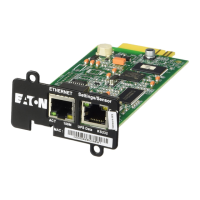
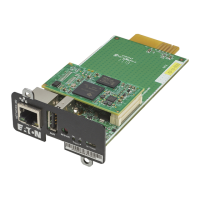
1.Access the Network Module, and then disconnect the Network cable, if needed.
2. Unscrew the Network Module and remove it from the slot.
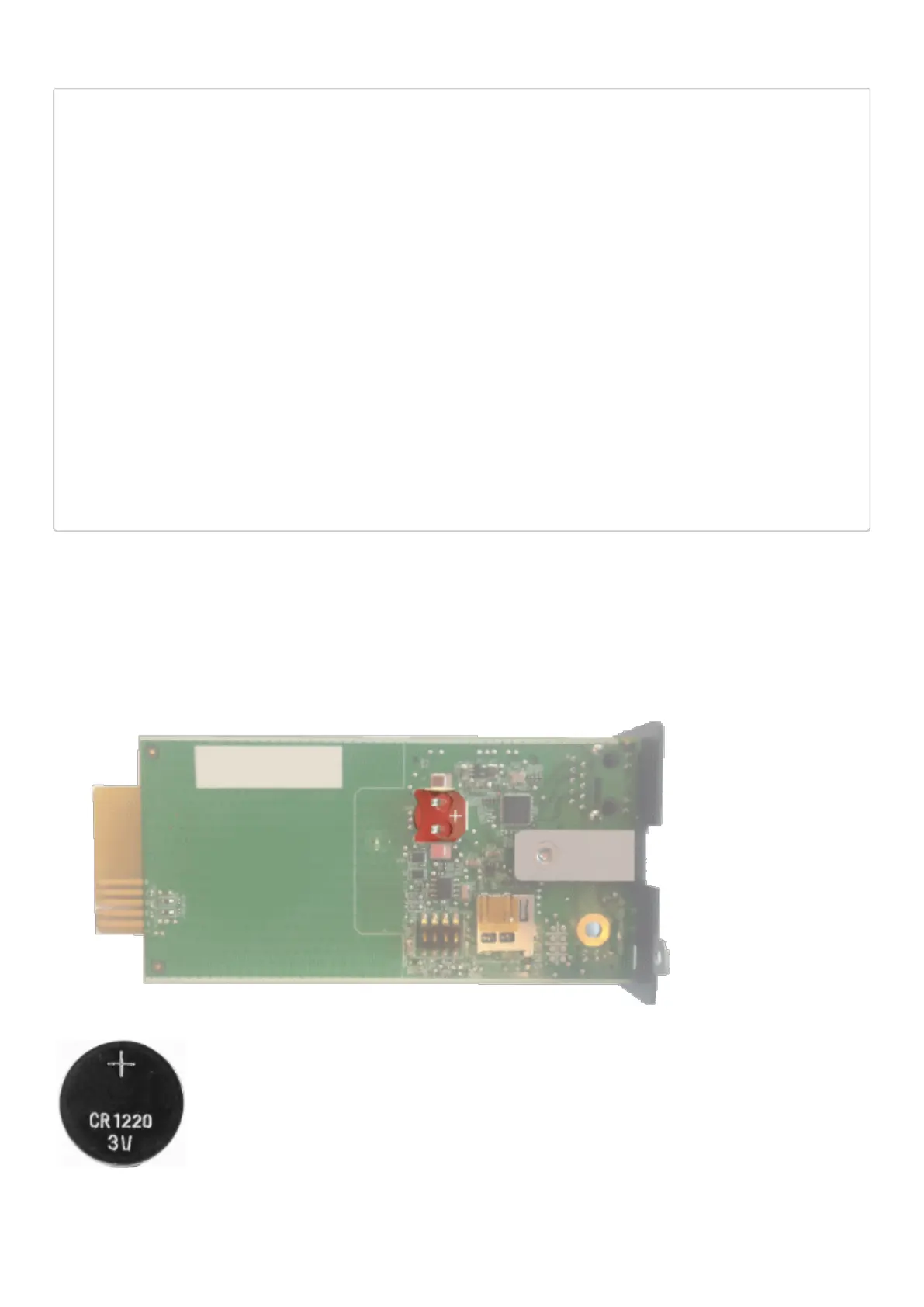
3. Locate the RTC battery cell located on the back of the Network Module.
4. Get a new battery cell (CR1220 type).


 To Next Page