while the lower indicator is a PASS/FAIL indicator of the most recent period. This recent
indicator serves as real-time indicator & typically reflects to only minutes to a few hours of
history (this is dependent on the specific PQ parameter measurement' intervals & method).
Observation: Indicates whether the observation window of a specific PQ parameter is
complete.
Window/Interval: Upper Area - Provides the observation window time (contains historical data
used for the calculations). You may uniquely set the observation period in User Defined Pages
(Options - 1 or 2 Hours, or 1 Day, or 1 Week, or 1 Year). Lower Area – Provides the measurement
interval time or parameter resolution that falls within the observation window (the measured
time length for the PQ parameter). The interval may also be set in User Defined Pages (Options
- 1, 3, 10 or 20 seconds, or 1, 3, 10 or 30 minutes, or 1, or 2 Hours, or 1 Day). If you Configure
your PQ Compliance to a set standard (i.e. EN50160), the Observation Window & Interval Time
will be calculated according to the standard.
Time OK/Time FAIL: provides the percentage of time the PQ parameter was OK (as green
text on the upper area) & percentage of time the PQ parameter was outside the defined
limits or FAILED (as red text in the lower area) for the entire observation period (Observation
Window). Example as per the Information Window: if Flicker Severity was observed for a
period of 1 week at a resolution of 10 min (interval), the PQ parameter was OK for 97.143% &
FAILED for 2.8571% of the time (observation week). It should not be confused to the lower
area on the previous column.
Time N/A: Provides the percentage of time the unit was not measuring due to lack of power.
Total Events: Provides the overall number of PQ events influenced by the PQ parameter in
the observation window.
Note Note Note
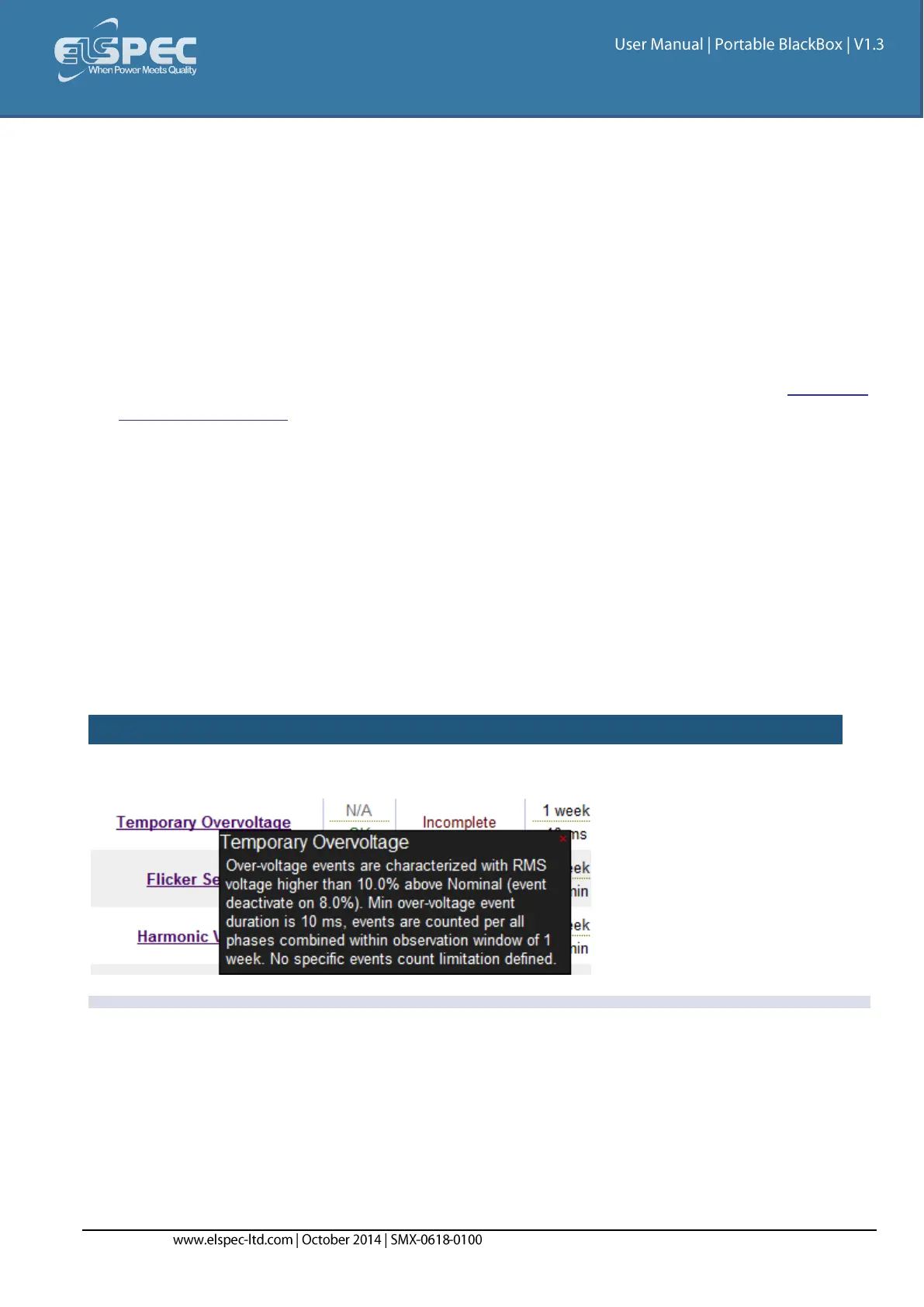
All underlined parameters are accompanied by a Tool Tip, Right-click on the ? to open the Tool Tip
& x to close the Pop-up:


 To Next Page