-- 9 --
bi09dinte
1.4 Keys
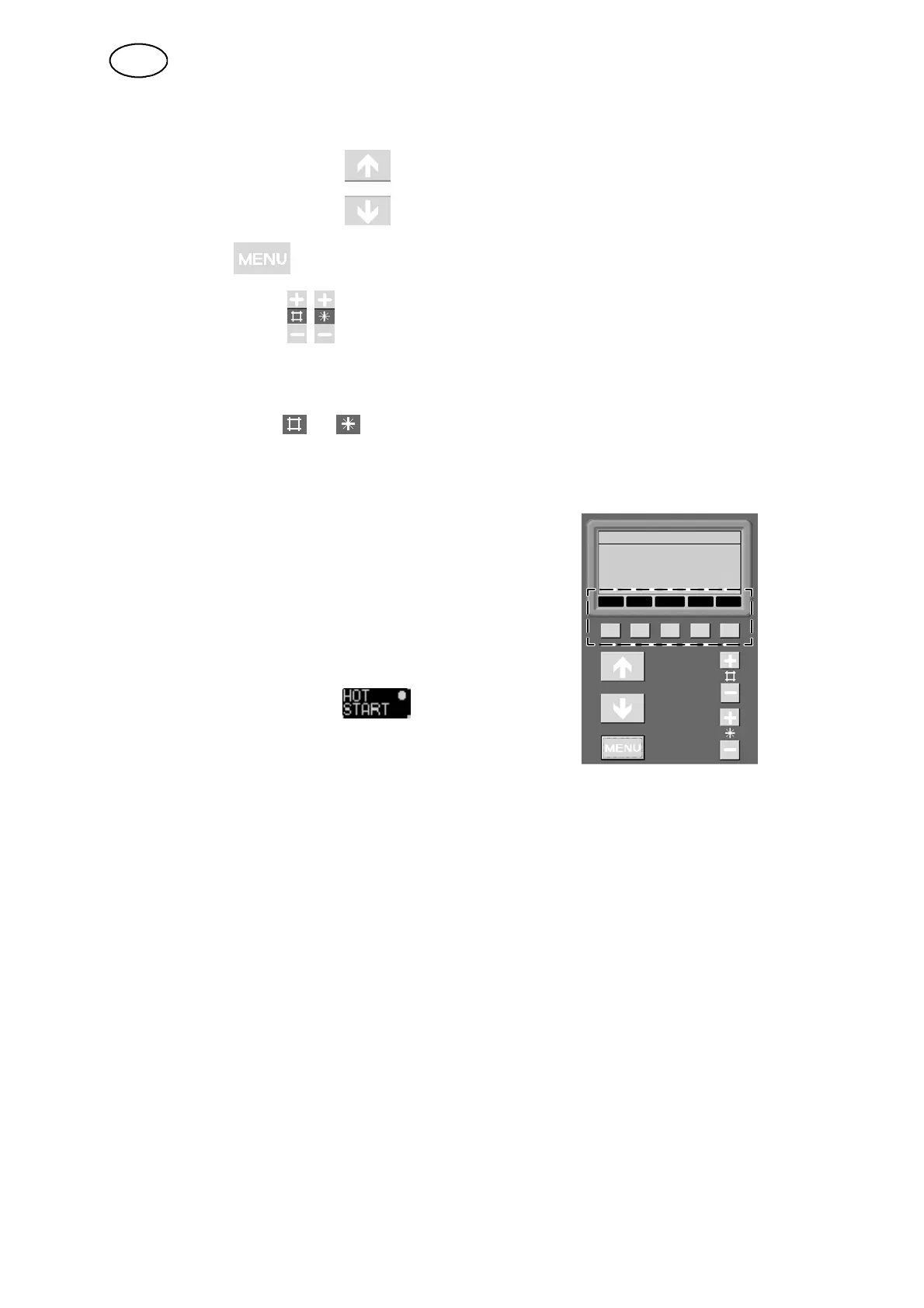
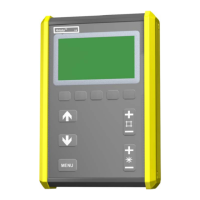
You can use the arrow keys to move the cursor to different lines in the display.
The menu key will always r eturn you to the main menu.
The plus/minus keys are used to increase (+) or decrease (--) the value of a
setting.
The two plus/minus keys are each m arked with their own symbol. Most settings can
be defined using either the plus or minus key, but certain settings must be defined
using a key marked or (the symbols appear in the display).
Pressing a key briefly produces an increase/decrease in small steps. If you hold a
key down for longer, the size of the steps increases.
Soft keys
The five keys in a row under the display have a
variety of functions. These are the ”soft keys”, i.e.
they can have different functions depending on
which menu you are using. T he current functions
of these keys are shown by the text in the bottom
line of the display.
When a function is active, this is indicated by a
white dot alongside the text .
1.5 About settings
There are three main types of settings:
S Settings with numerical values
S Settings with fixed options
S Settings of the type ON/OFF or YES/NO
1.5.1 Setting numverical values
When setting a numerical value, you use either the plus or minus keys to increase or
decrease a given value. Some values can also be modified by means of the remote
control.
GB


 To Next Page