XTP CrossPoint Series • HTML Operation 122
Download the Startup Page
Access the matrix switcher using HTML pages as follows:
1. Start the Web browser program.
2. Click in the Address field of the browser and highlight any existing text.
3. Enter the Matrix IP address in the Address field of the browser.
NOTE: If the local system administrators have not changed the value, the
factory-specified default, 192.168.254.254, is the correct value for this field.
4. If you want the browser to display a page other than the default page (such as a custom
page that you have uploaded), enter a slash (/) and the file name to open.
NOTES:
• The Address field of the browser should display the address in the following
format: <xxx.xxx.xxx.xxx>/<optional_le_name>.html.
• The HTML language reserves certain characters for specific functions (see
Special Characters on page 120).
5. Press the keyboard <Enter> key. The matrix switcher checks to see if it is
password-protected.
If the matrix switcher is not password-protected, it checks and downloads the HTML
pages (proceed to step 8).
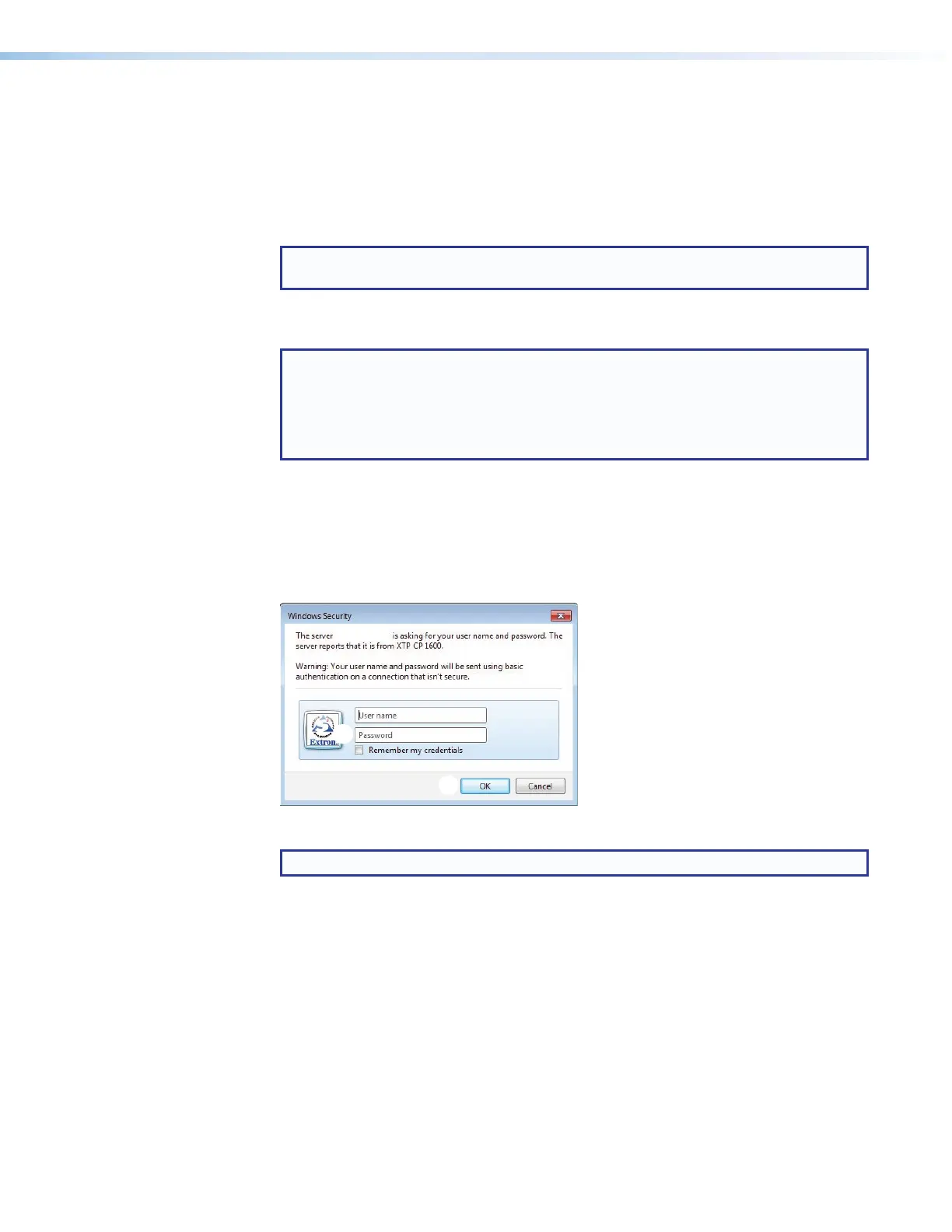
If the matrix switcher is password-protected, the matrix switcher asks for your
password (see figure 55).
Figure 55. Sample Password Inquiry
NOTE: A User name entry is not required.
6. Click in the Password field (see figure 55,
1
) and type in the appropriate administrator
or user password.
7. Click the OK button (
2
).
8. The matrix switcher checks several possibilities, in the following order, and then
responds accordingly:
• If the address includes a specific file name, such as 192.168.254.254/
<file_name>.html, the matrix switcher downloads that HTML page.
• If there is a file in the matrix switcher memory that is named “index.html”, the
matrix switcher downloads “index.html” as the default startup page.
• If neither of the above conditions is true, the matrix switcher downloads the
factory-installed default startup page, “nortxe_index.html” (see figure 56 on the
next page), also known as the System Status page.



 To Next Page