XTP CrossPoint Series • HTML Operation 137
Control Tab
Set and View Ties Page
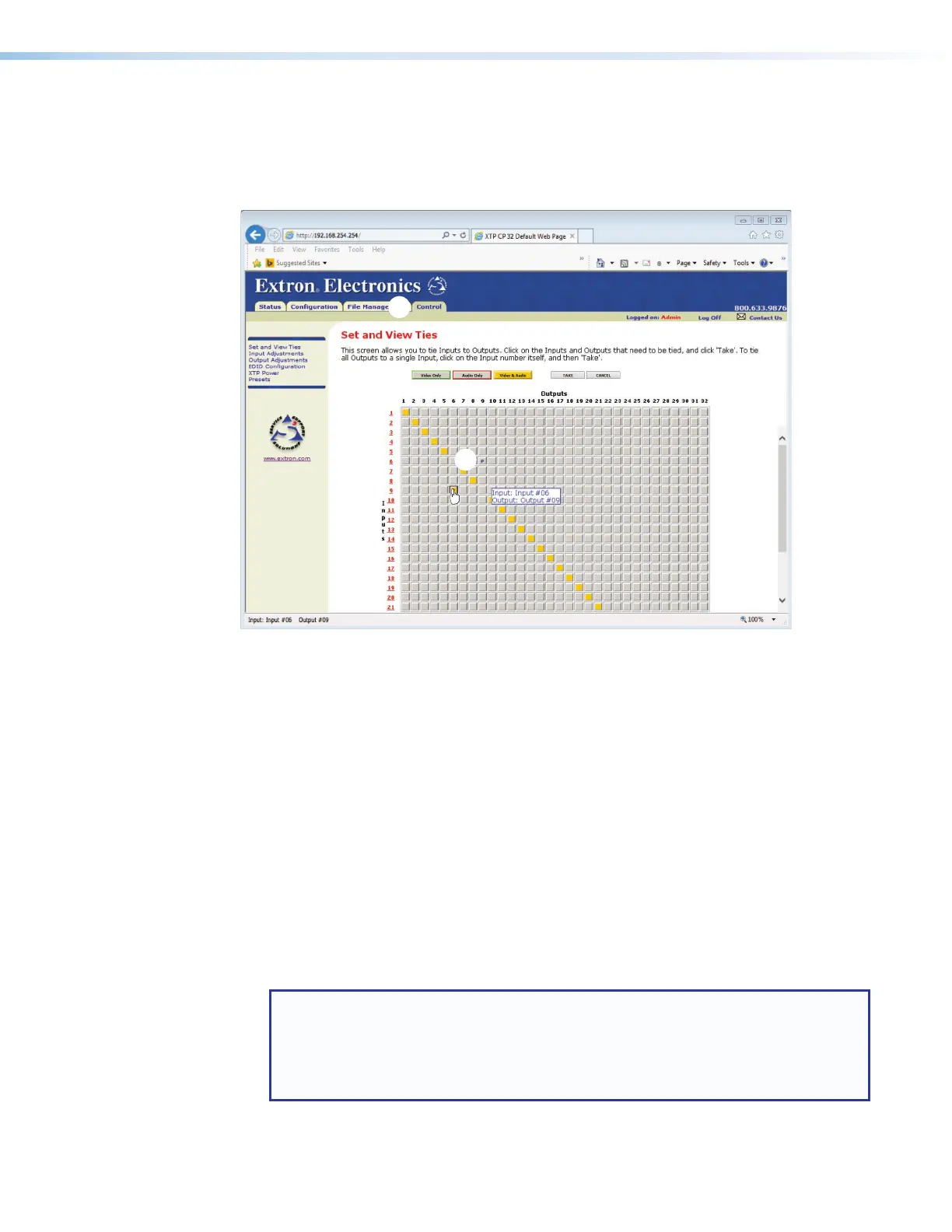
You can create ties on the Set and View Ties page. Access the Set and View Ties page
by clicking the Control tab (see figure 68,
1
).
Figure 68. User Control Ties page
The page consists of a matrix of input (rows) and output (columns) selection buttons of four
different colors:
• Amber buttons indicate video and audio ties.
• Green buttons indicate video only ties.
• Red buttons indicate audio only ties.
• Gray buttons indicate no ties.
The page displays only those inputs and outputs that are available on installed boards only.
Select and switch an input as follows:
1. Click the Video Only, Audio Only, or Video & Audio button (
2
) to select video,
audio, or both for switching (audio follow or audio breakaway). Each mouse click on a
button toggles the other two buttons off.
2. Move the mouse over the matrix of input and output buttons (
3
). Click a button to create
a pending tie (if a tie does not exist) or pending untie (if a tie exists) of the input and output
associated with that button. A “P” (for pending) appears in the button.
NOTES:
• If you lose track of the input and output associated with a specific button, let the
mouse rest over one of the tie buttons for a moment. A field pops up (as shown
on figure 68) that identifies the input and output for that button.
• To tie an input to all outputs, click that input number.
3. Click the Take button (
4
) to make the configuration changes or the Cancel button to
abandon the configuration changes.



 To Next Page