XTP CrossPoint Series • HTML Operation 135
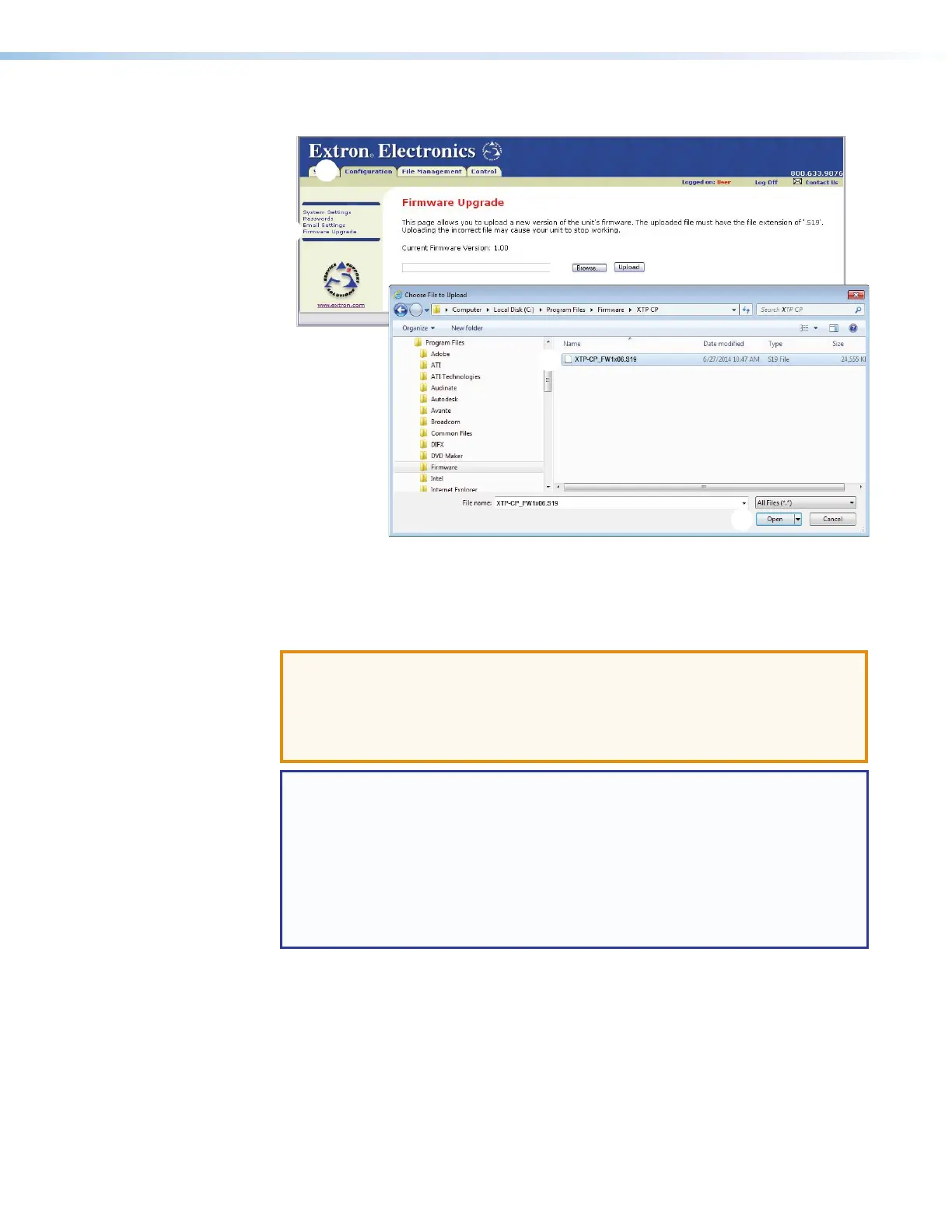
12. Click the Configuration tab (see figure 66,
1
).
Figure 66. Firmware Upgrade
13. Click the Firmware Upgrade link (
2
).
14. Click the Browse button (
3
). An open file window appears.
15. Navigate to the folder where you saved the firmware upgrade file and select it (
4
).
ATTENTION:
• The firmware file must have an .s19 extension. Other file types can cause the
switcher to stop functioning.
• Le firmware doit avoir une extension .s19. D’autres types de fichiers peuvent
nuire au fonctionnement de l’émetteur.
NOTES:
• Note the folder to which the firmware file is saved. When downloaded
from the Extron Website, the firmware is placed in a subfolder of:
• 64-bit OS: C:\Program Files (x86)\Extron\Firmware.
• 32-bit OS: C:\Program Files\Extron\Firmware.
• The original factory-installed firmware is permanently available on the matrix
switcher. If the attempted firmware upload fails for any reason, the matrix
switcher reverts to the factory-installed firmware.
16. Click the Open button (
5
).
17. Click the Upload button (
6
). The firmware upload to the XTP CrossPoint Series matrix
switcher may take a few minutes.



 To Next Page