XTP CrossPoint Series • Operation 38
Example 1: Create a set of video and audio ties
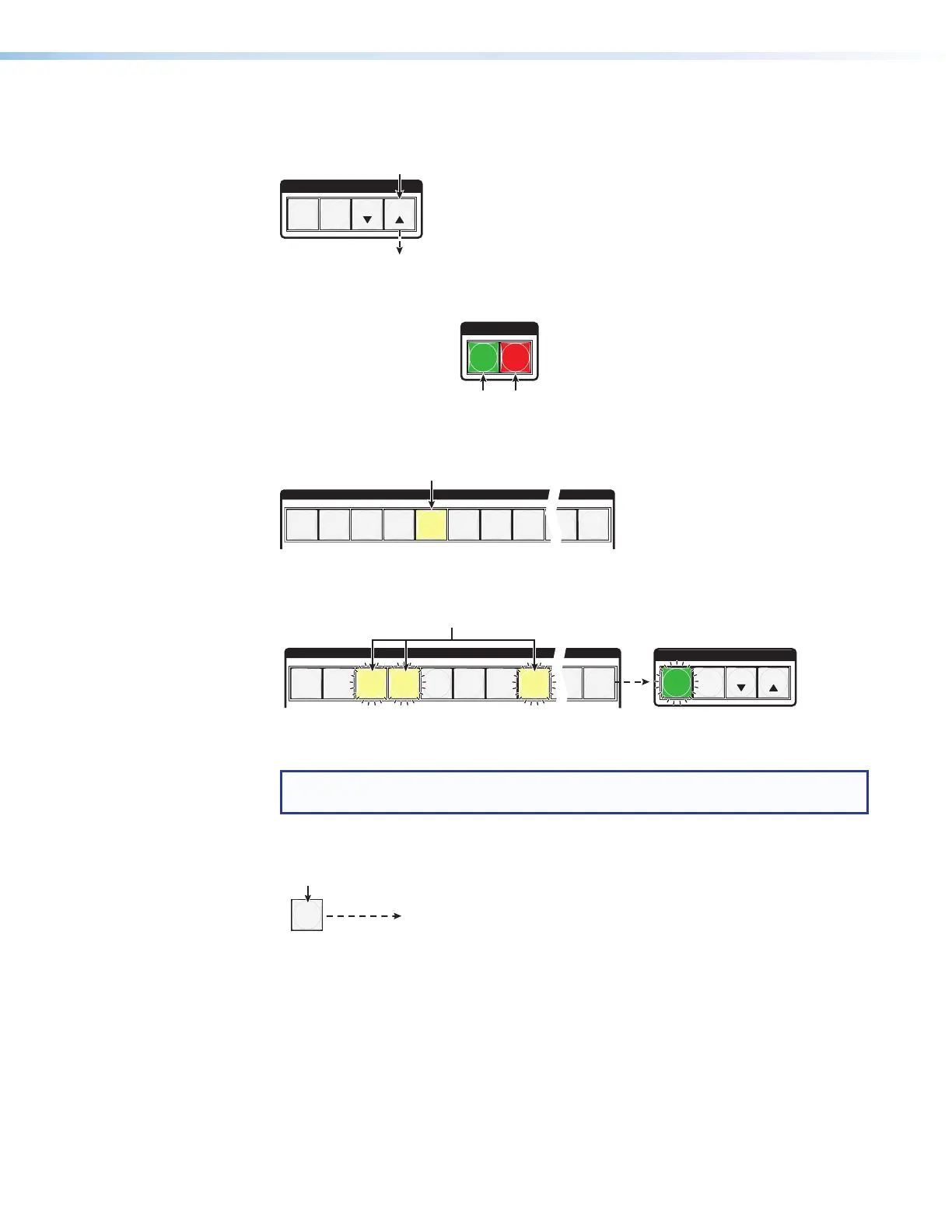
1. Clear all selections: Press and release Esc.
C O N T R O L
PRESET
ENTER
ESCVIEW
Press the Esc button to clear all selections.
The button flashes once.
2. Select video and audio for the tie: If necessary, press and release Video and Audio
to light both.
I / O
VIDEO AUDIO
Press the Video button to toggle on and off.
The button lights green when selected.
Press the Audio button to toggle on and off.
The button lights red when selected.
3. Select an input: Press and release Input 5.
INPUTS
1
2
3
4
5
6 7
8
15
16
The button lights amber.
4. Select the outputs: Press and release Output 3, Output 4, and Output 8.
C O N T R O L
PRESET
ENTER
ESCVIEW
OUTPUTS
1
2
3
4
5
6 7
8
15
16
Press the buttons.
The buttons blink amber to indicate that the selected video and audio inputs
will be tied to these outputs.
The Enter button blinks
green to indicate the need to
confirm the change.
NOTE: You can cancel the entire set of ties at this point by pressing and releasing
the Esc button. The Esc button blinks once.
5. Confirm the change: Press and release Enter.
ENTER
All input buttons and output buttons
return to unlit or background illumination.
Press the Enter button to confirm
the configuration change.
The Enter button returns to
unlit or background illumination.



 To Next Page