XTP CrossPoint Series • Operation 47
I / O
VIDEO AUDIO
OUTPUTS
1
2
3
4
5
6 7
8
15
16
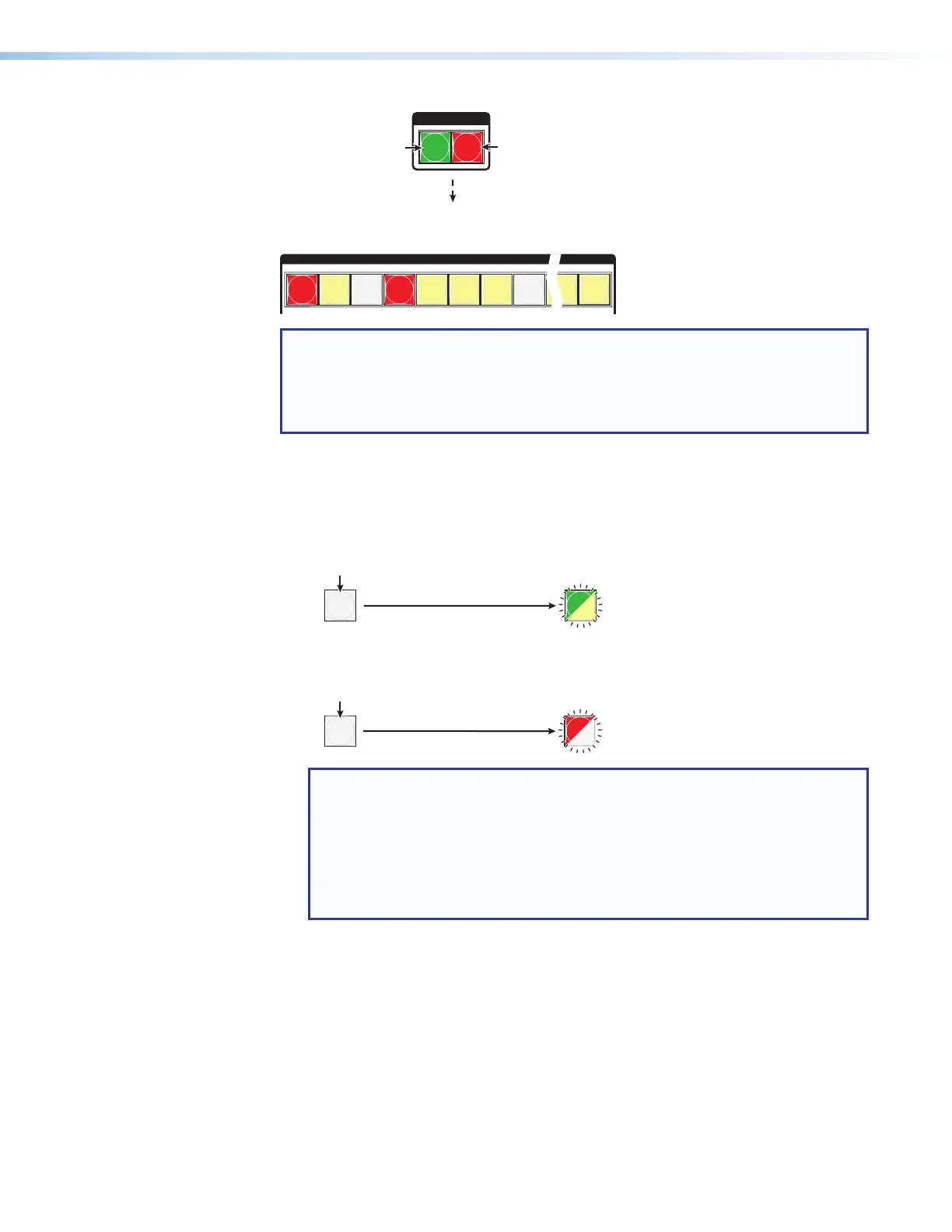
Until you select an input, the buttons for all untied outputs light
amber if no inputs are tied, green if no video inputs are tied
(only audio is tied), or red if no audio are tied (only video is tied).
Press the Audio button
to toggle on and off.
The button lights red
when selected.
Press the Video button
to toggle on and off.
The button lights green
when selected.
NOTE: Output mutes are protected when front panel Lock mode 2 is selected. You
can view the mutes in Lock mode 2 but you cannot change them from the front
panel (see Setting the Front Panel Locks (Executive Modes) on page 59).
If front panel Lock mode 2 is selected and you try to perform steps 4 and 5, the
actions are ignored.
4. Mute outputs: One at a time:
a. Press and hold the Output 3 button for approximately 2 seconds until the button
begins to blink.
b. Press and hold the Output 4 button for approximately 2 seconds until the button
begins to blink.
3
4
3
4
The button blinks to indicate
that the output is muted.
The button blinks to indicate
that the output is muted.
Mute outputs one at a time.
2 seconds
2 seconds
Press and hold the Output 3 button.
Press and hold the Output 4 button.
Green-Unlit = Video is muted.
Red-Unlit = Audio is muted.
Green-Amber = Video and audio are muted.
(Amber is visible only after you have
selected the Video and Audio buttons).
NOTES:
• If both video and audio are selected, the mute action toggles both the video
and audio outputs. If either the video output or the audio output is already
muted, the unmuted output is muted and the muted output is unmuted.
• If both video and audio are selected and only video is muted, the output
button blinks between green and amber. If only audio is selected, the
output button blinks between red and amber.



 To Next Page