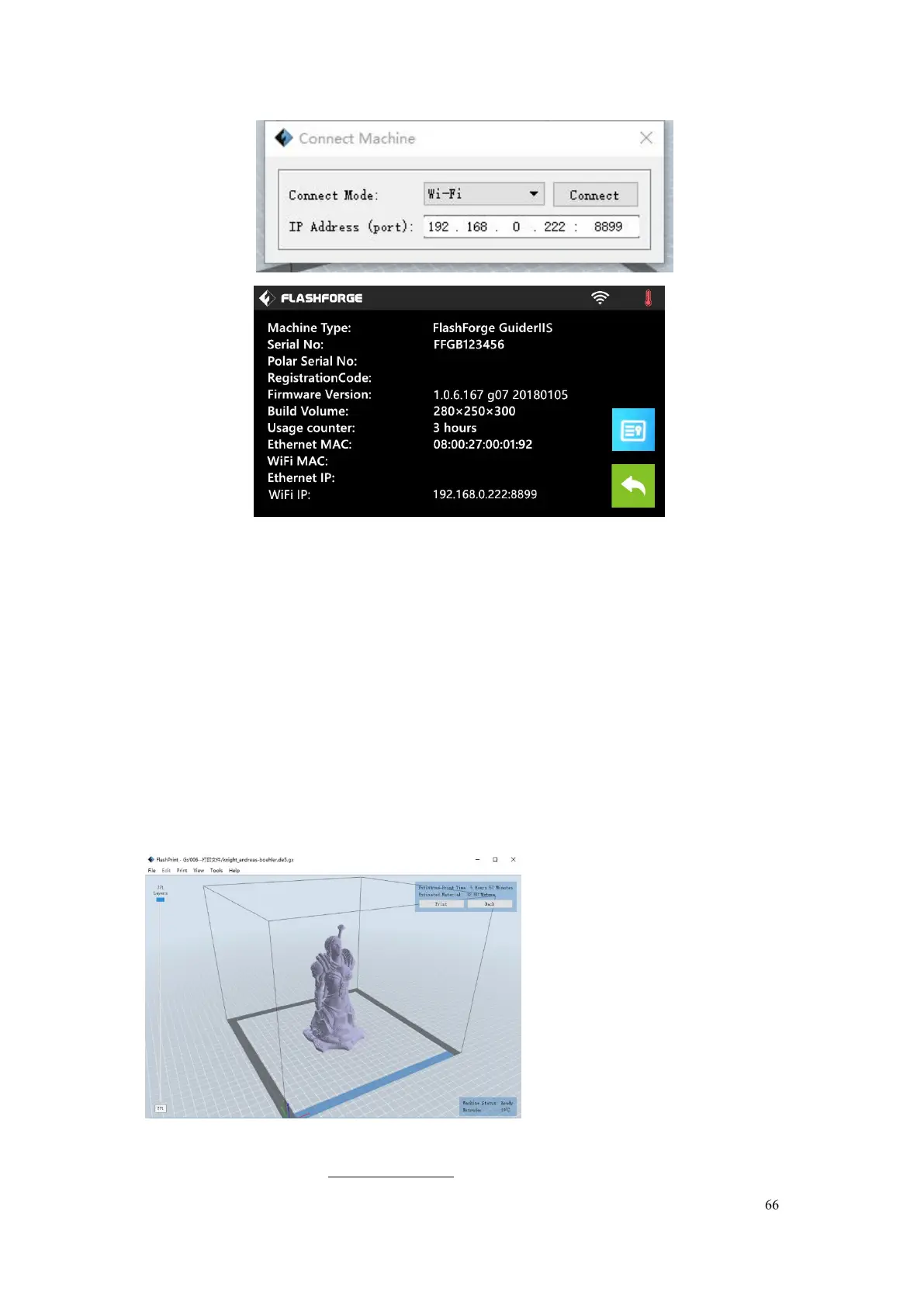
Guider IIS series User Guide | www.flashforge.com
② Turn on your Guider IIS, level the build plate and load the filament.
③ Click [
Print
] and transfer your Gcode file to your Guider IIS. After
completing transference, the printer will heat up automatically. And when
heating finishes, the printer will start to build the model.
If you want to print a Gcode from a local folder, you just need to load the file
into FlashPrint at the status of USB connection or WiFi connection or Ethernet
connection, then click the
[Print]
button on the top-right.
● Load the target Gcode file into FlashPrint.


 To Next Page