Guider IIS series User Guide | www.flashforge.com
Method 2:
Select the file for loading and drag the file to the main interface of
Method 3: Click [File]--[Load File]. Then select the object file for loading.
Method 4:
Click [
File
]--[
Examples
] to load the example files
Method 5: Click [File]--[Recent Files] to load the files opened recently.
Method 6: Select and drag the target file to the icon of FlashPrint.
Note: .STL, .OBJ, and .FPP,
ways to store 3D models, are supported by
Generating Rilievo
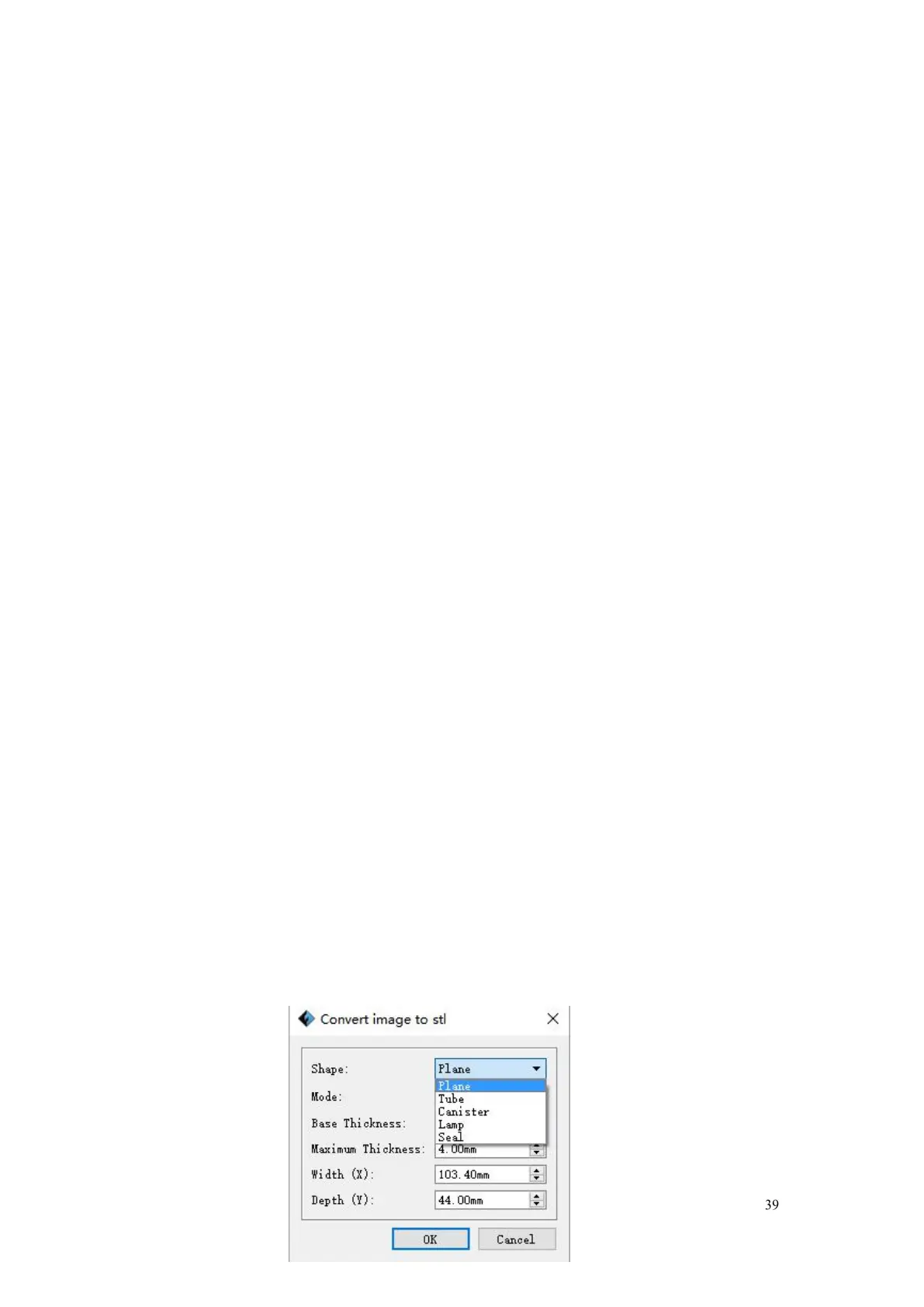
Load a png, jpg, jpeg, bmp picture file into the FlashPrint. And the following
dialogue box (6-3) will pop up. The setting box includes settings for shape,
mode, maximum thickness, base thickness, bottom thickness, width, height,
top diameter and bottom diameter.
Shape: including plane, tube, canister and lamp.
Mode: including “darker is higher” and “lighter is higher”.
Maximum thickness: Z value of the model
Base thickness: The minimum raft thickness and the default value is 0.5mm
Width: X value of the model
Depth: Y value of the model
Bottom thickness: For tube, canister and lamp to set up bottom thickness
Top diameter: For tube, canister lamp and seal to set up the top diameter
Bottom diameter: For tube, canister, lamp and seal to set up the bottom


 To Next Page