About Actions (for Windows Users)
118
6. Press the [Scan] button on the ScanSnap.
⇒ Scanning is started.
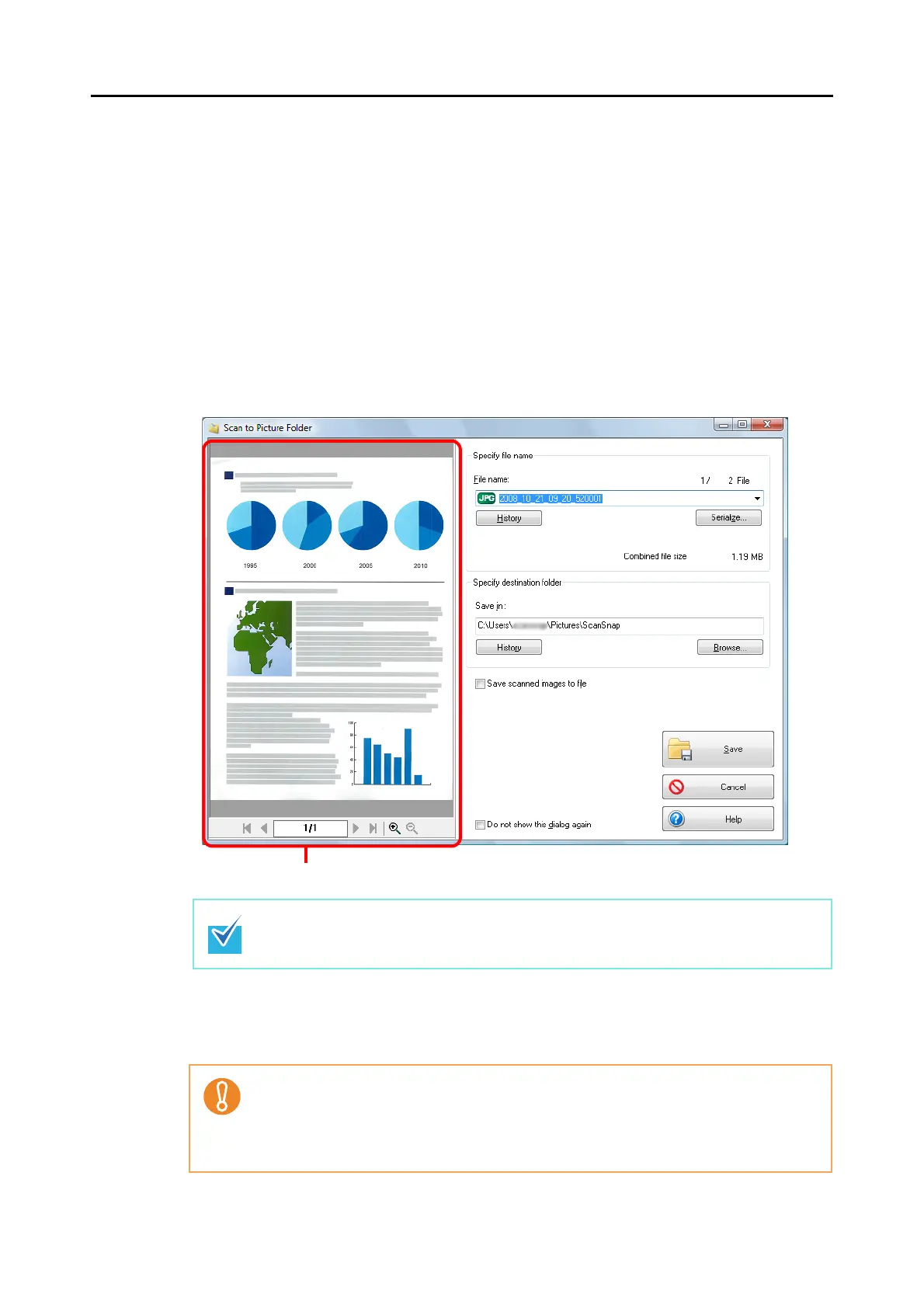
⇒ When scanning is complete, the [Scan to Picture Folder] dialog box appears.
When you have cleared the [Show preview] check box in Step 3., the scanned image
data is saved in the pictures folder.
7. Check the scanned image on the [Scan to Picture Folder] dialog box.
You can rename the file.
For details about the [Scan to Picture Folder] dialog box, refer to ScanSnap Manager
Help.
8. Click the [Save] button.
⇒ The scanned image data is saved in the pictures folder.
In [Specify destination folder], you can change the destination folder to a folder other than
the pictures folder.
• When the [Scan to Picture Folder] dialog box is displayed, scanning cannot be per-
formed with the ScanSnap. Close the [Scan to Picture Folder] dialog box before scan-
ning another document.
• Do not move, delete, or rename the scanned image data in other applications when the
[Scan to Picture Folder] dialog box is displayed.
Preview area



 To Next Page
 Loading...










