Using the ScanSnap in Various Ways (for Windows Users)
169
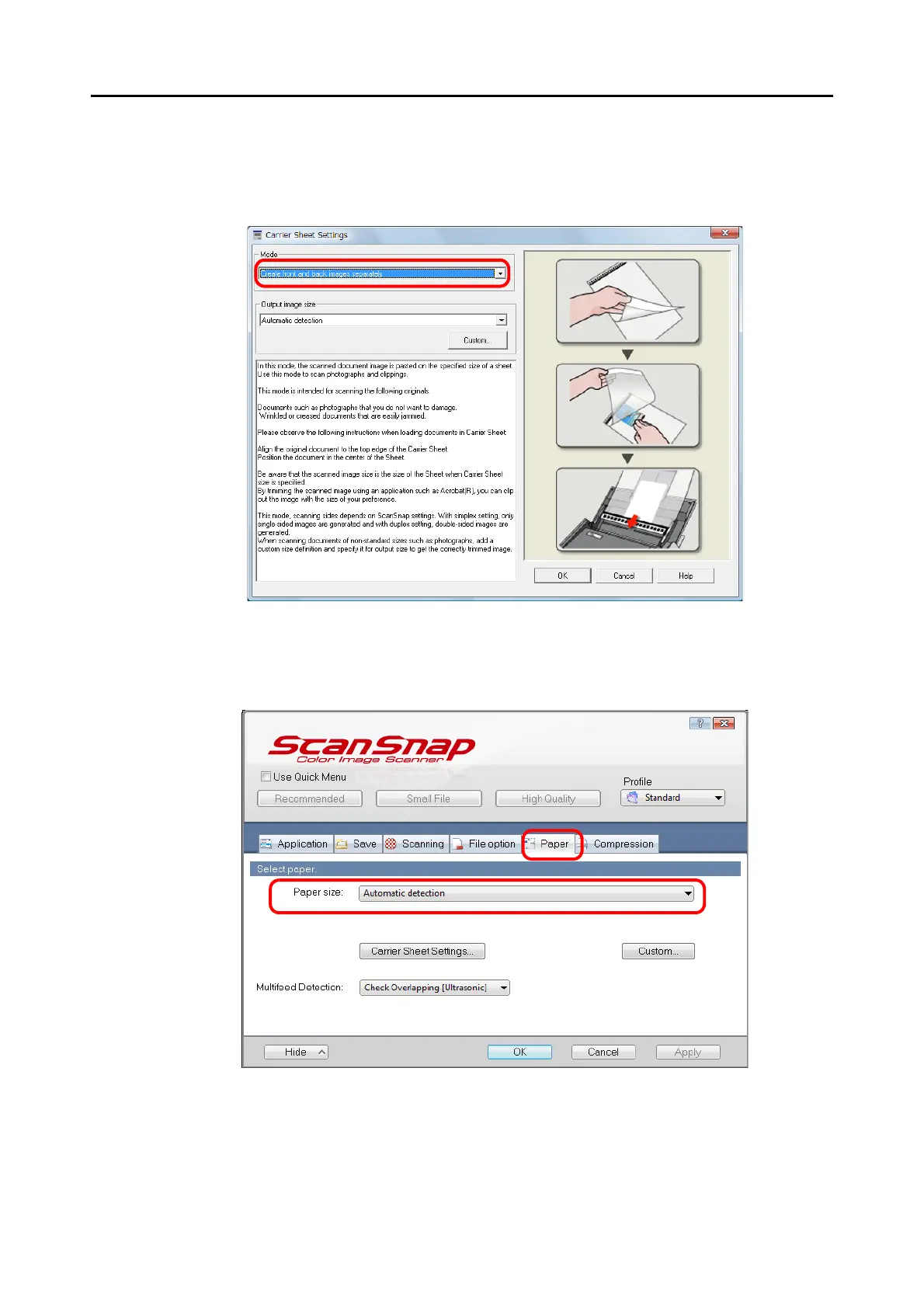
3. Select [Create front and back images separately] in the [Mode] drop-
down list, and then click the [OK] button.
For details about Carrier Sheet settings, refer to the ScanSnap Manager Help.
4. Select [Automatic detection] in the [Paper size] drop-down list on the
[Paper] tab.
5. Click the [OK] button to close the ScanSnap setup dialog box.



 To Next Page
 Loading...










