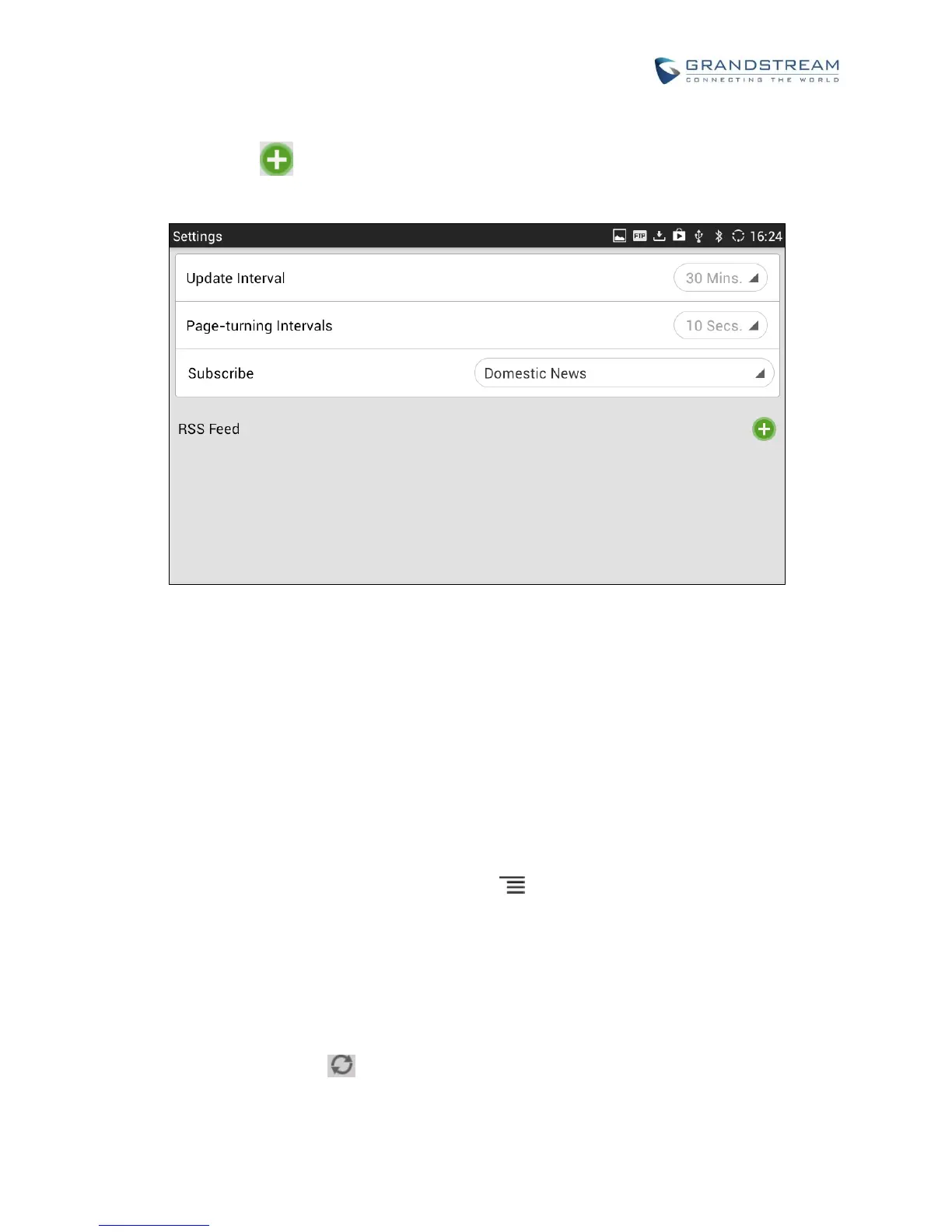
RSS Feed: Tap on the URL field on the bottom of the screen and enter the link of a new RSS feed.
Then tap on icon to add it to the category of the RSS feed.
Figure 147: GXV3275 RSS News Settings
WEATHER
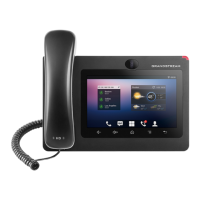
GXV3275 has a built-in Weather widget that provides weather information includes humidity, wind direction,
wind speed (mph) and temperature in unit as configured by the users.
ADD WEATHER WIDGET
1. On the GXV3275 idle screen, press Settings button and select "Edit Widgets".
2. A list of widgets will show on the bottom of the screen. Swipe left/right to find the "Weather" widget.
3. Touch and drag it to the idle screen. Please make sure there is enough space on the idle screen to
place the widget.
USE WEATHER WIDGET
On the Weather widget, tap on to refresh the weather information. Users can also tap on the widget to
access the settings.


 To Next Page
 Loading...