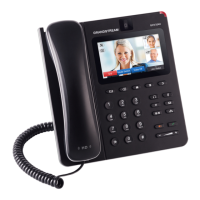
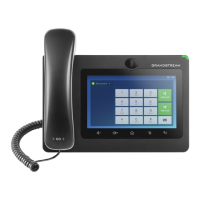
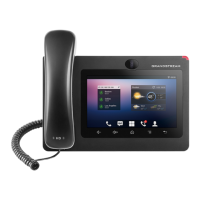
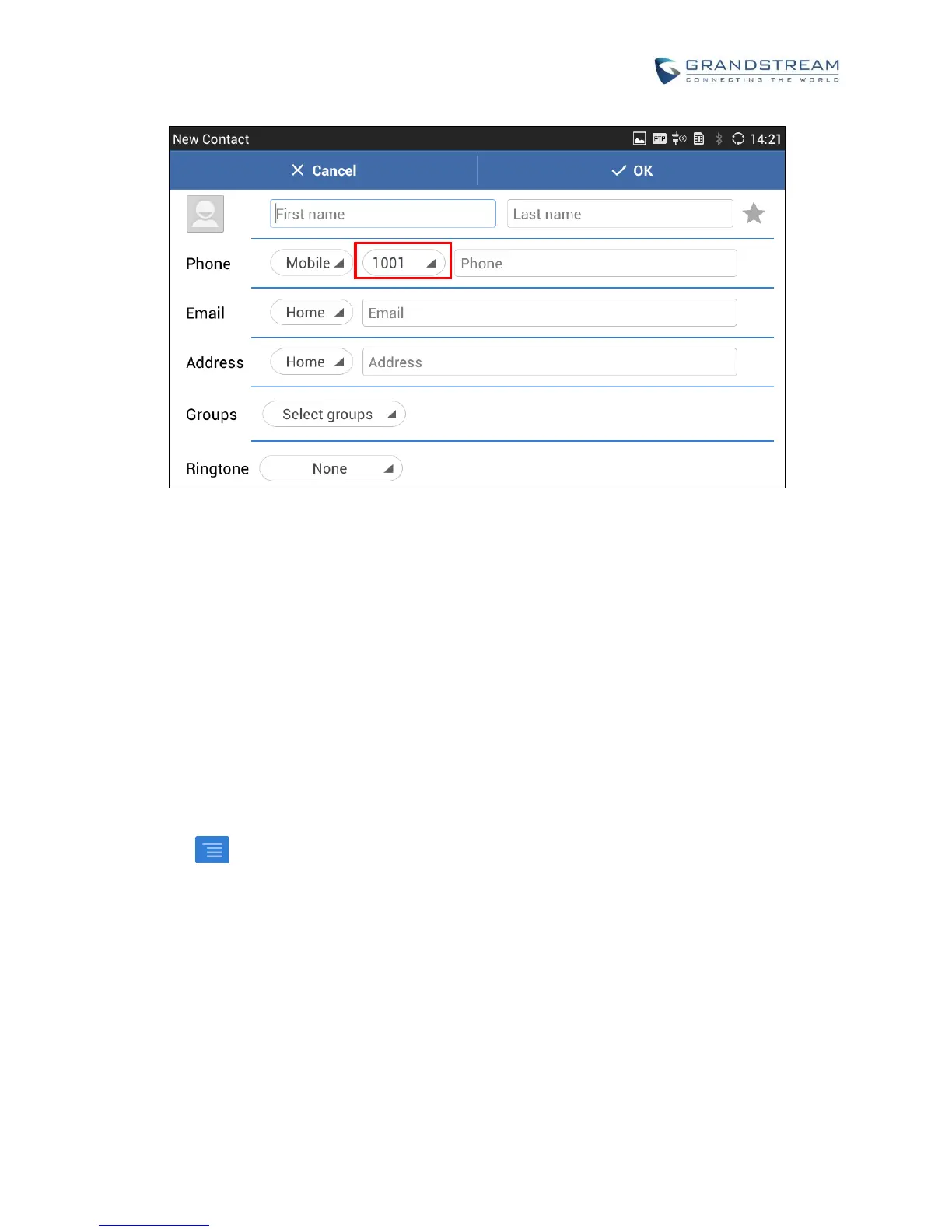
Figure 71: GXV3275 Contacts - Add New Contact
IMPORT/EXPORT CONTACTS
If the users have the GXV3275 phonebook file saved in local storage or external storage device that has
been plugged into the GXV3275, the phonebook file can be directly imported to the Contacts. There are
three different formats supported for the phonebook file: "csv", "vcard", and "xml". Users could manually
create contacts first and export the phonebook file in csv, vcard or xml format to take a look on the
phonebook file.
To import contacts:
1. Open Contacts.
2. Tap on on the upper right of the Contacts screen.
3. Select "Import" to bring up "Import Contacts" dialog.


 To Next Page
 Loading...