EasyManua.ls Logo

HITEC OPTIC 6 - ACGL, HELI - Model Type Select; Swashplate Type Selection

HITEC OPTIC 6
60 pages
Print Icon
To Next Page IconTo Next Page
To Previous Page IconTo Previous Page
Loading...
For more information - www.modelflight.com.au
Model
Setup
Functions
Flashing
Destination
(Flashing)
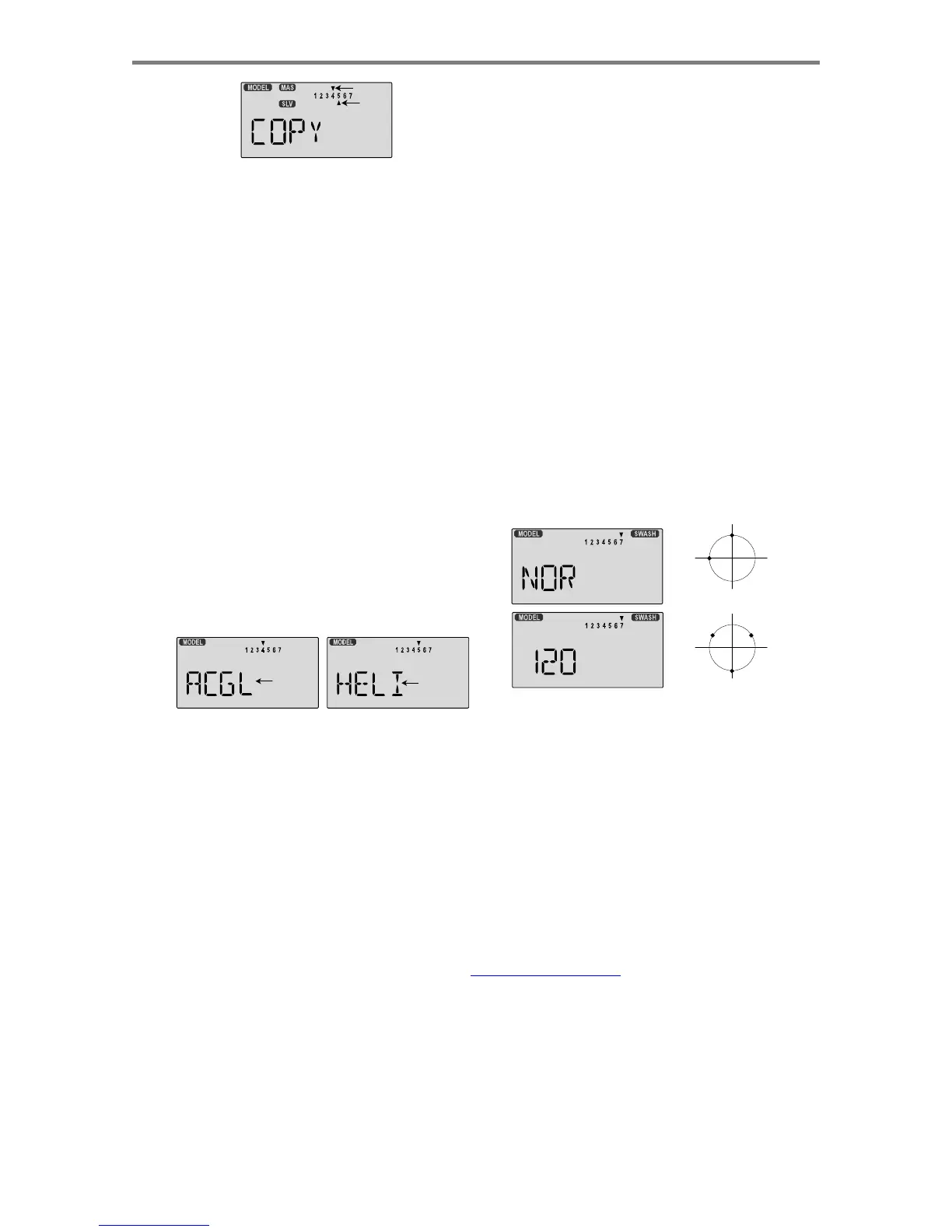
3.
The
source
model
memory
(the
memory
that
will
be
duplicated)
is
the
current
one,
indicated
by
the
fixed
upper
arrow.
To
select
your
destination
model
number,
press
the
Left
or
Right
Cursor
keys.
The
selected
destination
memory
number
is
shown
by
the
flashing
triangle
under
it.
4.
Press
the
+Increase
and
-Decrease
Data
keys
at
the
same
time.
The
transmitter
beeps
twice
rapidly,
indicating
the
copy
has
been
completed.
5.
Switch
power
off.
6.
Switch
power
back
on.
If
you
wish
to
go
to
the
newly-saved
memory,
repeat
step
1.
A
CGL,
HELI
-
Model
Type
Select
This
function
is
used
to
select
the
type
of
model
to
be
programmed
in
the
current
model
memory.
You
may
select
from
aircraft/glider
(
ACGL
)
and
helicopters
(
HELI
).
If
you
select
a
helicopter
type,
you
will
need
to
set
the
swash
type.
These
settings
are
covered
below.
Selecting
the
Model
Type
1.
With
the
transmitter
switched
off,
turn
on
your
transmitter
while
pressing
both
of
the
two
Edit
keys
(the
two
keys
on
the
far
left).
The
model
select
(
M.SEL
)
menu
will
be
displayed.
2.
Press
the
Down
arrow
key.
This
gets
you
into
the
type
select
menu.
The
current
model
type
will
be
flashing
on
and
off.
(If
you're
already
in
the
setup
menus,
you
can
just
press
the
Up
or
Down
arrow
key
to
get
here.)
6.
If
you've
selected
the
HELI
menu,
go
to
the
Swash
select
menu
(see
below)
and
choose
the
swash
type
for
your
model.
7.
Press
the
Up
or
Down
arrow
keys
to
get
to
another
setup
menu,
or
switch
power
off.
8.
Switch
power
back
on.
You
may
now
set
up
the
details
of
your
model
in
the
Edit
mode.
Swashplate
Type
Selection
If
you
are
using
the
helicopter
(
HELI
)
setting
menu,
you
must
tell
the
Optic
system
what
type
of
swashplate
your
model
uses.
Helicopters
may
have
one
servo
each
for
pitch,
aileron,
and
elevator
(
NOR
)
or
they
may
use
three
servos
in
concert
on
the
swash
to
provide
these
functions
(
120'
).
If
you
are
not
sure
about
your
swash
type,
please
consult
your
model's
instructions.
Note
that
this
menu
will
not
be
available
unless
you
have
selected
the
HELI
model
type
Selecting
the
Swashplate
Type
1.
Select
the
HELI
model
type
in
the
Model
Type
Select
menus
(see
above).
2.
With
the
transmitter
switched
off,
turn
on
your
transmitter
while
pressing
both
of
the
two
Edit
keys
(the
two
keys
on
the
far
left).
The
model
select
(
M.SEL
)
menu
will
be
displayed.
3.
Press
the
Up
or
Down
arrow
keys:
If
you're
in
HELI
mode,
SWASH
will
be
highlighted
and
you
can
select
from
two
swashplate
types:
NOR
and
120':
CH2
CH1
NOR
(CH6=PITCH)
CH6
CH1
CH2
Flashin
g
Flashin
g
120
3.
If
the
model
type
you
want
is
displayed,
you're
done.
[If
you
wish
to
change
the
swash
type
in
the
HELI
model
settings,
see
the
sections
below.]
4.
If
you
wish
to
change
the
model
type
from
that
displayed,
press
on
the
Lef
tor
Right
Cursor
buttons
until
the
model
type
you
want,
either
ACGL
or
HELI,
appears.
5.
To
select
your
desired
model
type,
press
both
the
+Increase
and
-
Decrease
Data
keys
simultaneously.
Two
beeps
tell
you
that
the
new
model
type
is
now
registered.
THIS
WILL
ERASE
ALL
THE
OLD
SETTINGS
IN
THE
MODEL
MEMORY,
SO
BE
SURE
YOU'RE
IN
THE
CORRECT
MODEL
MEMORY
BEFORE
YOU
CHANGE
MODEL
TYPE!
4. If the swash type displayed
is
correct,
go
on to the next step.
If
you
wish
to
change
the
swashplate
type
from
that
displayed,
press
on
the
Left
or
Right
Cursor
buttons
until
the
swash
type
you
want
appears.
CAUTION:
if
you
change
types,
you
may
lose
settings
in
the
menus.
5.
Press
the
Up
or
Down
arrow
keys
to
get
to
another
setup
menu,
or
switch
power
off.
6.
Switch
power
back
on.
You
may
now
set
up
the
details
of
your
model
in
the
Edit
mode.
Mode
l
Setu
p
Function
s
-
Pa
g
e
1
2

Table of Contents

Other manuals for HITEC OPTIC 6

Related product manuals