EasyManua.ls Logo

HITEC OPTIC 6 - Helicopter Setup Instructions

HITEC OPTIC 6
60 pages
Print Icon
To Next Page IconTo Next Page
To Previous Page IconTo Previous Page
Loading...
For more information - www.modelflight.com.au
Helicopter
Setup
Instructions
The
following
example
shows
how
the
Optic
may
be
programmed
for
a
helicopter
model.
Your
model's
settings
will
be
dependent
on
the
setup
and
linkages.
If
you're
not
sure
about
the
settings
for
your
particular
model,
please
ask
an
experienced
pilot
for
assistance.
The
helicopter
setup
procedure
presented
below
uses
a
standard
helicopter
setup,
one
servo
each
for
ailerons
and
elevator.
You
can
use
a
similar
procedure
to
set
up
your
own
model;
your
setting's
numbers
and
percentages
will
probably
be
different.
1.
In
the
helicopter,
install
each
servo
and
hook
up
the
aileron,
elevator,
throttle,
rudder,
and
collective
pushrods
to
the
servos
in
accordance
with
the
model's
instructions
or
plans.
Be
sure
that
all
of
your
servos
are
plugged
into
the
proper
receiver
channels:
CH1
-
Aileron
(Roll
Cyclic)
CH2
-
Elevator
(
Pitch
Cyclic)
CH3
-
Throttle
CH4
-
Rudder
(Gyro
Yaw
control)
CH5
-
Gyro
(For
gyro
gain
control)
CH6
-
Pitch
(
Blade
Collective)
If
your
model
uses
120
°
swash
programming,
plug
in
the
servos
as
indicated
in
the
table
on
page
9.
We
recommend
that
you
do
this
programming
exercise
with
the
servos
installed
in
the
model
and
connected
to
the
respective
control
surfaces.
This
will
enable
you
to
immediately
see
the
effect
of
each
programming
step.
2.
Model
Memory.
Turn
on
your
transmitter
while
holding
the
two
Edit
Display
keys.
This
gets
you
into
the
model
select
(
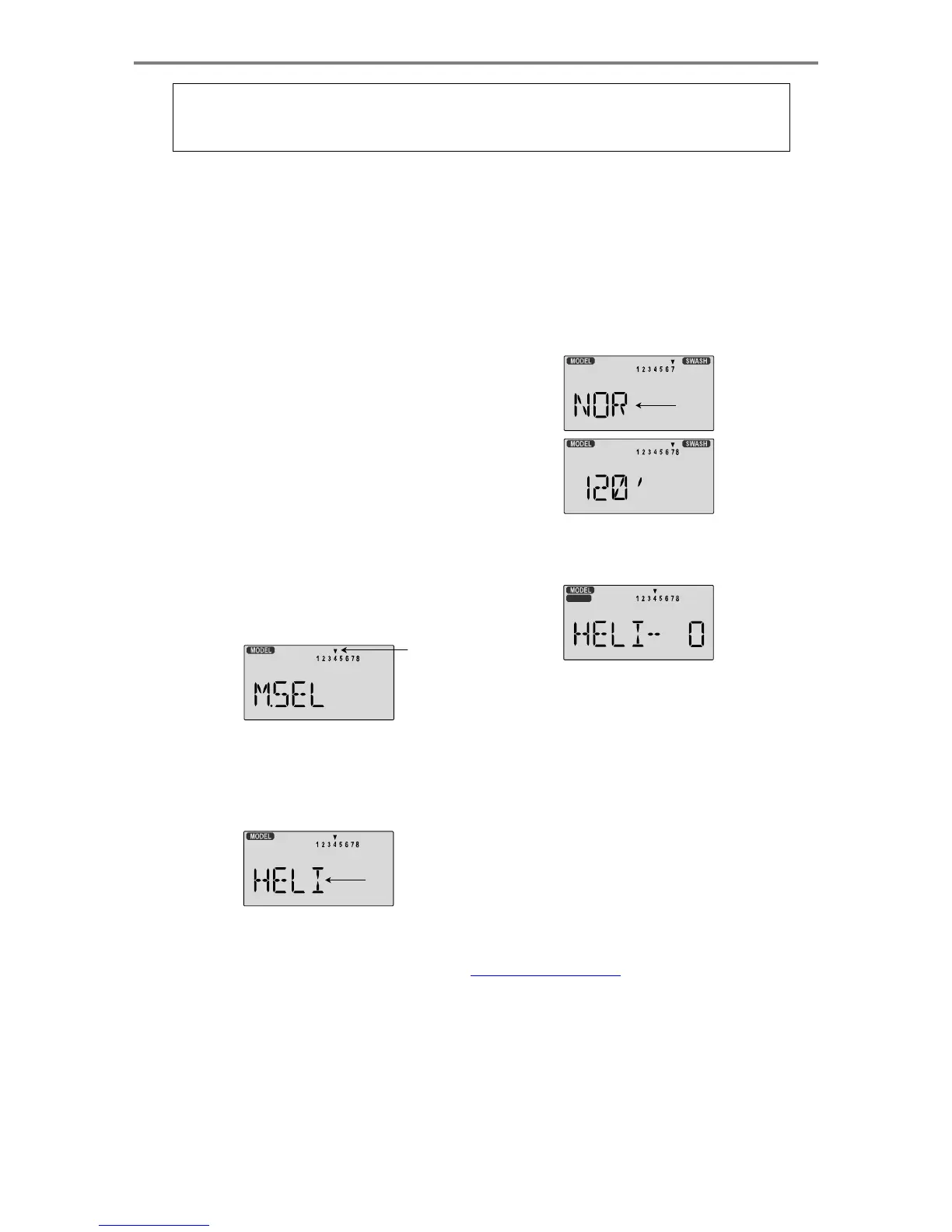
M.SEL
)
menu.
Press
the
Cursor
Right
button
to
move
to
a
new
model
memory.
The
model
number
of
the
model
memory
you
select
is
indicated
by
the
little
arrow
pointing
down.
The
figure
shows
Memory
#4.
WARNING:
selecting
a
different
model
type
will
erase
the
settings
in
the
model
memory.
BE
SURE
you're
in
the
correct
model
memory
before
selecting
a
new
model
type,
or
you
might
accidentally
erase
a
model
you're
using.
4.
Swash
Type.
Now
it's
time
to
select
the
swash
type.
Select
NOR
for
helis
with
independent
aileron,
elevator,
and
pitch
servos;
120'
for
models
using
120
°
swashplates.
Press
the
Up
Edit
arrow
until
you
see
the
word
"
SWASH
"
in
the
upper
right
of
the
display.
The
swash
type
in
the
lower
left
will
be
flashing.
Flashing
5.
Name
your
model.
Press
the
UP
arrow
once.
This
gets you
into
the
model
name
mode
(note
the
words
MODEL
and
NAME
in
the
upper
left
of
the
display).
NAME
Flashin
g
3.
Model
Type.
Press
the
UP
Edit
arrow
two
times.
The
word
ACGL
will
appear,
flashing
on
and
off.
Press
the
Left
or
Right
Cursor
keys
until
HELI
appears.
You
must
press
both
Data
keys
to
"
Save
"
the
setting.
This
is
how
you
select
the
type
of
model
you
wish
to
use,
either
ACGL
or
HELI
.
6.
Now
you
can
select
four
letters
to
identify
your
model.
With
the
first
of
the
four
letters
flashing,
press
the
Data
+Increase
or
-Decrease
keys
to
change
the
letter
that
is
displayed. Stop
when
the
first
letter
is
the
one
you
want.
7.
Press
the
Right
Cursor
key
once
to
get
to
the
second
letter.
Repeat
Step
5
to
choose
the
second
letter.
8.
Repeat
the
previous
steps
two
more
times
to
fill
out
the
remaining
two
letters.
If
you
like,
you
can
hit
the
right
cursor
button
one
more
time
and
select
a
number
between
0
and
199
for
further
identification.
The
model's
frequency
number
might
be
a
good
choice.
Flashin
g
Helico
p
ter
Setu
p
Instruction
s
-
Pa
g
e
46

Table of Contents

Other manuals for HITEC OPTIC 6

Related product manuals