EasyManua.ls Logo

HITEC OPTIC 6 - FLPT - Flap Travel Function; FLPN - Flaperon Mixing

HITEC OPTIC 6
60 pages
Print Icon
To Next Page IconTo Next Page
To Previous Page IconTo Previous Page
Loading...
For more information - www.modelflight.com.au
A
ir
p
lane
Model
Function Descri
p
tions
2.
Press
the
CLEAR
key
to
switch
between
the
two
possible
settings.
3.
If
you
choose
the
Switch
SW-01
control
setting,
be
sure
the
switch
is
in
the
OFF
position
before
you
switch
on
the
airborne
system.
This
is
to
ensure
you
do
not
accidentally
turn
on
full
throttle.
CH1 CH6
A
ileron
O
p
eration
FLP
T
-
Flap
T
rave
l
Function
The
Flap
Travel
function
is
used
to
specify
the
amount
of
flap
travel
produced
by
motion
of
the
flap
control
(the
Left
lever
).
If
flaperon
is
inactive,
the
Right
lever
may
be
used
to
trim
the
flap
position.
With
flaperons
active,
the
Right
lever
controls
the
motion
of
both
flaperons.
Setting
Flap
Travel
function
1.
Use
the
Edit
Up
Down
arrow
keys
to
select
the
FLPT
window.
The
number
in
the
display
may
be
different.
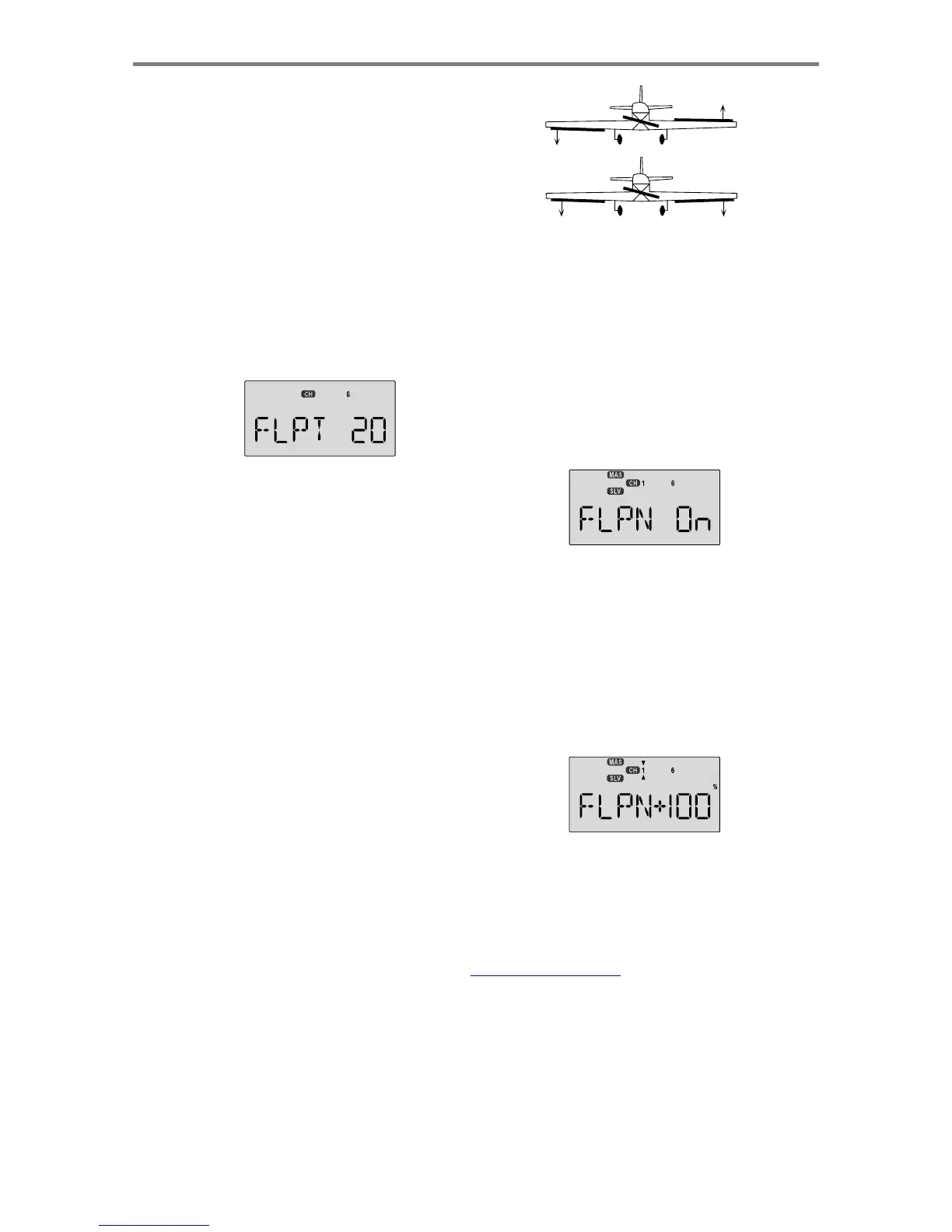
CH1 CH6
Flap
Operation
You
can
combine
the
flaperon
function
with
the
landing
function
(
LAND
),
to
get
steeper
descents
without
building
up
airspeed.
This
is
very
convenient
for
making
short
approaches
on
small
fields.
Note
that
you
cannot
have
both
flaperon
and
elevon
mixing
active
at
the
same
time.
Setting
up
the
Flaperon
function
1.
The
right
flaperon
servo
should
be
plugged
into
CH1
,
and
the
left
flaperon
servo
should
be
plugged
into
CH6
.
2.
Press
one
of
the
Up
Down
Edit
buttons
repeatedly
to
select
the
FLPN
window.
The
INH
indicator
will
show.
3.
Press
the
Active/Inhibit
(Clear)
key
to
activate
the
flaperon
function.
This
will
show
the
On
indicator.
2.
Press
the
Data
+Increase
or
-Decrease
key
to
input
your
desired
flap
motion
setting.
The
30%
default
value
produces
"reasonable"
travel
for
many
models,
but
you
must
try
it
out
on
your
own
model
to
be
sure.
A
100%
setting
causes
extreme
travel
and
is
not
recommended
as
it
can
cause
the
servos
to
bind
or
excessive
trim
changes.
You
may
want
to
set
it
to
a
smaller
number,
say
10%
for
starters.
If
you
wish
to
return
to
the
default
30%
setting,
press
the
Active/Inhibit
(Clear)
key.
You
can
toggle
through
the
settings
0%,
30%,
and
100%
by
continuing
to
press
this
key.
Setting
it
to
0%
disables
the
Right
lever
control,
but
the
flaps
will
still
respond t
o
mixing
functions
such
as
E->F
andtothe
Landing
function.
FLPN
-
Flaperon
Mixing
The
Flaperon
mixing
function
uses
two
servos
to
individually
control
two
ailerons,
combining
the
aileron
function
with
the
flap
function.
Both
ailerons
can
be
raised
and
lowered
simultaneously
for
a
flap
effect.
Of
course,
aileron
function,
where
the
two
controls
move
in
different
directions,
is
also
performed.
The
down
travel
of
the
left
and
right
ailerons
can
be
adjusted,
so
you
can
also
get
a
differential
effect.
(Left
and
right
flap
travel
are
adjusted
individually
in
the
EPA
menu.)
To
take
advantage
of
the
flaperon
mixing
function,
you'll
need
to
connect
the
right
aileron
servo
to
CH1
(AIL)
and
the
left
aileron
servo
to
CH6
(FLP).
4.
Press
the
Cursor
Right
key
once.
A
small
arrow
is
displayed
over
the
numeral
1
,
representing
aileron
master
channel,
and
the
percent
indicator
will
blink
on
and
off.
A
small
arrow
is
displayed
under
the
numeral
1
,
which
tells
us
we're
setting
the
right
(
CH1
)
flaperon
servo.
Move
the
aileron
stick
all
the
way
to
the
right,
and
check
that
both
flaperons
move
the
right
direction.
If
the
right
(
CH1
)
flaperon
moves
the
wrong
way,
change
the
its
travel
direction
by
holding
the
stick
to
the
right,
pressing
the
Active/Inhibit
(Clear)
key,
then
pressing
the
Data
-Decrease
key
until
you
reach
-100%.
This
will
also
change
the
travel
for
the
left
stick
motion.
A
ir
p
lane
Mode
l
Function
Descri
p
tion
s
-
Pa
g
e
30

Table of Contents

Other manuals for HITEC OPTIC 6

Related product manuals