EasyManua.ls Logo

HITEC OPTIC 6 - THCV - Throttle Curve

HITEC OPTIC 6
60 pages
Print Icon
To Next Page IconTo Next Page
To Previous Page IconTo Previous Page
Loading...
For more information - www.modelflight.com.au
Menu
Descriptions
-
Helicopter
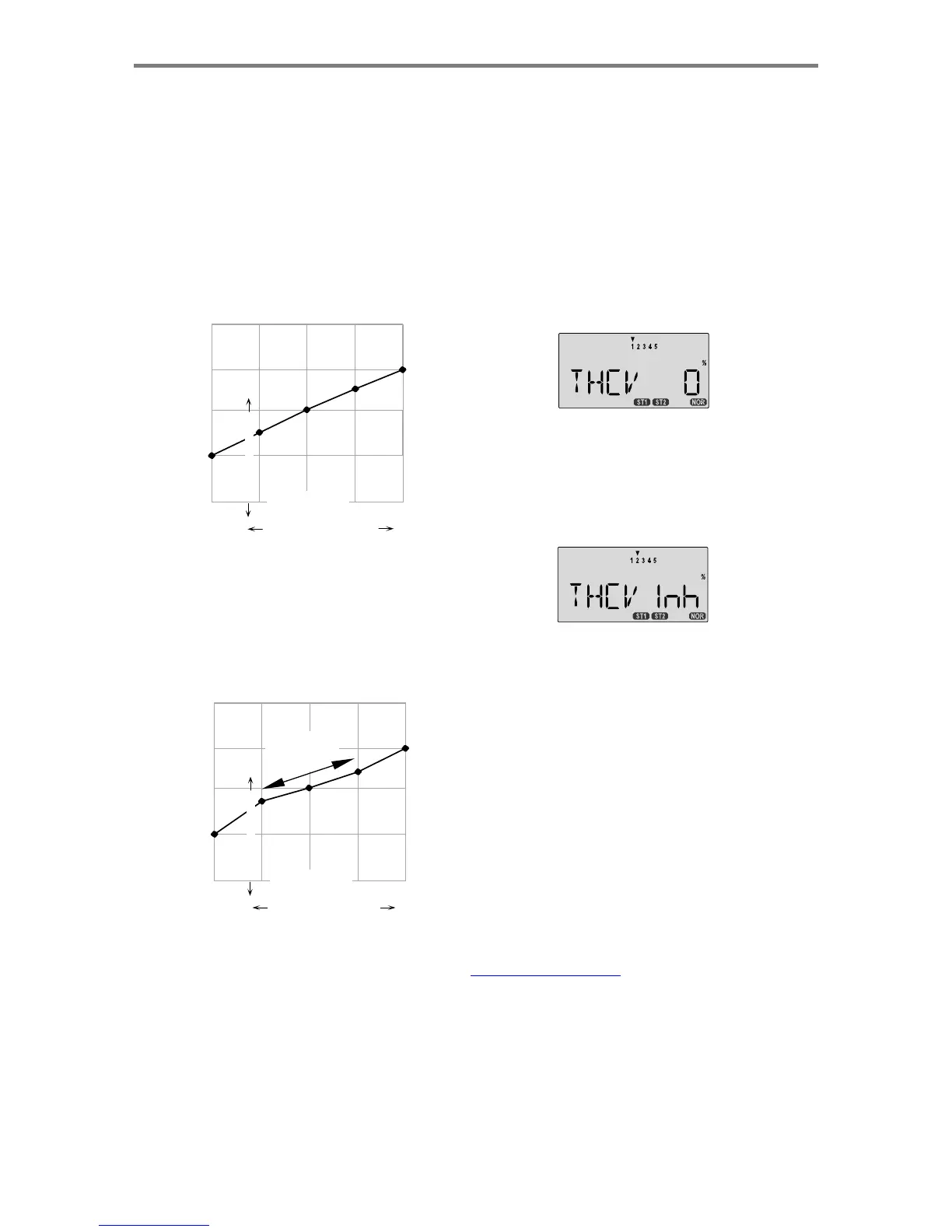
THCV
-
Throttle
Curve
The
throttle
&
pitch
curves
are
tied
to
the
position
of
the
collective
stick,
and
are
specified
at
five
points
labeled
1
through
5
below.
These
"curves"
are
really
straight
lines
connecting
the
settings
at
the
five
points,
and
are
defined
by
assigning
servo
movement
percentages
to
five
positions
of
the
left
stick:
lowest
=
Point
1,
the
1/4-up
stick
position
=
Point
2,
half-stick
=
Point
3,
3/4
position
=
Point
4,
and
top
position
=
Point
5.
With
the
numbers
defined
as
shown,
the
servo
would
move
50%
of
full
travel
to
one
side
at
low
collective
stick
position,
and
50%
of
full
travel
to
the
other
side
at
high
stick
position.
Exam
p
le
Five-Point
Curve
Setting Up The Throttle Curve
1.
Press
one
of
the
Up
Down
Edit
buttons
until
the
THCV
window
appears.
The
default
is
for
a
linear
curve,
a
straight
line
from
0
to
100%
passing
through
50%
at
hover
(center,
point
3).
2.
Be
sure
you're
in
the
desired
flight
Mode
by
moving
the
Flt.
Mode
(SW-4)
switch
to
its
proper
position.
Remember,
you
can
input
separate,
independent
throttle
curve
settings
for
each
separate
idle-up
mode
(except
for
ST3
,
throttle
hold)!
Also,
be
sure
to
center
the
hovering
throttle
lever
3.
You
begin
at
set
point
#1,
idle.
A
small
arrow
should
appear
over
the
number
1
in
the
display,
and
a
value
of
0%
should
be
shown.
Press
the
Data
+Increase
or
-Decrease
key
to
100%
chan
g
e the settin
g
to
y
ou
r
desired
value.
63%
75%
75%
25%
38%
50%
50%
25%
4.
When
you're
finished
with
Point
1,
move
to
the
next
point
with
the
Cursor
Right
key.
A
small
arrow
over
the
number
2
indicates
you
are
setting
the
value
for
Point
2.
Note
that
the
function
is
inhibited
(Inh)
to
start
with.
If
you
leave
it,
you
Curve
Point
0%
g
et a strai
g
ht line from
p
oints
1
to
3.
Otherwise,
y
ou can
1
2
3
4
5
Low
Collective
Stick
Hi
g
h
change this setting with the
Data
+Increase
o
r
-Decrease
ke
y
s.
You
can
get
a
linear
response
by
making
the
five
settings
line
up
as
shown
above.
But
if
you
want
another
shape,
you're
free
to
do
it.
You
can
"flatten
out"
or
"soften"
the
curve
around
hover
as
shown
here.
This
is
handy
for
making
the
control
less
sensitive
around
hover.
5.
Repeat
this
procedure
for
Points
3,
4,
and
5
by
pressing
the
Cursor
Right
key,
then
adjusting
as
desired
with
the
Data
5-Pt
Curve
Soft
Near
Hover
100%
+Increase
o
r
-Decrease
keys.
6.
When
you've
completed
the
settings
for
the
first
flight
mode
(
NOR
),
test
fly
your
model.
When
you're
satisfied
with
the
settings,
use
them
as
a
basis
for
the
other
flight
mode.
25%
Shallower
Slope
in
this
region
50%
40%
75%
60%
75%
50%
25%
Flip
the
switches
as
necessary
to
get
into
the
new
modes,
verify
on
the
display
that
you
are
in
the
desired
flight
mode,
then
set
all
the
five
points
in
by
going
through
the
steps
given
previously.
Curve
Point
0%
1
2
3
4
5
Low
Collective
Stick
Hi
g
h
Men
u
Descri
p
tion
s
-
Helico
p
ter
-
Pa
g
e
5
2

Table of Contents

Other manuals for HITEC OPTIC 6

Related product manuals