EasyManua.ls Logo

HITEC OPTIC 6 - CROW - Crow Mixing (Airbrakes)

HITEC OPTIC 6
60 pages
Print Icon
To Next Page IconTo Next Page
To Previous Page IconTo Previous Page
Loading...
For more information - www.modelflight.com.au
A
irplane
Model
Function Descriptions
ON
or
OFF
depends
on
Flt.
Mode
switch
setting
2.
Press
the
Cursor
Right
key
to
get
the
percent
sign
flashing,
then
press
the
Data
+Increase
and
-Decrease
keys
to
increase
or
decrease
the
amount
of
mixing.
Check
the
direction
the
flaps
move
with
elevator
stick:
with
up
elevator,
the
flaps
should
droop
downwards,
and
for
down
elevator
they
should
come
up.
In
other
words,
they
should
move
opposite
the
elevator
motion.
If
they
don't,
use
the
Data
+Increase
and
-Decrease
keys
to
change
the
sign
in
front
of
the
percentage
number.
You
should
probably
start
with
a
smaller
number
(say
20%
or
so)
and
slowly
increase
it
to
learn
how
the
model
reacts.
Remember
the
position
of
the
Flt.
Mode
(SW-4)
switch
turns
this
function
on
and
off
(fully
aft
turns
it
ON
).
drag)
occur
at
"low"
slider
position
(towards
the
bottom
of
the
transmitter).
The
selected
ON-OFF
switch
must
be
ON
for
Crow
to
operate.
Note:
activating
CROW
automatically
turns
CH5
into
a
second
aileron
servo,
and
CH6
becomes
a
flap
servo
commanded
by
the
Right
slider
if
FLPT
is
not
set
to
zero.
Setting
Up
Crow
Mixing
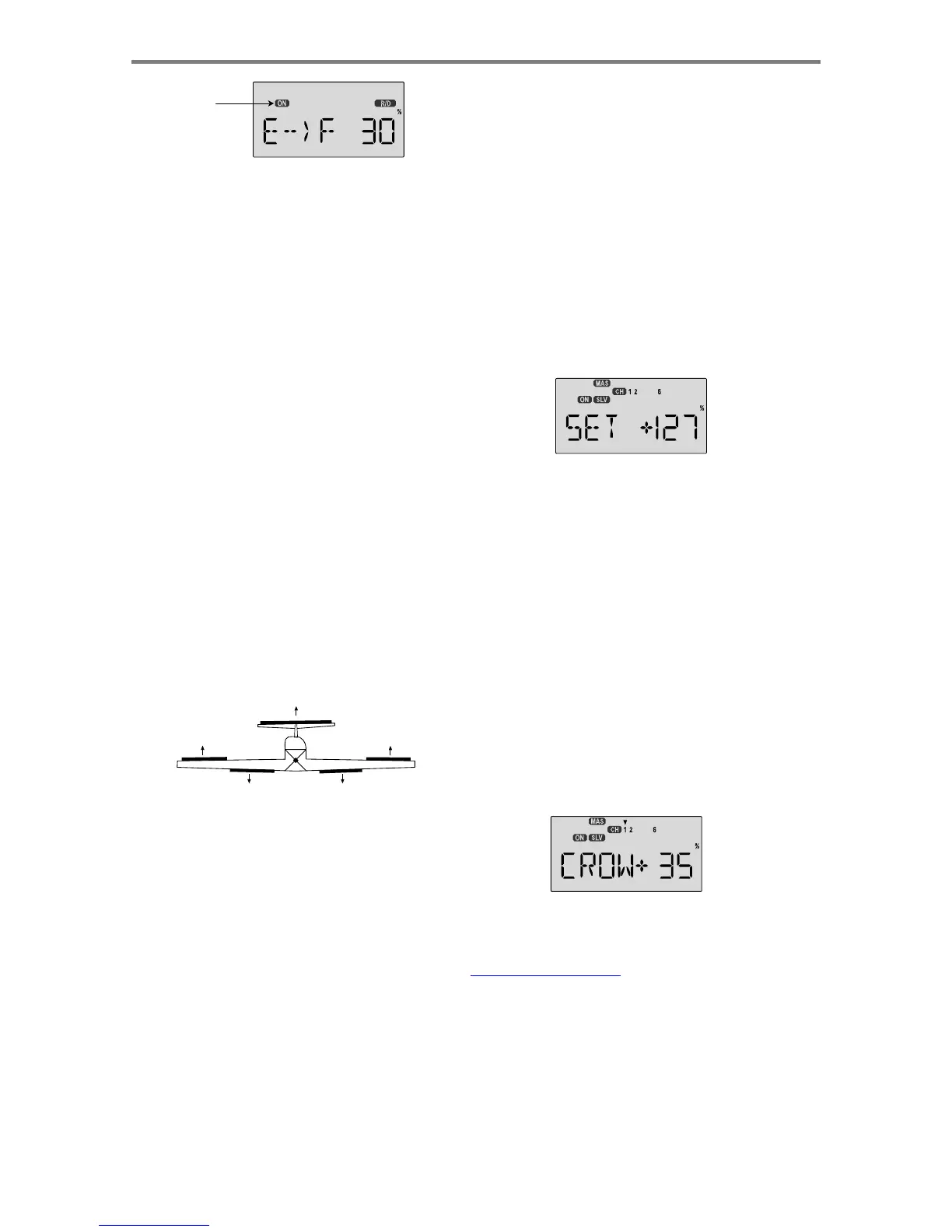
1.
Start
by
locating
the
CROW
menu
with
the
Up
Down
Edit
keys.
Either
the
ON
or
OFF
display
will
be
flashing,
depending
on
the
position
of
the
Gear
switch
SW-2
(forward
is
on).
2.
First
set
the
CROW
function
activation
point.
Hit
the
Cursor
Left
key
one
time
to
get
to
the
SET
menu.
Now
move
the
left
lever
all
the
way
up.
Enter
that
position
by
pressing
the Clea
r
Active/Inhibit
key.
The
display
should
read
a
number
around
+125%.
CROW
-
Cro
w
Mixing
(Airbrakes)
The
Crow
mixing
function
is
useful
for
increasing
the
drag
of
a
model
during
landing
approaches,
which
makes
the
approach
steeper
and
slower,
making
landings
shorter
and
easier.
This
is
especially
useful
for
stunt
planes
and
sailplanes
to
help
make
precision
landings.
You
may
select
the
switch
that
turns
on
the
Crow
function,
and
the
function
is
commanded
proportionally
by
the
Left
Lever
position.
You
can
move
the
lever
a
small
or
large
amount
and
get
a
small
or
large
travel
(unlike
Camber
which
provides
a
fixed
amount
of
motion).
Ailerons,
elevator,
and
flaps
are
the
three
controls
that
are
commanded
by
Crow
function,
which
is
also
called
"butterfly"
in
the
sailplane
world.
3. Make sure
CROW
is
ON
by moving
the
Crow on-off switch
to
its
ON
position
.
Verify
by
looking
at
the
flashing
ON/OFF
indicator.
Either
the
ON
indicator
or
the
OFF
indicator
will
be
flashing,
depending
on
the
position
of
the
ON-OFF
switch
that
is
selected.
See
the
Switch
Select
instructions
on
P.
39
for
information
on
how
to
select
the
ON-OFF
switch.
4.
Next,
set
up
the
throws
for
the
first
aileron.
Press
the
Cursor
right
key
two
times
to
get
to
the
aileron
setting
menu
(a
small
arrow
will
appear
over
the
number
1
in
the
display).
Press
the
Data
+Increase
or
-Decrease
keys
to
adjust
the
amount
of
aileron
motion.
Move
the
Left
lever
all
the
way
down
and
be
sure
the
ailerons
go
UP
.
If
they
don't,
press
the
Clear
Active/Inhibit
key
and
then
press
the
Data
keys
change
the
sign.
You'll
probably
want
a
fair
amount,
but
not
all,
of
aileron
travel.
Be
sure
not
to
use
full
travel,
so
you'll
have
roll
authority
while
on
approach
in
full
crow
command.
Notice
that
you
set
the
throw
for
both
ailerons
at
the
same
time:
this
is
the
reason
to
have
identical
control
arm
lengths
and
identical
neutral
positions.
The
idea
of
the
crow
function
is
to
simultaneously
raise
the
ailerons
(which
reduces
the
wing's
lift),
and
drop
the
flaps
(to
regain
the
lift
lost
by
the
up
aileron
movement).
Elevator
motion
may
also
be
also
commanded
if
needed
to
prevent
a
trim
change
induced
by
the
flap
and
aileron
motion.
Normally,
crow
is
set
up
so
that
the
maximum
control
movements
(maximum
Airplane
Model
Function
Descriptions
-
Page
37

Table of Contents

Other manuals for HITEC OPTIC 6

Related product manuals