EasyManua.ls Logo

HITEC OPTIC 6 - PMX1, PMX2 - Programmable Mixes 1 and 2

HITEC OPTIC 6
60 pages
Print Icon
To Next Page IconTo Next Page
To Previous Page IconTo Previous Page
Loading...
For more information - www.modelflight.com.au
A
ir
p
lane
Model
Function Descri
p
tions
5.
Now
press
the
Cursor
right
key
one
time
to
get
to
the
elevator
setting
menu
(a
small
arrow
will
appear
over
the
number
2
in
the
display).
Press
the
Data
+Increase
or
-Decrease
keys
to
set
up
the
throws
for
the
elevator
as
desired.
Move
the
left
lever
and
be
sure
the
elevator
goes
down
with
crow.
If
it
doesn't,
change
the
sign
(this
may
depend
on
servo
orientation).
You
probably
should
not
use
much
elevator
motion
until
you
determine
if
Crow
changes
the
trim.
6.
Now
press
the
Cursor
right
key
one
time
to
get
to
the
second
aileron
setting
menu
(a
small
arrow
will
appear
over
the
number
5
in
the
display).
Press
the
Data
+Increase
or
-Decrease
keys
to
set
up
the
throws
for
the
second
aileron
as
desired.
Move
the
left
lever
and
be
sure
the
second
aileron
goes
UP
with
crow.
If
it
doesn't,
change
the
sign
(this
may
depend
on
servo
orientation).
Be
sure
to
set
both
aileron
offsets
to
be
the
same.
7.
Now
press
the
Cursor
right
key
one
time
to
get
to
the
flap
menu
(a
small
arrow
will
appear
over
the
number
6
in
the
display).
Press
the
Data
+Increase
or
-Decrease
keys
to
set
up
the
throws
for
the
flaps
as
desired.
Move
the
Left
lever
and
be
sure
the
flaps
go
down
with
crow.
If
they
don't,
change
the
sign
(this
may
depend
on
servo
orientation).
You'll
probably
want
as
much
flap
motion
as
possible
-
90
is
great
if
you
can
get
it.
Like
the
ailerons,
you
set
both
flap
offsets
at
the
same
time.
8.
If
you
can't
get
enough
travel,
go
to
the
EPA
menu
and
be
sure
channel
6
is
set
as
high
as
possible
to
get
90
°
flap
travel.
Of
course,
you
can
reduce
them
to
get
the
amount
of
travel
that
you'd
like
at
full
crow
in
the
EPA
menu,
but
this
is
better
done
in
the
Crow
menu
as
given
in
the
previous
step.
It
may
be
helpful
to
use
long
servo
arms
on
the
flap
servos to
increase
their
effective
throw.
For
starters,
use
zero
or
very
little
elevator
compensation
until
you
fly
and
determine
what
is
needed:
if
the
model
pitches
up
with
crow,
add
down
elevator
compensation
and
if
it
pitches
downwards,
add
some
up
compensation.
Make
only
small
changes
in
compensation
because
it
has
a
big
effect
on
trim.
Remember
to
try
your
crow
setup
out
at
higher
altitudes
to
verify
that
the
trim
doesn't
change
rapidly.
If
you
want
to
steepen
the
descent,
increase
the
flap
downward
deflection
while
increasing
the
up
aileron
movement.
Caution:
when
setting
up
crow,
do
not
call
for
too
much
aileron
"up"
travel,
or
you'll
lose
roll
authority,
and
this
occurs
at
a
crucial
time,
when
your
model
is
flying
relatively
slowly
on
a
landing
approach.
Always
make
changes
in
small
increments,
don't
try
to
do
it
"all
at
once."
PMX1,
PMX2
-
Programmable
Mixes
1
and
2
Your
Optic
system
contains
TWO
independent
programmable
mixers
(
PMX1
and
PMX2
)
with
unique
capabilities.
You
may
use
mixing
to
correct
unwanted
tendencies
of
the
aircraft
during
aerobatics,
takeoff,
or
landing,
or
some
special
maneuver
of
your
own
choosing.
Each
mixer
may
be
programmed
to
do
things
that
are
not
built-in
programs.
This
makes
them
useful
for
all
sorts
of
different
things.
Note
that
the
mixers
may
be
programmed
to
be
turned
on
by
flipping
a
selected
switch,
or
to
be
on
all
the
time.
You
may
also
use
the
mixers
for
correcting
unwanted
flying
tendencies,
like
automatically
applying
a
bit
of
rudder
with
throttle
to
account
for
torque/P-factor
effects,
to
a
corrective
elevator
motion
during
knife-edge
flight
to
correct
for
an
undesired
tucking
tendency
(the
latter
is
described
in
the
ACGL
model
setup
section
and
below).
Using
the
Programmable
mixers
1.
Call
up
the
mixer
screen
by
repeatedly
pressing
one
of
the
Edit
Up
Down
keys
until
a
PMX
window
appears.
The
default
is
for
the
function
to
be
inhibited.
To
activate,
press
the
Active/Inhibit
(Clear)
key.
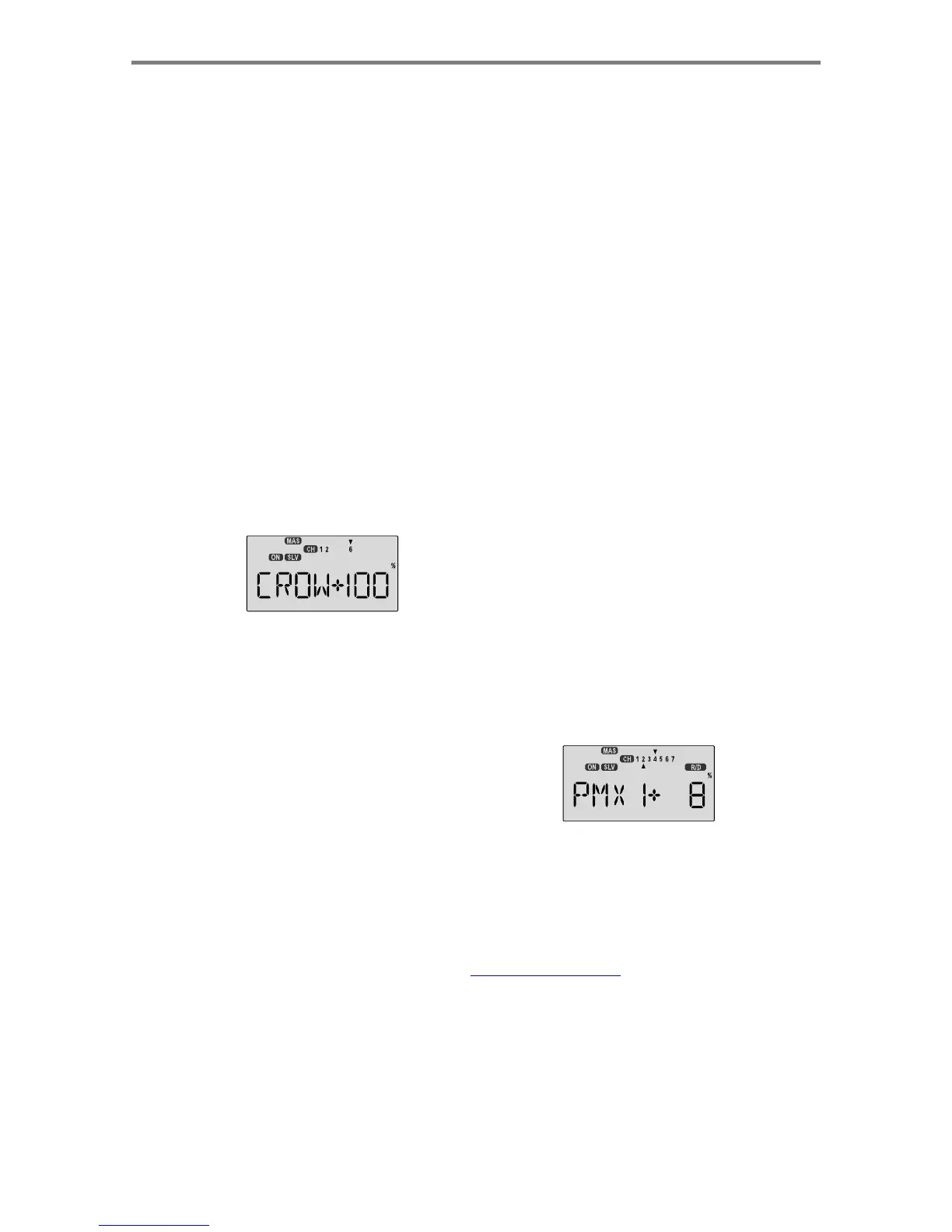
This
will
cause
the
INH
display
to
change
to
a
display
showing
100%,
Master
and
Slave
indicators,
and
a
flashing
ON
or
OFF
depending
on
the
position
of
the
ON-OFF
switch
that
is
selected.
See
the
Switch
Select
instructions
on
P.
39
for
information
on
how
to
select
the
ON-OFF
switch.
Be
sure
the
PMIX
is
ON
so
you
can
see
the
results
of
your
programming.
The
default
switch
for
PMIX
1
is
SW-3
and
default
for
PMIX
2
is
SW-1.
2.
Now
you'll
select
the
Master
channel
for
the
mixing,
the
channel
that
causes
the
mixing
to
occur.
Press
the
Cursor
Right
key
to
get
the
master
channel
indicator
MAS
flashing
on
and
off,
then
press
the
Data
+Increase
or
-Decrease
keys
to
move
the
top
arrow
over
the
number
of
the
desired
master
channel,
1
-
6.
A
irplane
Mode
l
Function
Description
s
-
Pa
g
e
38

Table of Contents

Other manuals for HITEC OPTIC 6

Related product manuals